
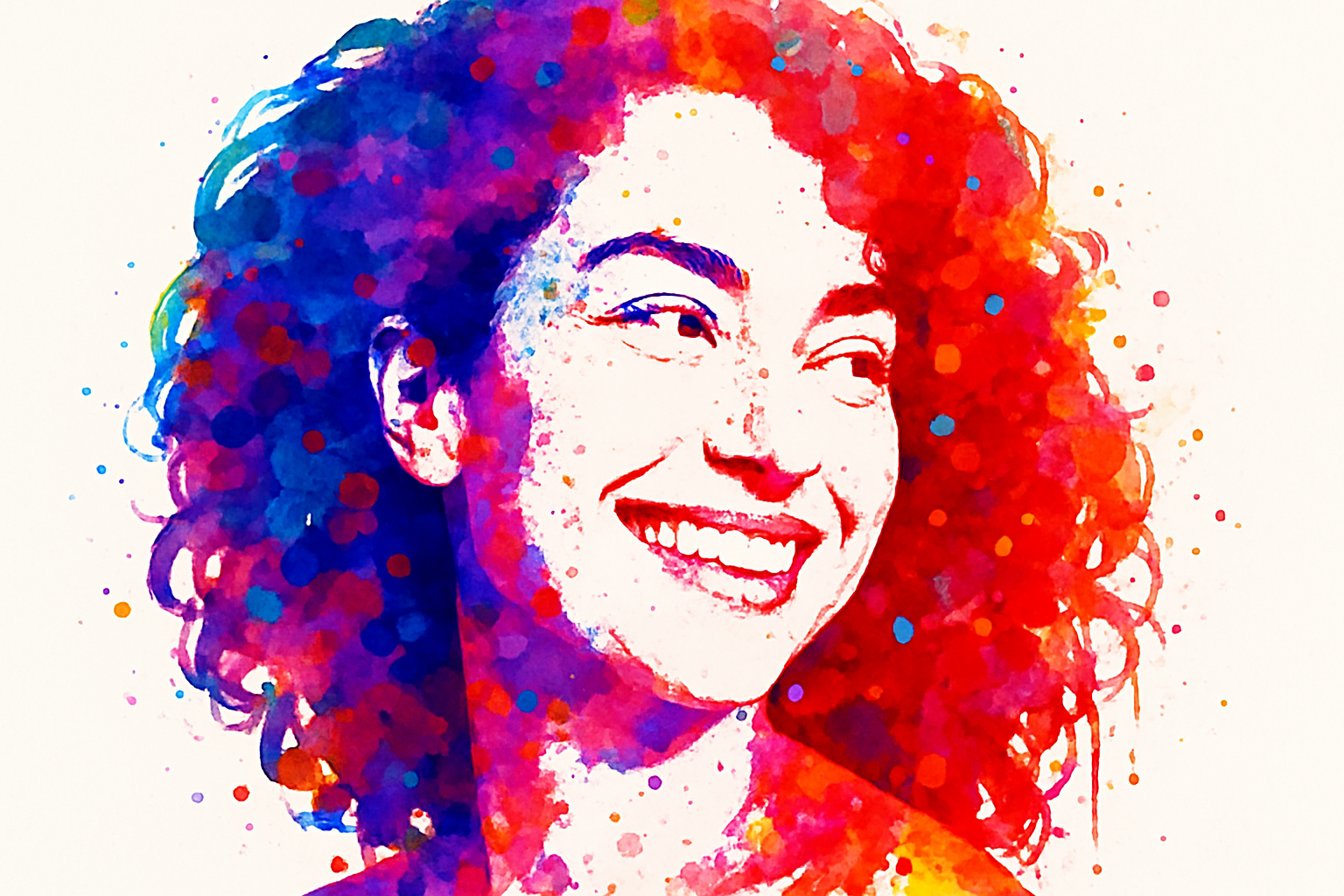
Unleashing Your Inner Pop Art Maestro with Paint and Pixels
What’s a better way to bring a bit of ’60s fun and vibrant artistry into your digital photos than transforming them into vivid paint splatter pop art? This tutorial will guide you through creating eye-catching pop art using Photoshop, with custom paint splatter brushes designed to give your photos a burst of color and a dash of rebellion. Imagine your regular, humdrum photo transformed into an Andy Warhol-esque masterpiece that practically screams to be framed and admired.
Getting Ready to Splatter in Style
Before you dive into the world of vibrant colors and chaotic designs, you’ll need the right tools—a set of 15 custom paint splatter brushes, which you can download from the video description or project files, are the key to achieving the retro splatter effect. So go on, make Jackson Pollock proud and set up your digital workshop.
Begin with a striking photo and get ready to unleash a plethora of colors and patterns. The separation of your subject from its background is your first task, and, luckily, Photoshop has your back with its selection tools. You can utilize the “Select and Mask” feature to neatly lift your subject from the mundane and prepare it for a colorful transformation.
Layer By Layer, Step By Step
Step one, craft a pristine white canvas (a layer in Photoshop lingo) for your art by creating a layer beneath your selected subject. This requires some simple keyboard relish, pressing D to reset your foreground and background colors followed by X if needed. Command or Control + Delete fills your new layer with a blank white abyss, just begging for some creative attention.
Once your blank layer is set, convert it into a ‘Smart Object’—now you’re playing with digital playdough, allowing for non-destructive editing as you apply filters. Opt for the Surface Blur filter to maintain edges while smoothing out noise, setting your radius and thresholds adaptively based on your image size.
High Contrast Dreams
Pop art thrives on stark contrasts; harness the power of the Threshold Adjustment filter to bring that to life. Flip your subject into a high-contrast black and white canvas, fine-tuning the threshold level for the perfect amount of silhouetted dynamism.
Now for some fun—collapse those smart filters to keep your layers panel neat and embark on your first splash of color. Using Photoshop’s brush tool and your downloaded paint splatter brushes, pick and play with vibrant pigments. Why stop at one? Load a symphony of shades into a new folder titled ‘Inside Colors’ and let your imagination run wild.
Coloring Outside The Lines
Sometimes you’ve got to let your creativity spill beyond the borders, and here’s where you add paint splatters that extend outside your subject. Create another set of layers exclusively for these wild elements—appropriately labeled ‘Outside Colors’—and get ready for some organized chaos akin to that one ‘messy room aesthetic’ we all secretly love.
Let your brush strokes bring your art to life, resizing, repositioning, and more important, playing with it until the color combinations feel just right. Remember, blend modes are your friends; toggle them for some unexpected and often spectacular results.
The Finishing Brush Strokes
As you near the masterpiece’s completion, realize that this tutorial isn’t about replicating art as seen but about channeling your inner pop artist. Transformations in hue, alignment, or blend modes—these are your expressions.
Want a dramatic night-time version? Switch that white background to a bold black, toggling your layers for even more contrast. The power rests in your digital brush toolkit and your own artistic intuition — let it guide you.
Incorporate these steps and approaches into your workflow, and Katz’s Law might need a rewrite: Pop art is easy; doing it in style is hard. Sure, James Bond wasn’t a painter, but even he never tackled paint splatter pop art mid-mission. Be the James Bond of Photoshop, and make every photo a splashy conversation starter.
This has been a comprehensive breakdown of how to transform your photos into colorful, exhilarating paint splatter pop art. Enjoy the creative journey, embrace any happy accidents, and most importantly—have fun making digital masterpieces!




