
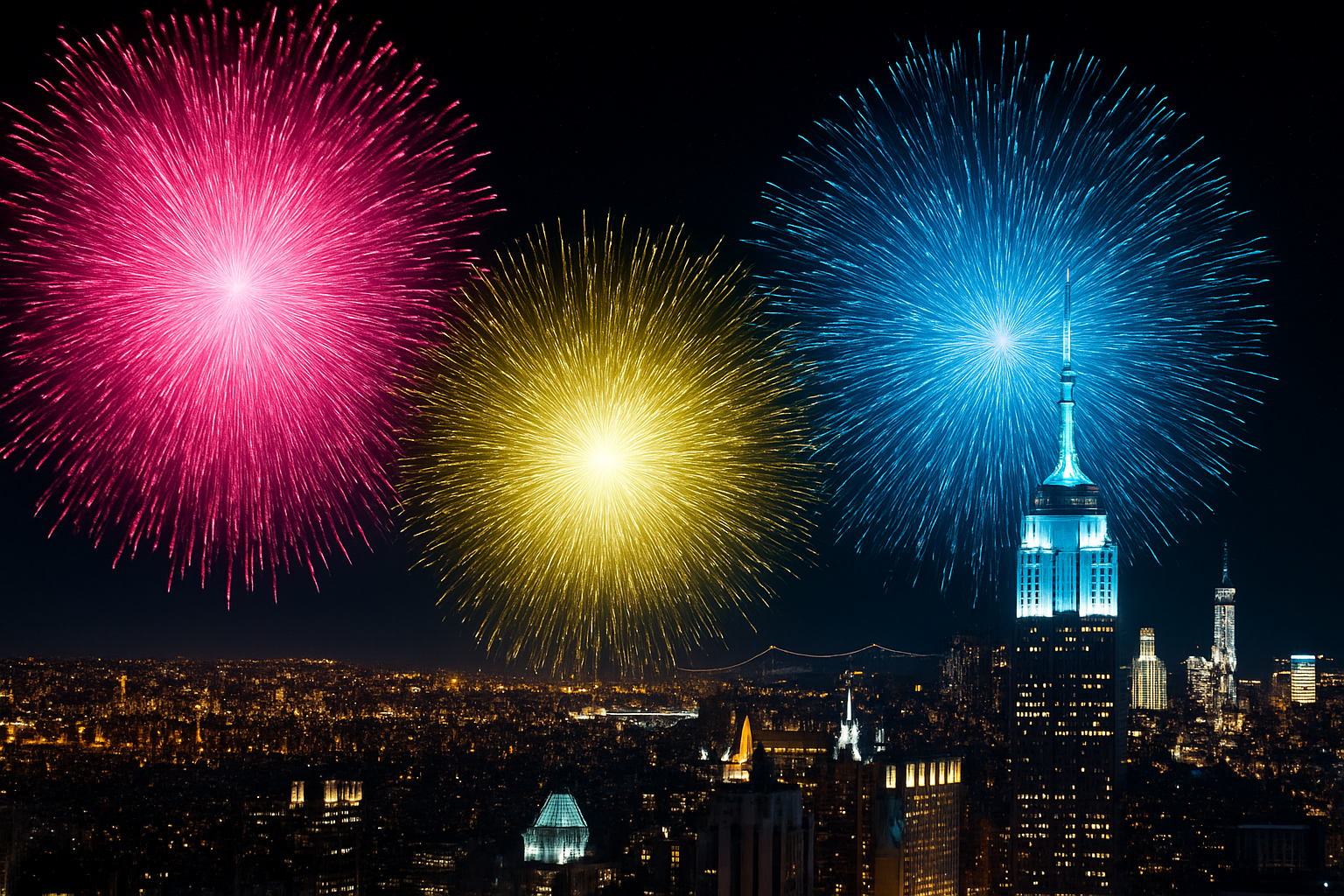
Explosive Creativity with Photoshop Fireworks
Have you ever gazed up at a night sky ablaze with fireworks and wished you could capture that wonder digitally? Fear not, digital artists, for today we’re delving into the process of creating fireworks in Photoshop. This technique is perfect for adding a burst of color and excitement to your designs. Whether it’s for a festive invitation, a digital art piece, or simply experimenting with vibrant effects, this tutorial will light the fuse on your creativity.
Crafting Your Digital Sky
To start, you’ll need a digital sky, ideally one that’s as dark as the midnight horizon. If you don’t already have one, our recommended night sky image is at your disposal in the project files. Once you have your starry backdrop ready, it’s time to ignite your Photoshop toolkit.
Setting the Stage: Canvas Preparation
Begin by creating a new document in Photoshop, setting both the height and width to 1000 pixels,
and adjusting the resolution to 300 pixels per inch. Ensure your color mode is RGB with 8 bits per channel,
and set the background to a rich, inky black. This is the canvas where your fireworks will come alive.
Molding Fireworks with Smart Objects
Transform your freshly prepared canvas into a Smart Object. This clever move allows for adjustments to be made to any future filter settings — think of it as your digital insurance policy. With your object smartened up, add some noise via the ‘Noise’ filter.
Make it a 20% Gaussian, monochromatic noise to give your firework its distinct sparkly texture.
Defining the Burst
Next, navigate to ‘Image’ adjustments and apply a threshold, setting it to 130. This step begins to mold the basic shape of your firework.
We then add a bit of drama with a stylized ‘Wind’ effect. Repetition is key! Apply the wind filter again to exaggerate the burst effect, ensuring the direction is set from the right.
Circular Motion for Fireworks
Your burst is nearly there. Rotate the image 90 degrees clockwise and apply the ‘Distort’ filter using the ‘Polar Coordinates’ option,
switching from rectangular to polar. This operation is the digital equivalent of shaping your firework into a dazzling circular pattern.
Enriching Details with Layers
To perfect the spectacle, we’re adding a touch of artistry by concealing unwanted radial lines that exceed the central burst.
Add a new layer, ensure your foreground color is black, and paint over those extraneous lines using a pencil set to around 25-pixel size.
You’ll feel like a digital Michelangelo chiseling out your masterpiece!
Color Me Pretty: Adding Glow and Color
What’s a firework if it doesn’t sizzle with vibrant color? Duplicate your smart object to explore different color styles without affecting your original design.
Adjust its blend mode to ‘Screen’ and use the transform tool to rotate it 45 degrees, offering a layered firework effect.
To change the firework’s color, get playful with gradient layers. Gradient presets like ‘White to Transparent’ can deliver that glowing effect at the center of your burst.
Switch the style to radial, apply a blend mode like ‘Linear Dodge’, and adjust opacity as desired.
Canvas Expansion and Final Touches
Expand your canvas to 1500 pixels, giving your fireworks some space to shine. For a fireworks show, you’ll want more than one.
Copy your smart objects, alter their gradients for varying hues, and scatter them across your digital night sky. Adjust their sizes and angles to create a vivid illusion of depth and diversity.
Enhancing the Scene
Don’t stop at just fireworks. Imagine these explosions of color backlighting a silhouette of city skyscrapers.
Position your digitally rendered fireworks over the skyline by dragging them into position.
This is where you inject your personal flair—resize, reposition, and layer them to evoke a bustling, joyous celebration.
As you mask various portions of fireworks that overlap buildings or other important elements, use layer masks strategically.
Remember, experimentation is at the heart of any creative process.
The Grand Finale
And there you have it—a sky brimming with digital fireworks poised to wow your audiences.
This exercise not only teaches skills but also enhances your knack for using Photoshop’s vast capabilities.
Now that you know the tricks, feel free to make your explosions larger than life, adding unique styles and colors with mods like Smart Objects, Blending Modes, and creative gradations.
In this world of infinite digital possibilities, the two-dimensional sky’s no longer the limit!





