
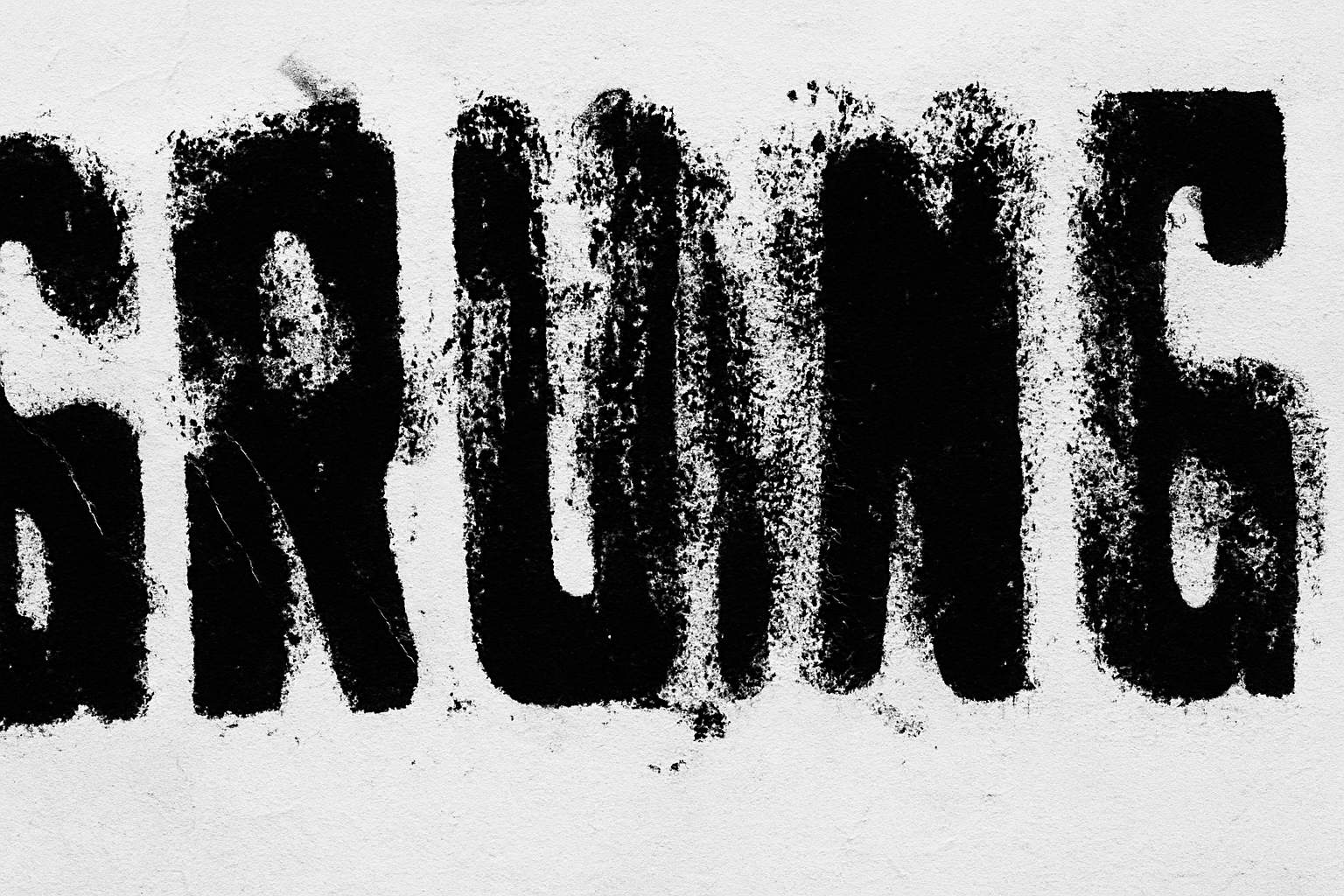
Give Your Text an Edgy Grunge Aesthetic
So, you want to add some serious grime to your fonts and turn your everyday text into grungy, gritty masterpieces? Well, step right up because today we’re diving deep into the art of creating distressed grunge text using Adobe Photoshop. Why stick with basic when you can sprinkle a bit of grunge magic and make your typography pop with character? Grab your digital toolbox, and let’s get into it!
Essential Tools and Layers
To kick things off, the tutorial provides a handy Photoshop template packed with three layers designed for crafting your grunge text. These include:
- High-Contrast Texture: Perfect for the inside portion of your text.
- Distressed Paper Background: This will cradle your text—imagine it as the slightly crumpled paper backdrop that sets the tone.
- White Background: The starter canvas for your creative outburst.
Also, you’re armed with a grungy texture that doubles as a displacement map to warp your text just right, making it appear worn-in and rugged. The choice of typeface? “Phenomicon Condensed,” known for its heavy, bold demeanor.
Selecting Fonts and Setting the Stage
In the grunge realm, font choice is crucial. Thick, heavy fonts yield the best impact when distressed. Open up your Horizontal Type Tool and Type Picker, and select the ideal font for this mission. Adjust the size to suit your text—large fonts with smooth aliasing help lay the groundwork for a convincing distressed look.
Remember, while alignment isn’t too concerning here, centering your text will make life easier as you venture further into grunge-land.
The Power of Smart Objects and Non-Destructive Editing
With your text set, convert it into a Smart Object. This magical step allows for easy modification down the line, sparing you from redoing effects if you decide to make a change. Simply click the icon at the top right of the Layers panel and select “Convert to Smart Object.” Voilà! You’re now working non-destructively.
Adding Blur for Texture
Time to head to the Filters. Navigate to Filter > Blur > Gaussian Blur and set the blur radius to around 25 pixels. This softens your text, making it more receptive to upcoming effects.
Threshold to Grunge
Add an Adjustment Layer and select “Threshold.” Dragging the slider alters the thickness, introducing a gritty aesthetic into your typography. Opt for a level that seems right (e.g., set it at 75) to boost the visual texture.
Distorting with Ripple
Unleash distortion by visiting Filter > Distort > Ripple. Try an amount like -45 and choose a large size to give your text that roughened edge.
The Displacement Map Magic
Here comes the grit—apply a displacement map by navigating to Filter > Distort > Displace. Set horizontal and vertical scales around 20, ensuring “Stretch To Fit” and “Repeat Edge Pixels” are selected. Once you open the displacement texture PSD, watch as your text transforms into a masterpiece of grunge.
Integrating with a Distressed Background
Next, nestle your chaotic creation onto a distressed paper texture. Use the Channels panel to select your text, invert the selection, and fill it with black on a new layer to see your text distressed perfection against the paper backdrop.
Adding the Final Grunge Texture
Make the inside texture layer visible and hover between it and your text layer. Holding down Alt or Option, click to create a clipping mask that restricts grunge texture to just your text area.
Feeling fancy? Go to Layer > Create Clipping Mask or opt for the shortcut: Ctrl + Alt + G on Windows or Cmd + Option + G on a Mac. Toggle this layer to witness the stark difference in texture.
Embrace the Grunge Madness
And there you have it! With a few strategically used techniques, basic text evolves into a grungy, textured masterpiece. Whether you’re designing for a rock band’s tour poster, a moody coffee shop menu, or an indie album cover, distressed grunge text adds an edge that basic fonts just can’t compete with.
Indulge in the grunge revolution and transform your typography game. Remember, the world is your canvas, and sometimes a little distress is all it takes to leave a lasting impression. Keep the creativity rolling, and happy Photoshopping!





