A Textual Delight: Turning Photos into Portraits with Words
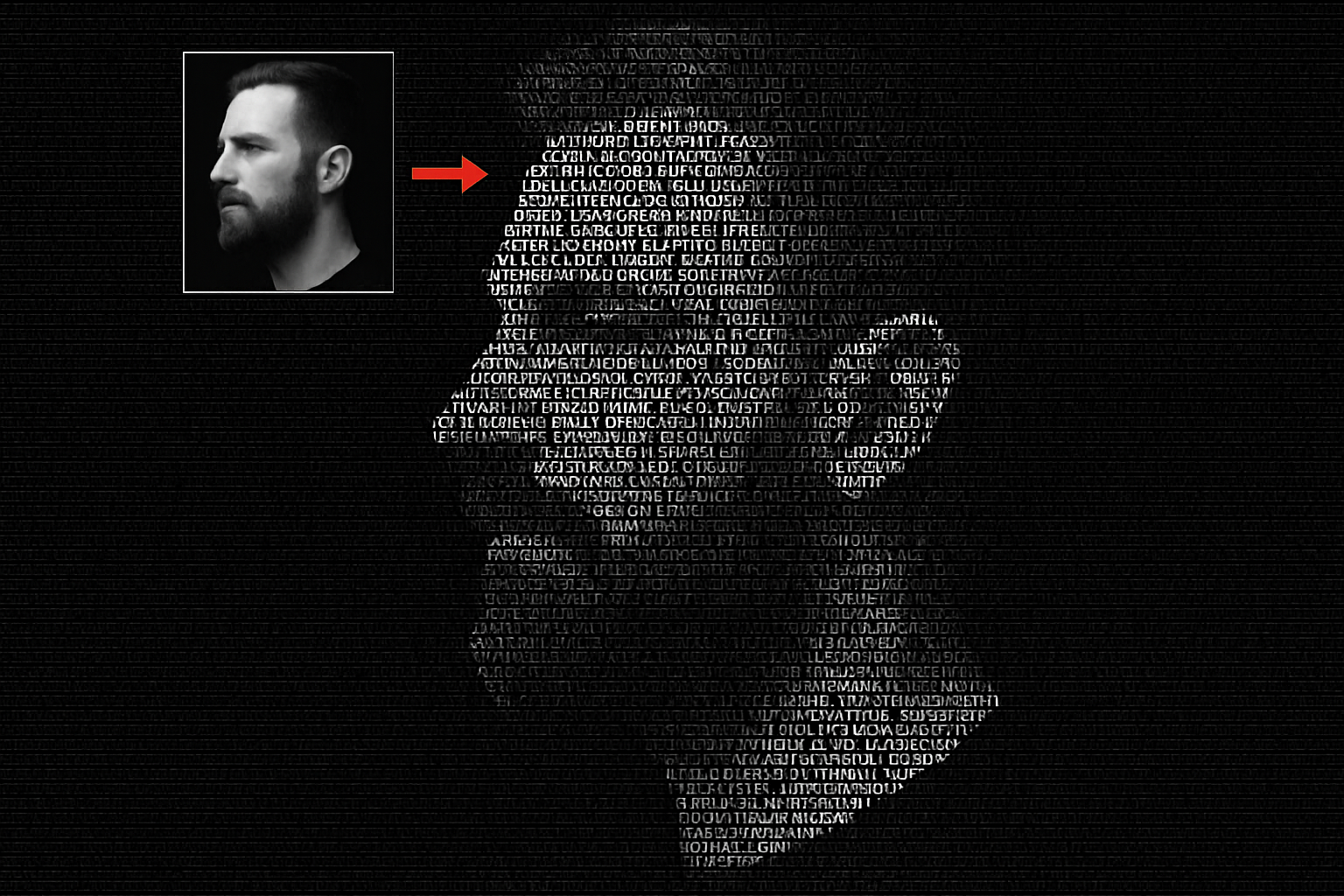
Ever found yourself typing out an email and thought, “Hmm, I wish I could turn this boring ol’ text into a powerful piece of art”? Okay, maybe not. But transforming regular headshots into compelling portraits made entirely of text is an opportunity that appeals to every Photoshop aficionado. Dive into this unique artistic technique that lets you blend visuals and typography into a mesmerizing image. It’s a snarky nod to creativity, allowing us to use a boring document as tools for an extraordinary visual feast.
The Process: Basics of Transforming a Photo to Text Portrait
Let’s get started with the basics. First, you’ll need a captivating headshot. You can grab one from sources like Shutterstock. Once acquired, cropping is your first action—open the Crop Tool and clear any existing measurements. Set your width; 2000 pixels is suggested, though you can improvise. Opt for a resolution between 72 and 300 pixels per inch and, most importantly, ensure ‘Delete Cropped Pixels’ is checked. This prevents those pesky displaced text issues later on.
After cropping comes separating your subject from the background. Adobe’s “Remove Background” feature is a neat tool for this, found in the Properties panel. Pro-tip: Soft and feathery areas like hair might not work perfectly with auto remove—manual refinement with the Quick Selection tool is an optimal approach.
Pseucdo Haircare: Refining & Masking
Once isolation is achieved, let’s talk about that lovely mane your subject might be sporting. “Select Subject” in Photoshop helps you delineate edges. For hazy areas like hair, Photoshop’s “Smart Radius,” found under ‘Select and Mask’ or ‘Refine Edge,’ ensures smoother transitions. Make sure to check ‘Decontaminate Colors’ to avoid color fringing—this isn’t the rainbow effect you wish for your photos!
Crafting the Base: Layers & Levels
First, create that painterly black layer underneath by Ctrl or Cmd-clicking the new layer icon.
Ensure your colors are set to default by pressing “D” and fill with black (Ctrl + Alt + Delete your way there). Now to the top—the Adjustment Layer icon will assist you in creating a ‘Black & White’ layer. Added bonus? A vignette effect to gracefully frame your subject, accessible with the Elliptical Marquee Tool and some feathering magic (150 pixels is a worthy choice, but adjust based on document scale).
Textual Influence: Adding Words to the Canvas
Insert your literary creation—be it lyrics, a poem, or a literary masterpiece. Highlight and copy your text, ensuring it’s pretty and without line breaks. Paste it into your document using the Horizontal Type Tool, semantically framing the text to reflect your subject’s grandeur.
Font choice is next: “American Captain” was used in the tutorial, but it’s a carte blanche for your creativity. Use the “Character” panel to adjust size, leading, and baseline. These adjustments can artistically enhance the alignment and flow of your textual narrative.
Text Subsumed: Displacement & Advanced Layer Techniques
With a blurred beauty (Gaussian Blur, anyone?), create a displacement map from your cat—or image. Craft this as a PSD file called ‘Displacement,’ and use it to distort the text layer by applying the ‘Displace’ filter under the Distort category. Result? Words ever-so-slightly hug the contours of your model’s form.
Clip your image neatly onto the text, utilizing Photoshop’s Clipping Mask options. Want to adjust intensity? The ‘Levels’ adjustment layer is your knight in shining armor. Fiddle with Input Highlights and Midtones until you achieve the perfect balance of depth and dimension.
Color & Vision: Adding Final Flourishes
Adjust the color as per your preferences via ‘Solid Color’ adjustment layers—hex codes anyone? How about 8BCFFF for a cool touch? There’s ample freedom here to toy with opacity and layers to reach the desired state.
Finally, take a minute to marvel at your creation. That’s the dangerously delightful combination of photography and text working magic.
Achieving this level of mastery in Photoshop may seem daunting, but with a touch of humor, dollops of patience, and this guide, you’ll be crafting art that speaks—not only through images but through the choice of words themselves.