
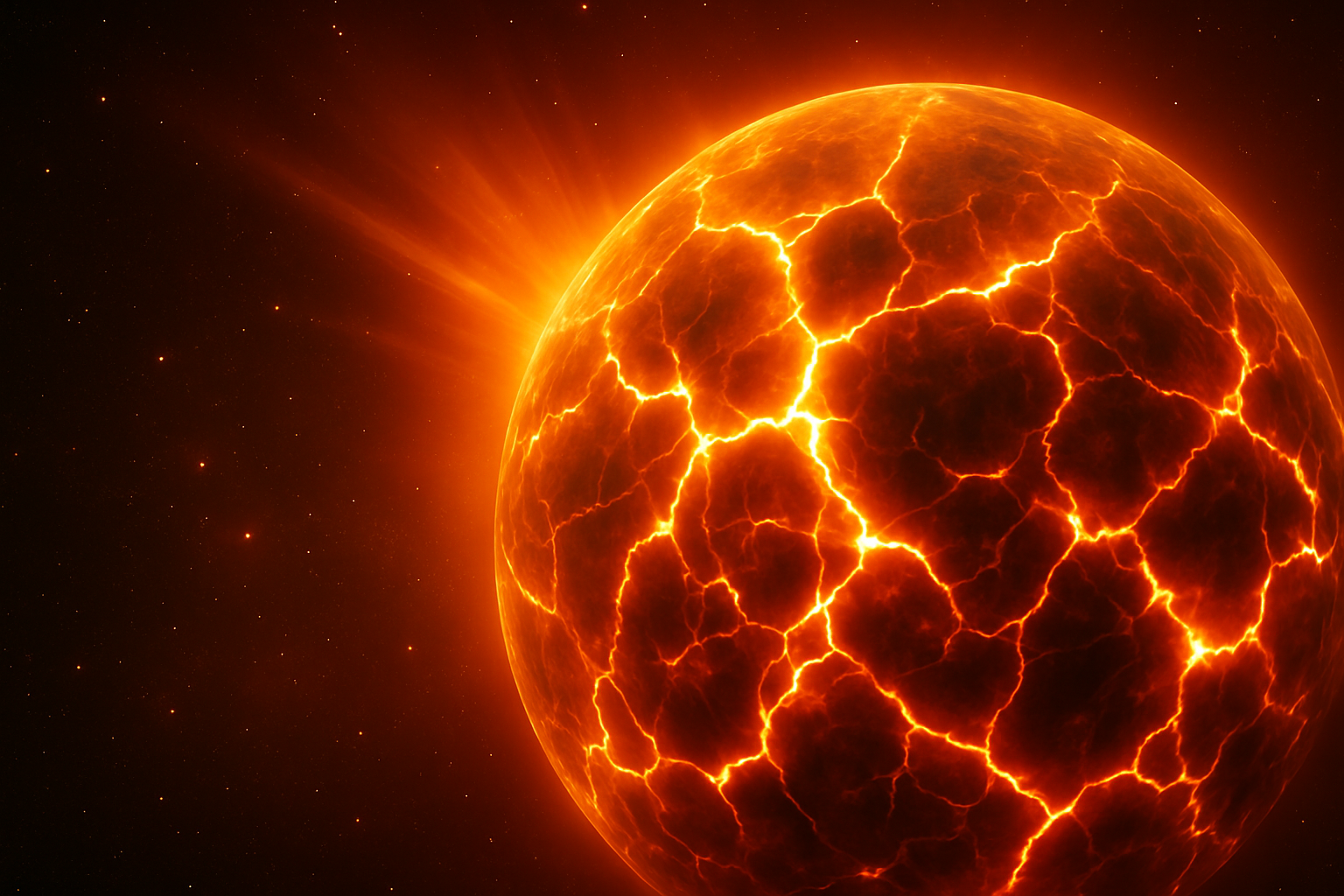
Ever wanted to create an apocalypse in your digital universe? Here’s your chance.
Digital artists, brace yourselves! Today, we’re diving into a cosmic explosion of creativity—or rather, an exploding planet effect with Adobe Photoshop. Imagine capturing the dramatic dismantling of a celestial body, complete with fiery cracks and radiant glows. Whether you’re aiming to incorporate this into a project or simply want to boost your Photoshop prowess, this tutorial delivers. Let’s break down this jaw-dropping effect step by step.
Setting the Stage for Destruction
Creating the home for our cataclysmic event begins with prepping the starry background that will frame our exploding planet. Here’s how you start:
- Hit Ctrl/Cmd + N or navigate to ‘File’ > ‘New’ to create a document with dimensions 2500×1500 pixels.
- Ensure the resolution is 150 pixels per inch, using RGB Color Mode and a bit depth of 8 bits.
- Set a deep, void-like black as your background color to accent our sparkling space.
Convert this dreary void into a stellar Smart Object, allowing you to tweak the star details without breaking a sweat. Go ahead and add some Noise (100%, Gaussian, Monochromatic), and blur it gently with a 0.5-pixel Gaussian Blur. Use the ‘Levels’ adjustment to make those twinkling stars manageable.
From Texture to Terrain: Crafting the Planet
Remember those textures mentioned earlier? These textures—cracks and stone—are what will bring the crumbling planetary surface to life. They’re ready-to-use in a provided Photoshop document.
- Open the “Exploding planet textures” PSD file and spherize both the ‘Cracks’ and ‘Stone’ texture layers for that authentic planetary curvature.
- Once formed, use an elliptical marquee to cut a clean circle from your sphere layers. This will be your planet’s base.
For effect authenticity, blending is key. The Linear Burn mode strikes a balance in merging textures. Don’t forget to manage layers into Smart Objects to control the attributes once compositing starts.
The Fiery Finale
It’s showtime, folks! Bringing this planet to its climax involves some intricate glow settings. We’re talking both inner and outer glows in colors drawn from the hottest fires of destruction—think reds and yellows reminiscent of lava and brimstone.
- Add Outer Glow effects with a vivid FF3600 hex color, and complement it with Inner Glows and Shadows focusing on lighter tones (FFBB04). Tweak your Layer Style settings to enhance the fiery aura enveloping the planet.
- Apply the contrast just right to bring out the highlights and shadows.
- Use Gaussian Blur on a duplicated sphere layer to create subtle hints of the planet tearing apart from within.
The result? A sphere glowing with impending doom, nestled perfectly in your starry cosmos.
Bringing it all Together
Creating is an iterative process. Throughout this explosive journey, keep your layers organized so that you can inch towards perfection without losing your composure. Group your layers wisely in case you need to toggle visibility or make changes. It’s not just about aesthetics; it’s about constructing a visual narrative that viewers can extrapolate from.
Remember, creativity paired with technical know-how can unlock wonders, and this exploding planet effect is a testament to that. Enjoy the creative destruction and endeavor to forge more visual spectacles in your digital artress. The universe—or at least your creative hardware—is your oyster. Use it wisely!
Whether you’re a Photoshop novice or seasoned pro, tackling cosmic scale challenges like this not only hones your skills but also expands your creative repertoire. Ready to see your digital universe burst at the seams? Dive right in and unleash your cosmic creativity!
Wikipedia may hold facts and figures about space, but here you weld the forces of creative destruction into a cohesive digital masterpiece. Happy Photoshopping!





