
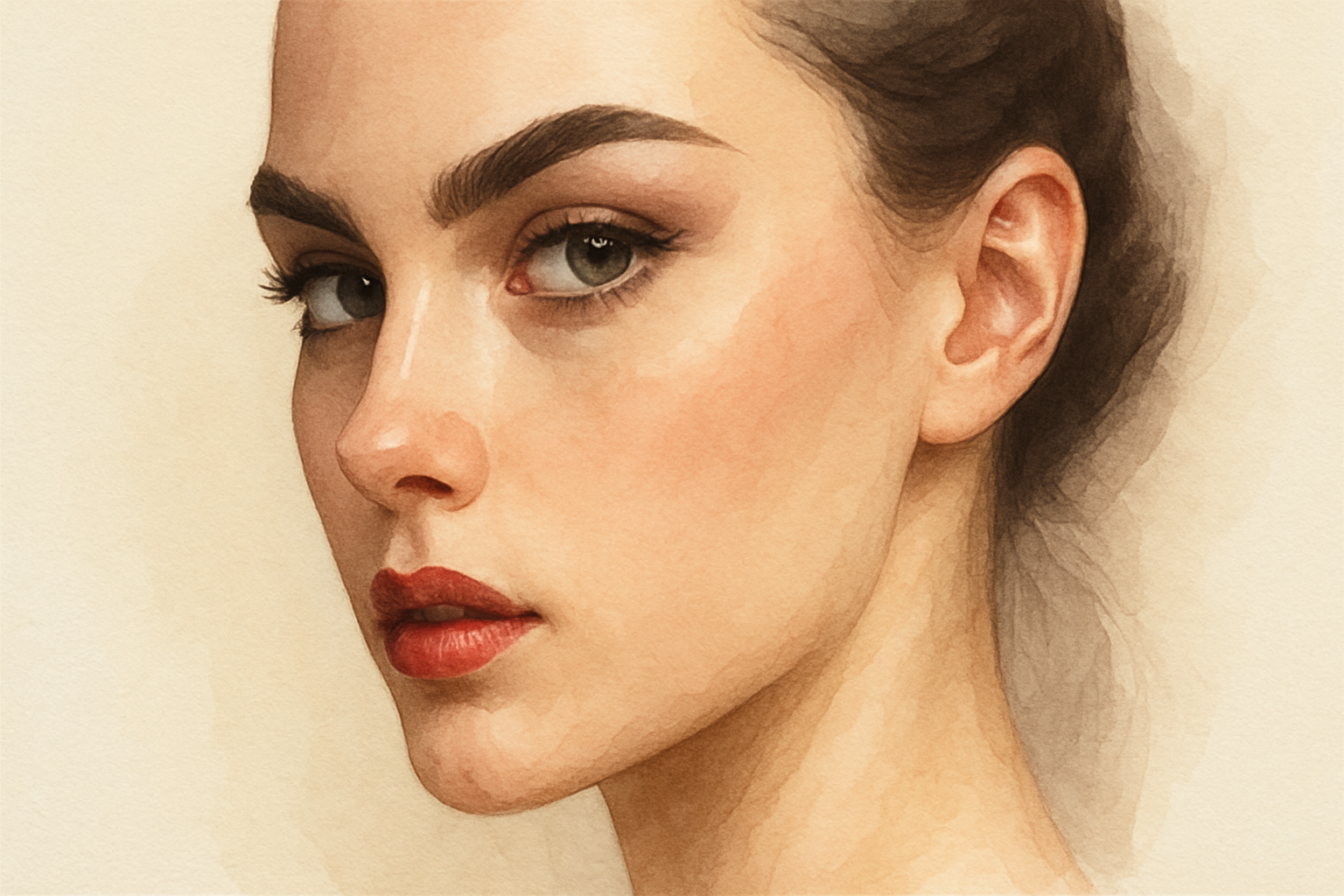
Learn the secrets of creating stunning mixed media portraits in Photoshop.
Let’s dive headfirst into the realm of mixed media portraits using Adobe Photoshop—a world where art meets creativity, and where your photos burst forth in stunningly artistic new forms. With the magic touch of non-destructive editing, we’re going to transform ordinary images into captivating mixed media art pieces. Thanks to tools like smart objects and brush stroke filters, not only can you unleash newfound creative possibilities, but you’ll also do so efficiently. All this, without compromising the flexibility to swap in different images at any time.
Wix: A Shoutout to Our Creative Partner
Before we embark on this artistic journey, a quick nod to our partner in crime—Wix, the go-to website building platform that’s as friendly as an old pal and as stylish as the hippest art gallery opening. With Wix, you can start creating your website with zero coding skills required. Choose from a vast array of templates, each as customizable and unique as your mixed media portraits will soon be!
Creating a Mixed Media Portrait: Step-by-Step
Embrace Textures and Patterns: The Building Blocks
First things first—textures and patterns are your new best friends. We’ll begin by selecting some foundational images. In this guide, two images are pivotal: one to serve as our texture and another to create a unique paper pattern.
- Texture: A background image that lays the artistic groundwork.
- Paper Pattern: Adds depth and layering, breathing life into your final portrait.
To define your paper pattern in Photoshop, simply navigate to Edit > Define Pattern. Later, we’ll integrate this pattern into our work seamlessly.
Unlocking and Preparing Your Workspace
Once your initial image is set in the layers panel, unlocking and customizing it becomes key:
- Unlock the layer: Click the lock icon to allow changes and customization.
- Create a New Background: Add a new layer below and fill it with white to serve as your canvas backdrop.
Gradient Effects: Laying the Scene
With your background set, it’s time to inject some moody lighting using gradient effects:
- Select Gradient: Choose a black-to-white gradient to bring a soft, atmospheric touch, crucial in the mixed media aesthetic.
- Customize Settings: Style as radial, set the angle to 0°, scale to 250%, and check ‘reverse’. Voila! The perfect gradient mood.
Adding Your Subject
Now, here’s where the personality shines: importing your subject photo. This should be sharp, clear, and well-lit to maximize the end result.
- Convert to Smart Object: Ensures non-destructive editing and future flexibility.
- Resize and Reposition: Using the transform tool (
Cmd/Ctrl + T), make adjustments to fit your canvas perfectly.
Artistic Filters: Unleash Your Creativity
This part is where things get über artistic. Dive into the filter gallery:
- Choose Crosshatch: Located in the Brush Strokes folder, playing with stroke length and sharpness brings texture and characterization.
Positioning: Make It Your Own
To position your subject within the textural framework:
- Channel and Masking: Use channels to ensure precise texture selection, resulting in a spot-on mask that wraps around your subject like magic.
Final Touches with Patterns and Levels
With the portrait base and filters applied, it’s time for finishing touches:
- Apply and Adjust Pattern: Using pattern overlay, implement your earlier defined pattern. Subtleties like scale and blend mode (hello, Linear Burn) add that extra oomph.
- Adjust Levels: A quick pass through levels adjustment can brighten the outcome, ensuring every detail pops with a creative glow.
Updating Subjects: Swap Creativity On-the-Fly
One of the most game-changing aspects of this workflow is its flexibility. Wish to swap your subject? No need to redo the entire process:
- Smart Object Swap: Double-click to open the source, replace with a new image, adjust the positioning, and save.
- Magic Happens: Like clockwork, the new image pops into your masterpiece, fully adorned with all effects intact.
In conclusion, why not let every portrait reflect not just a face, but a statement? With this mixed media technique, you’re set to craft pieces that are as unique and layered as your imagination allows. So, go ahead, try different subjects, play with patterns, and watch your photography turn into spellbinding art. All with a few clicks, thanks to the power—and occasional snark—of Photoshop.
Now it’s your turn: unleash the creator within and let your portraits narrate a story like never before. Enjoy!





