
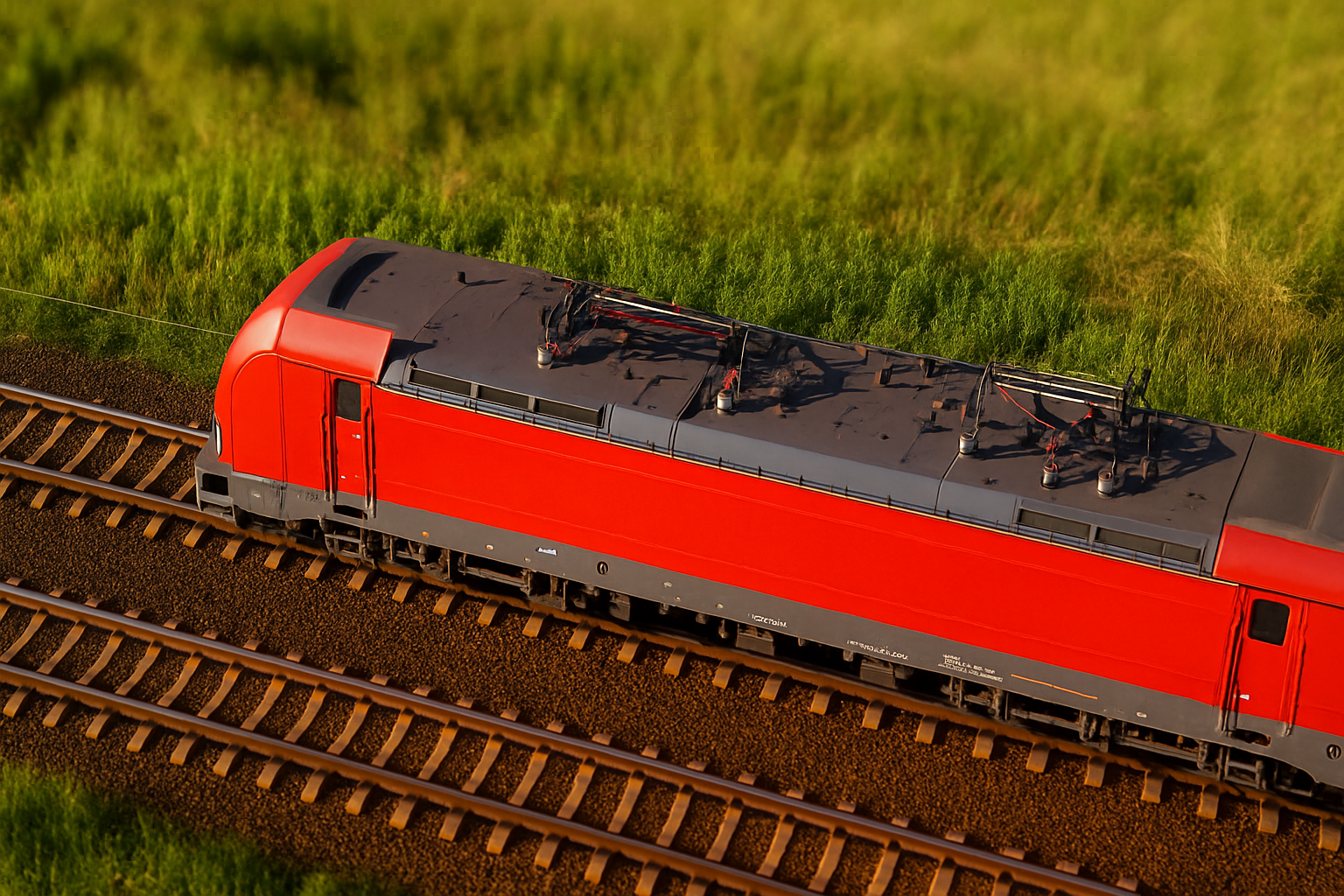
Turn Your Photos into Miniature Toy Scenes
Ever wondered how to bring a whimsical twist to your regular photos, turning them into something straight out of a toy store? Enter the magic of Photoshop’s tilt-shift filter! This tool, which first made its appearance in the Creative Suite 6 (CS6), allows creative souls like you to transform mundane snapshots into captivating miniature scenes with customizable depth of field. Before we dive in, let’s embed the video tutorial so you can visualize this enchanting process.
Why Tilt-Shift? The Magic of Miniaturization
The tilt-shift effect has gained a cult following thanks to its ability to make real-life scenes appear as if they’re part of a miniature model world. This effect plays tricks on our perception by simulating a narrow depth of field, much like what one might see when photographing actual tiny objects up close.
A great starting point is selecting a photo taken from a slightly elevated angle, looking down at the subject. This perspective, combined with the tilt-shift filter, emphasizes the illusion of miniaturization, making the original scene look like a tiny toy set with its minuscule figurines bustling about.
Getting Started in Photoshop
Here’s a step-by-step guide to achieving that coveted miniature look using Photoshop’s tilt-shift filter:
1. Choose Your Image: Open a landscape or cityscape photo that you’d like to convert into a miniature wonderland. Optimal results are often achieved with images captured from an elevated perspective, where the entire photo is in focus.
2. Access the Tilt-Shift Filter: Navigate to Filter > Blur Gallery > Tilt-Shift. If you’re using an older version of Photoshop (CS6), you’ll find it under Filter > Blur.
3. Focus Adjustment: Position the tilt-shift controls over the part of your image which should remain sharp. To do this, drag the center point of the widget to your target area. Think of it like choosing which part of your scene the viewer’s eyes should feast upon.
4. Control the Blur: Adjust the blur intensity by rotating the outer ring of the widget or using the blur slider. Moving the solid lines closer or further from the center alters how much of the image appears focused.
5. Define Transition Areas: The space between the solid and dashed lines represents areas where blur gradually increases. Experiment with these lines to control where full blur begins.
Adding the Final Flourishes
For those looking to add a touch of realism through distortion effects often seen in macro photography, Photoshop has you covered:
- Use the distortion slider to add a zoom effect, thereby simulating lens anomalies found in close-up photos. The symmetric distortion option ensures the effect is uniform across both the top and bottom parts of the image.
- Play with the vibrance of your photo to mimic the bright, colorful appearance often associated with toys. Simply go to the adjustment layers icon and select “Vibrance,” then maximize the vibrance slider.
Bringing Light to the Scene: Adding Bokeh Effect
For an added touch of fantasy, replicate the dreamy look of light flares with a bokeh effect. This technique replicates how light scatters in an actual lens, which is a staple in macro photography.
- Choose a photo with existing points of light that can be enhanced. Access the tilt-shift filter, focusing where needed and increasing or decreasing the blur.
- Use the “Light Bokeh” sliders to adjust the intensity of these light spots, adding depth and intrigue.
With these tweaks, your once everyday photo blossoms into an enchanting miniature world, each element playing its part in the play of light, shadow, and blur.
Final Thoughts
Creating the look of a miniature toy world requires a blend of artistic vision and technical skill. As the digital realm expands, so too do our creative possibilities, and Photoshop’s tilt-shift filter is a testament to that potential.
So grab your favorite photo, fire up Photoshop, and unleash your inner diorama maker. And remember, in the world of creative editing, boundaries are just an illusion. The real magic lies in how you choose to blur those lines. Happy miniaturizing!





