
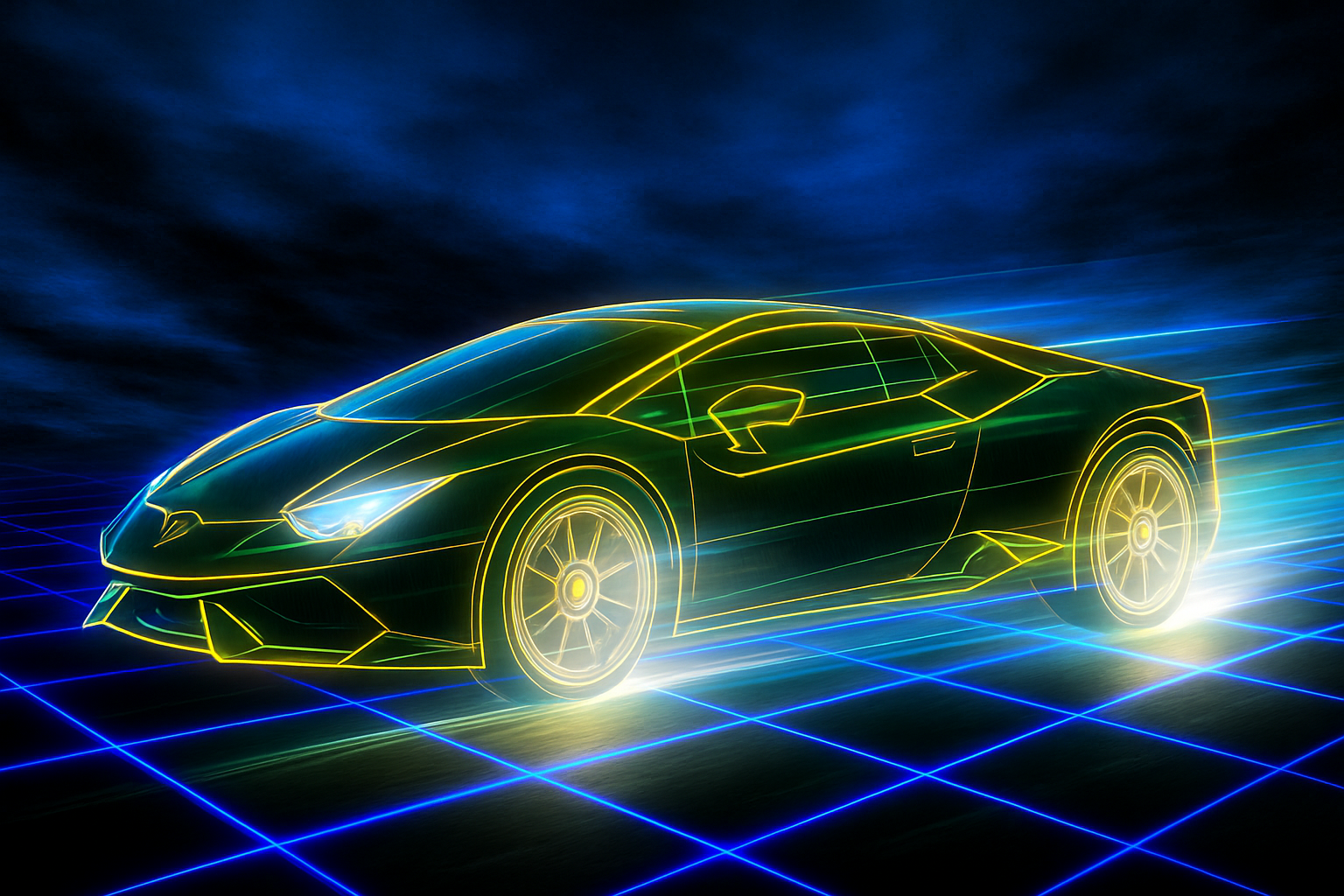
Dive into the Retro Sci-Fi World of Tron
It’s time to take a step back into the 1980s, a time when visuals in cinema like those seen in the classic movie “Tron” captured imaginations and set viewers on a journey through digital landscapes. Today, we’re going to recreate that iconic retro look using Photoshop, enhancing our skills while reminiscing about the past. In this second part of our homage to Tron, we delve deeper into perfecting that sci-fi aesthetic.
Perfecting the Grid and Perspective
In our journey to recreate the Tron look, a significant element is the grid—a staple in retro futuristic art design. We start by merging our layers and ensuring our grid is perfectly positioned. This seemingly simple task demands precision because even the tiniest misalignment could disrupt the illusion.
- Merge Layers: Begin by merging your layers. This is as simple as selecting them and pressing
Ctrl/Command + E. - Create a Base Layer: Instantly create an underlying layer by
Ctrl/Command-clickingon the new layer icon, filling it with black (Alt/Option + Delete). - Adjust the Grid: With the grid active, rotate it 45 degrees, lock the aspect ratio, and adjust the size to match the canvas. Remember, Photoshop is your playground—use
Ctrl/Command + Tto bring up the transform tool to perfect the angle and size.
Cropping and Resizing – Fitting Your Image to Perfection
Once your grid extends beyond the document boundaries, trimming these edges is essential to maintaining the polished look of your creation. Using the transform and crop functions is invaluable.
- Crop Your Image: No one likes a messy edge. Use
Ctrl/Command + Afollowed by Image > Crop to refine it. - Fine-Tune the Grid: Zoom out, open the transform panel, and adjust your anchor points until everything fits snugly.
Adding Atmospheric Effects
The Tron universe isn’t flat—it’s vibrant and stormy with dramatic flourishes that catch the eye. Let’s add some drama with a stormy sky and strategic color overlays to bring the image to life.
- Create the Sky: Using your trusty layers panel, change the blend mode to linear dodge to align with Tron’s stark, bright aesthetic.
- Render Clouds: Remember, contrast is key. Hit up Filter > Render > Clouds to produce that digital atmosphere.
- Difference Clouds and Linear Dodge: Keep repeating the Difference Clouds effect until you achieve your desired level of storminess.
Adding the Cutout Subject
Your subject is your Tron hero, poised against the digital backdrop. Let’s blend them seamlessly into the scene.
- Import Your Subject: Drag and drop your subject from another document, positioning it carefully using the move tool while holding shift.
- Making Layer Masks: Layer masks are the secret to professional image editing. Create by
Ctrl/Command-clickingon the subject layer thumbnail, removing any extraneous backdrop.
Stylizing with Color Overlays
Colors define the mood of every scene in Tron’s universe. Here’s how to customize your grid with color overlays and glowing effects.
- Select Your Colors Wisely: Use the color overlay function to pick that signature Tron neon blue—inputting hex codes can give you precise control.
- Add Outer Glow for Extra Drama: Choose a matching darker shade to make your grid pop—it’s those subtle enhancements that make all the difference.
Creating and Enhancing Reflections
Reflection in your virtual floor can make your sci-fi scene look more dynamic and authentic. Here’s how to simulate this effect effectively.
- Duplicate Your Subject: Make a copy and flip it vertically. Position it to simulate a mirror image effect.
- Blur for Realism: With editing tools like path blur or motion blur, simulate movement and depth in your reflection.
Final Touches
As with all artworks, the final touches make all the difference. Adding a Hue/Saturation adjustment layer over the entire composition will unify your visual elements, tying the scene together and giving it that final touch of the Tron universe.
- Colorizing Your Scene: Check ‘Colorize’ in the Hue/Saturation options to envelop your setting in a uniform color cast—essentially painting your fantasy.
- Amplify the Digital Aesthetic: Boost saturation to the max for a vivid and intense color palette that screams digital dystopia.
We’ve traversed the steps necessary to bring Tron’s futuristic realm into your Photoshop workspace, opening the door to endless sci-fi possibilities. In a way, learning these skills drives us to explore digital creativity further, transcending the basic and entering into a neon-filled dimension that gleams with inspiration. Whether you’re a nostalgic enthusiast or a sci-fi aficionado, using these steps will elevate your Photoshop game, propelling you into a world where imagination and technology meet.





