Delve into the Dark Arts of Photoshop with Texture and Lighting
If you've ever wanted to take your photo editing game into a chilling, yet artful realm, you're in for a treat. Imagine transforming your basic image into something that screams "scary dungeon." With Photoshop's blend modes, effects, and brushes, you can achieve a dark and textured environment that feels as though it were ripped straight out of a horror movie. Whether you're designing a project for Halloween or just channeling your inner goth, this tutorial will show you how to turn mundane visuals into a masterpiece of macabre. And of course, it's all about having fun with your creativity.
Crafting the Dreadful Look
The essence of this tutorial lies in creating a textured dungeon wall as the backdrop of your photo. Starting with a document at 1280×720 pixels, we get to play with layers, smart tools, and chilling textures. First, it's essential to revisit some classic Photoshop shortcuts that will make your editing journey smoother.
Start by hiding any unnecessary layers. For example, to make a composite snapshot, press Control + Shift + Alt + E (or Command + Shift + Option + E for those on a Mac). Handy, right? This lets you capture what you see on screen into a new layer without flattening your image.
Manipulating Light and Shadow
Next, dive into the shadows — literally! To give your image that dungeon-like feel, utilize Photoshop’s “Lighting Effects” feature, which can be found under the “Filter” menu. Choose the “Spot” option to create a harsh, intense spotlight effect that will dynamically interact with the textures you'll be adding later. Adjust the intensity to around 52 and tweak the Hot Spot until it looks both eerie and natural.
Concealing Unwanted Shadows
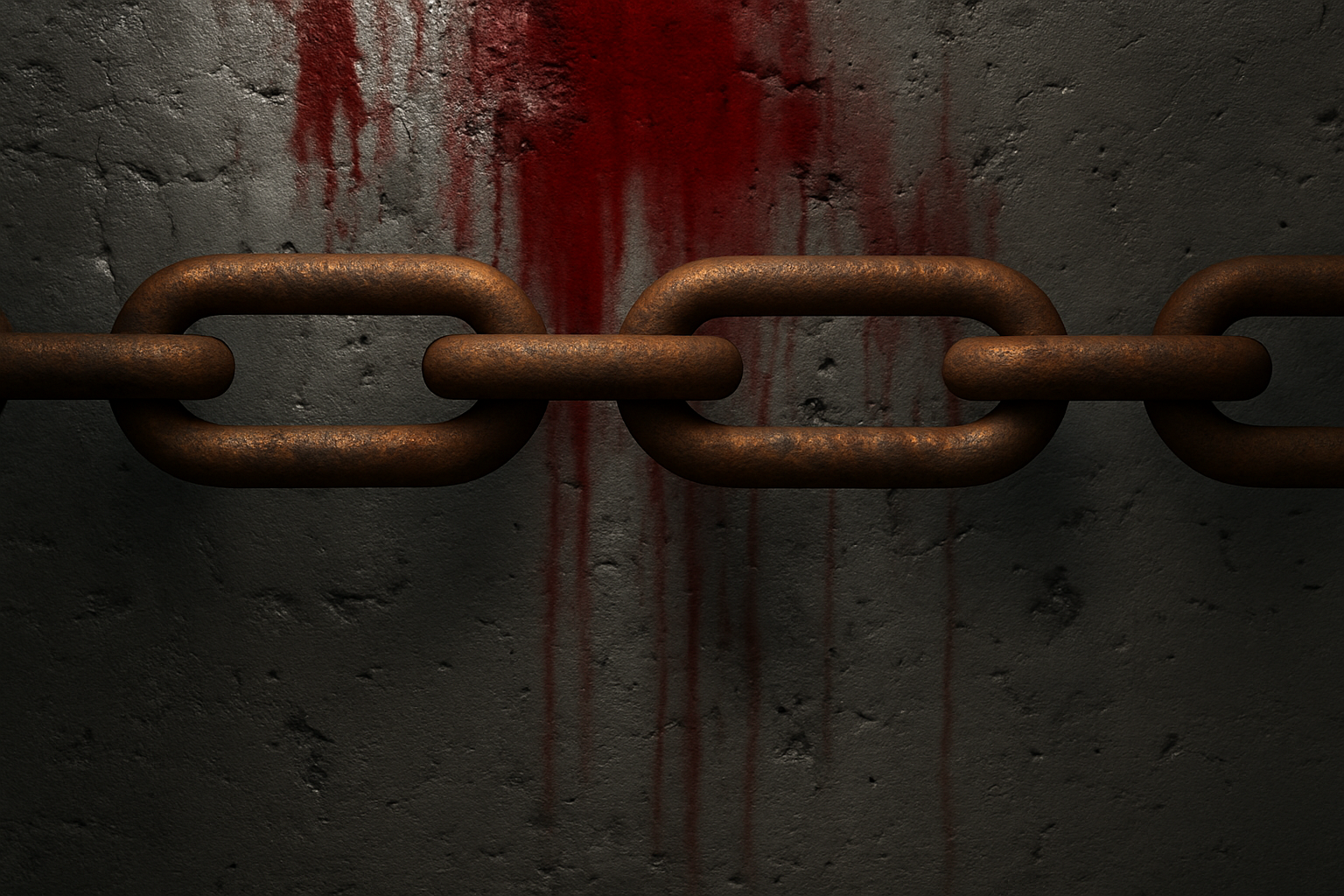
Chains and dungeons are basically bread and butter for each other — or maybe chains and chocolate chip cookies for those more inclined toward horror over calories. To ensure your chains look authentic against the wall, you'll want to erase parts of the shadow where the chain overlaps with the dungeon’s darker tones. Using an eraser tool set to a hardness of 0% ensures a natural blending of shadows.
Let’s Talk Textures
One of the most exciting parts of this tutorial is undoubtedly making the wall come to life with gritty texture. By scrawling text onto your concrete wall using a pencil tool and enabling “Shape Dynamics,” your drab wall becomes your creative canvas. Add a “Bevel and Emboss” layer style to this text for that carved-in-stone look.
The Splattered Effect
What’s a blood-curdling dungeon scene without a bit of splatter? Importing a splatter texture into your design enriches the wall’s texture and complements the chain details. By combining it with a solid color adjustment layer set to a dark red hue (in this case, 8C0404), you emulate a spatter of blood or rust.
Use the “Multiply” blend mode to seamlessly integrate the splatter onto the wall. And for even more drama, apply motion blur to elongate and spread the splatter in a way that suggests speed and violence — without getting your hands messy.
Adding Age and Wear
For the finishing touches, it’s all about age and distress. Using grunge brushes from sites like Brush.com, you can add wear-and-tear to the wall, offering that lived-in look to the chain and enhancing the overall aesthetic. As you click and drag your chosen brush presorts over your texture layers, you’ll notice realistic scuff marks begin to appear, making the dungeon seem ancient and well-used.
With each click, you can subtly alter how the scene feels, giving you both control and flexibility to experiment. Who knew Photoshop could be such a tool for horror fans?
Final Thoughts
If horror is your jam or you're seeking to expand your creative skillset, experimenting with effects like these in Photoshop can be immensely rewarding. Not only does it improve your aesthetic toolkit, but it also opens the door to a wide variety of new creative directions. Embrace the shadows and textures, and start creating dungeon walls that haunt your dreams — and your art. Happy Photoshopping!