
Transforming Pixels into Pool Shenanigans
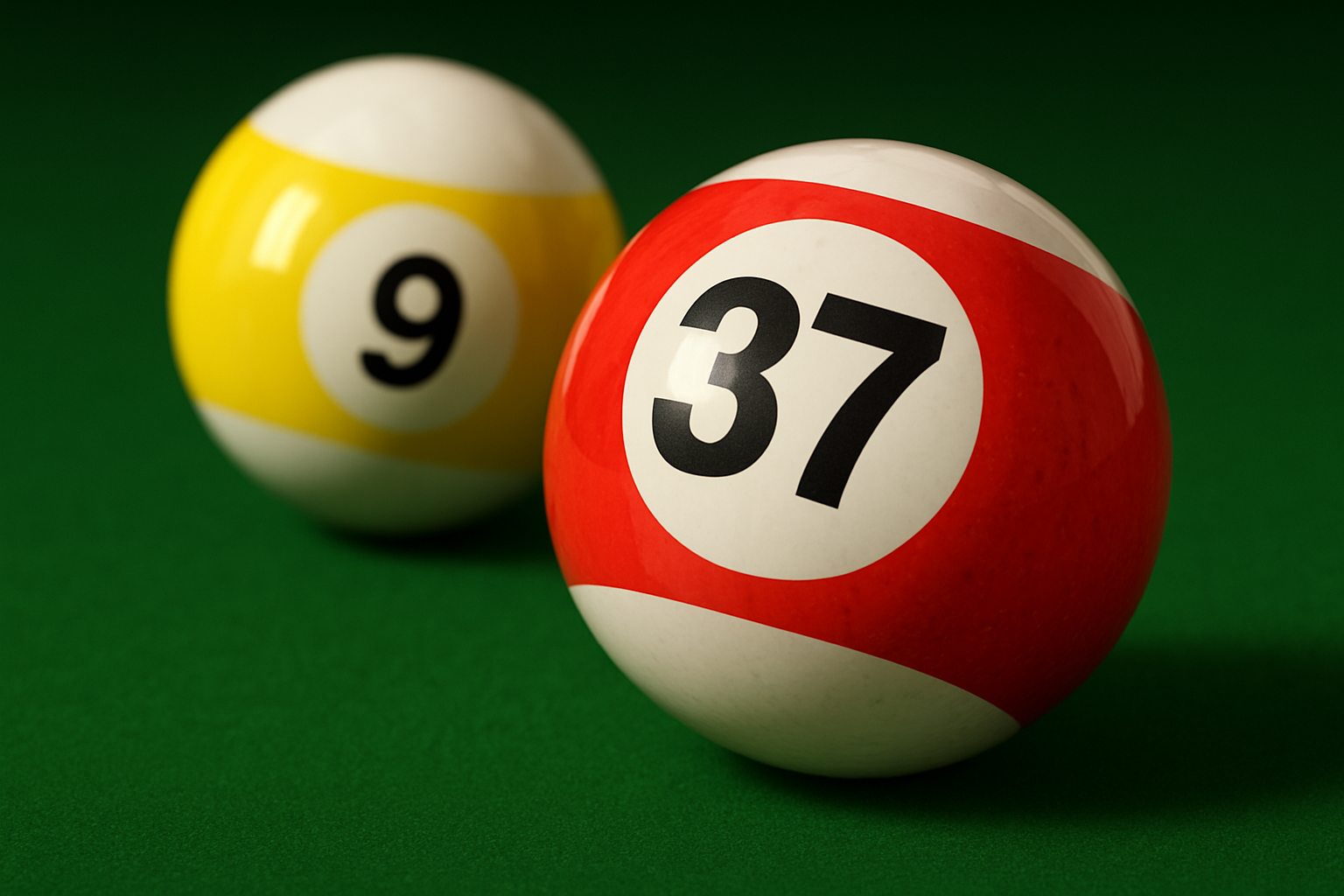
Ah, the art of billiards and its delightful confluence of numbers, geometry, and a notch of… custom artistry? Yes, yes indeed! Photoshop CS6 aficionados, this is your cue (pun intended) to dive into the world of 3D creation. Today, we're crafting a personalized billiard ball that's as much about talent as it is about tech wizardry. Think of it as the fusion of art class with math class, minus the homework. This tutorial has more to offer than just aesthetics; it's an invitation to unleash your creative prowess using one of the most powerful graphics tools out there. Let's hit the pool!
The 3D Revolution in Photoshop: A Quick Refresher
Before we jump into the nitty-gritty, it's good to have a solid understanding of Photoshop’s 3D capabilities, specifically in CS6 Extended. This isn't your average 2D editing spree. 3D rendering allows creatives to bring their visions to life with an extra dimension. Check out comprehensive tutorials on 3D features in CS6 by browsing the digital corners of YouTube and other online platforms. Familiarizing yourself with these tools will transform your perspective when working with digital models.
Creating the Canvas: Setting Up Your Workspace
First, you'll want to set up your canvas with a resolution of 1000 x 1000 pixels at 150 pixels per inch. This setup ensures that your image has the sharpness and detail necessary to spotlight every artistic decision. Next, summon your Gradient Tool, and let the gradient editor work its magic. From a subdued black beginning, navigate towards a vibrant middle ground of ornate greenish hues (you can manually enter the color codes to get precise results). This gradient serves as the foundation upon which the entire aesthetic narrative is built.
Using the Texturizer
Texturize your canvas for added depth by heading to the Filter Gallery. We're aiming for a natural, stone-like vibe, so select “Sandstone” with scaling at 100% and relief at level 2. This sets the stage for simulating real-world materials in a digital domain. The tactile illusion creates a semblance of authenticity to your now-ready billiard ball backdrop.
Depth Perception: Simulating Depth of Field
A photo-realistic creation needs a touch of blurred finesse. Enter the Blur Tool. By brushing over the top half with strength set at 80%, we mimic the delicate phenomenon of depth of field. This kind of detailed work speaks to the mastery of optical play in digital media, reflecting a nuanced control of focus and clarity.
Layering: Constructing the Billiard Design
Begin forging your billiard masterpiece with a crisp rectangle stripe on a new layer—approximately a third of your document's width. This stripe will harbor the array of colors that pool players identify with—the sport’s visual language. Once colored in suitably vibrant hues, align it in the center using vertical and horizontal align icons. Create spheres, numbers, and additional text layers to complete the visual identity of your custom ball.
Typeface & Typography
Font choice can be pivotal, but feel free to buoy your work with any style. Here, Arial Black gives a robust visage—ensuring legible yet personalized textual customizations, such as using a unique number aligning with the recipient's age. This personalized touch not only renders your work unique but adds that cheeky nod to a bespoke craft.
Time for the Transformation: 3D Modeling
Now, with your elements prepared, venture into the Photoshop magic that is 3D modeling. Transform layers into 3D meshes with a spherical preset, and customize perspective to refine your billiard ball’s orientation. Rotate and adjust until the digital rendition matches the exploit of a well-staged photograph.
Lighting & Reflections
Light makes or breaks realism in the digital rendering landscape. Add three infinite light sources to complement and offset each other. Staggering their angles and intensities—ranging from 30% to 60%—provides ambiance and credibility to your scene. Similarly, reflections play their part. Pick and load reflective textures from the properties panel to give the ball that glossy, polished allure.
Replicate and Diversify: Creating Multiple Balls
One customized ball is never enough—unique billiard ensembles are all about variety. Clone your creation for a second ball, alter its colors and numbers to represent another variant (such as yellow for a nine ball), and diverge its position to enhance the dynamic interplay of rendered elements. Play with Gaussian Blur to simulate natural depth and subtly distinguish layers of focus.
The Final Roll
Once rendered, your personalized pool balls are not just a testament to Photoshop prowess but an emblem of tailored gifts for billiard enthusiasts. Play around with various shadows, reflections, and tweak the lights to get the most dynamic scenario possible. These digital creations offer a new perspective on gift-giving—charming in their uniqueness, appealing in their finish.
Photoshop's CS6 Extended's 3D capabilities are a creative sandbox for enthusiasts keen on crafting bespoke designs that marry imagination with photorealistic artistry. Here's to the exquisite realm of artistic possibilities, brought to life, one rendered frame at a time. So, grab that cue and let your creation be the talk of the next pool night!




