Light Up Your Typography: Create Your Own Lit-Up Letters
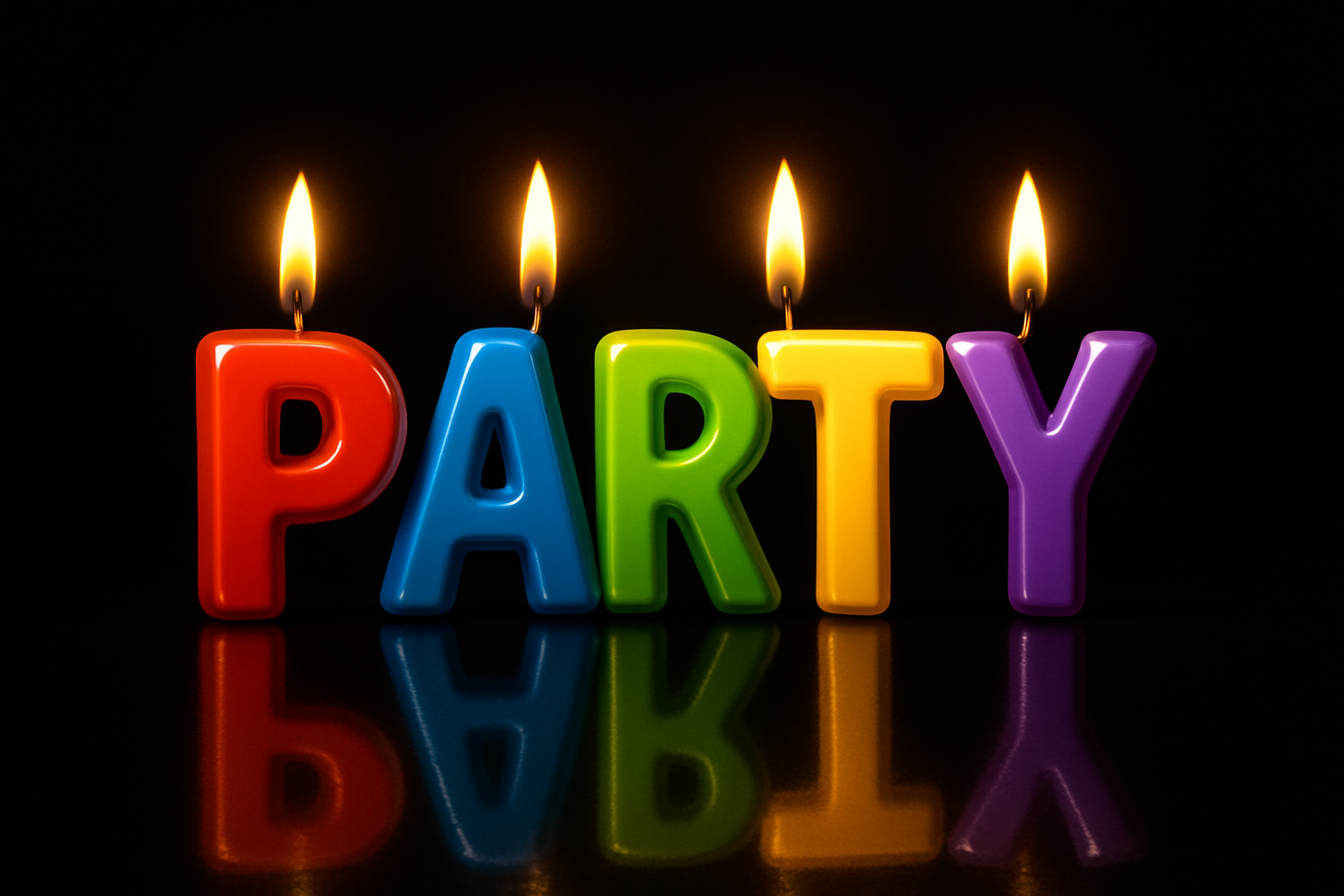
Picture it: your words quite literally lighting up the room like a row of neon signs. That’s the magic we are diving into today, as we transform ordinary text into delightful, colorful, glowing party candles using the digital powerhouse that is Adobe Photoshop. If you’re intrigued—and perhaps a bit skeptical—that’s perfectly fine. By the end of this, you’ll be flaunting your very own set of vibrant, burning letters.
Setting Up the Canvas for Success
Before we ignite the creative sparks, let’s talk pixels and resolution. We’re working on a digital canvas that’s 1920×1080 pixels at 150 PPI (pixels per inch). Think of it like prepping your stage: the right dimensions set the mood for the show that’s about to unfold.
Next, with your trusty Type Tool in hand, we zero in on making that typography pop. Choose a font that screams “party” — we’re rolling with Frankfurter Medium, a sassy number you can snag for free from fontson.net.
Crafting the Text Canvas
Once your text is laid out nicely on your digital canvas, it’s time for a bit of magic: turning that text into a selection and subsequently, a new layer all on its own. This involves a simple combo of pressing Ctrl or Command and clicking away to wield some selection sorcery. Why trash the original text? The focus is now on this newly-minted layer, ready for its transformation.
Now for the fun part—manipulating your text using the Liquify filter. This is where your letters develop a unique contour with slight valleys at the top, perfect spots for your candle flames to settle.
Wax Drips and Colorful Flourishes
Here’s where we turn things up a notch. Painting drips on each letter gives them that realistic candlestick persona. Each letter dons its unique waxy drip, bringing it to life with vivid colors. Choose your colors wisely—the more vivid, the more mesmerizing.
Enter the world of Layer Styles, and introduce effects like Bevel and Emboss to give those letters depth. Trust us, this isn’t just an ordinary makeover—it’s a digital metamorphosis. Adjusting things like Inner Glow, with a subtle hint of black, adds to the dramatic flair we’re aiming for.
Bringing Flames to Life
With the letters bearing their candle-esque appearance, we craft the flames. Start by drawing a wavy line, capturing the essence of a bouncing flame, and topping it off with Outer and Inner Glows. Each flame dances with hues of vibrant yellow and blue, giving the impression that the candlesticks can truly light up the night.
We fashion wicks and layers of colored glow, encapsulating what makes flames so captivating. Is it the warmth? The flicker? Or just that inviting glow that draws you in? In any case, these layers don’t just add aesthetics, they underscore an artisanal touch to digital design.
Reflections and Final Flourishes
Finally, throw in another layer of creativity with reflection techniques. We create a mirror effect that not only echoes elegance but also deepens the sense of realism. Achieve this through clever use of gradients and the zigzag filter, simulating ripples, as if our digital party is situated by a tranquil pond.
Organize all these layers into folders, keeping everything neat and clear. With a brush tool and some layer tweaks, you get to finesse the intensity across each letter, ensuring every part of your masterpiece sings.
From Pixels to Party
Congratulations! What started off as simple text has now evolved into a kaleidoscope of light, color, and creativity, all through the dynamic capabilities of Photoshop. It’s a testament to how digital artistry can transform even the most mundane elements into exuberant visuals.
Glow away, creative souls. In the digital realm, even letters can light up the night.