
Subtitle: Dive into the enigmatic world of Photoshop CS6’s color lookup adjustment presets and see how they transform images just like Instagram filters—or better.
Have you ever wanted to transform your photos with the kind of cinematic flair that captivates and commands attention? Welcome to the spectacular world of Photoshop CS6’s color lookup adjustment layers—a feature reminiscent of Instagram filters, albeit with a lot more depth and range. If you’ve been yearning to add that professional-grade Hollywood touch to your designs, then buckle up and prepare to be amazed.
The Art of Color Transformation
In the realm of digital creativity, achieving a particular look or altering the mood of an image can be pivotal. With Photoshop CS6’s introduction of color lookup adjustment presets, this process becomes much more accessible—and fun. These presets enable creatives to load a plethora of different looks onto an image. Think of them as your personal creative arsenal, capable of painting the mood and telling a story through visuals.
Exploring the Layers Panel
To embark on this transformative journey, head over to the layers panel, click the adjustment layer icon, and select “Color Lookup.” This choice will pave the way for creating a color lookup adjustment layer, offering you three distinctive types to choose from:
- 3D LUT (Look-Up Table)
- Abstract
- Device Link
These options serve as a gateway into a universe of creative possibilities. Each type offers a distinct path to altering your image.
3D LUT: A Tip of the Hat to Cinema
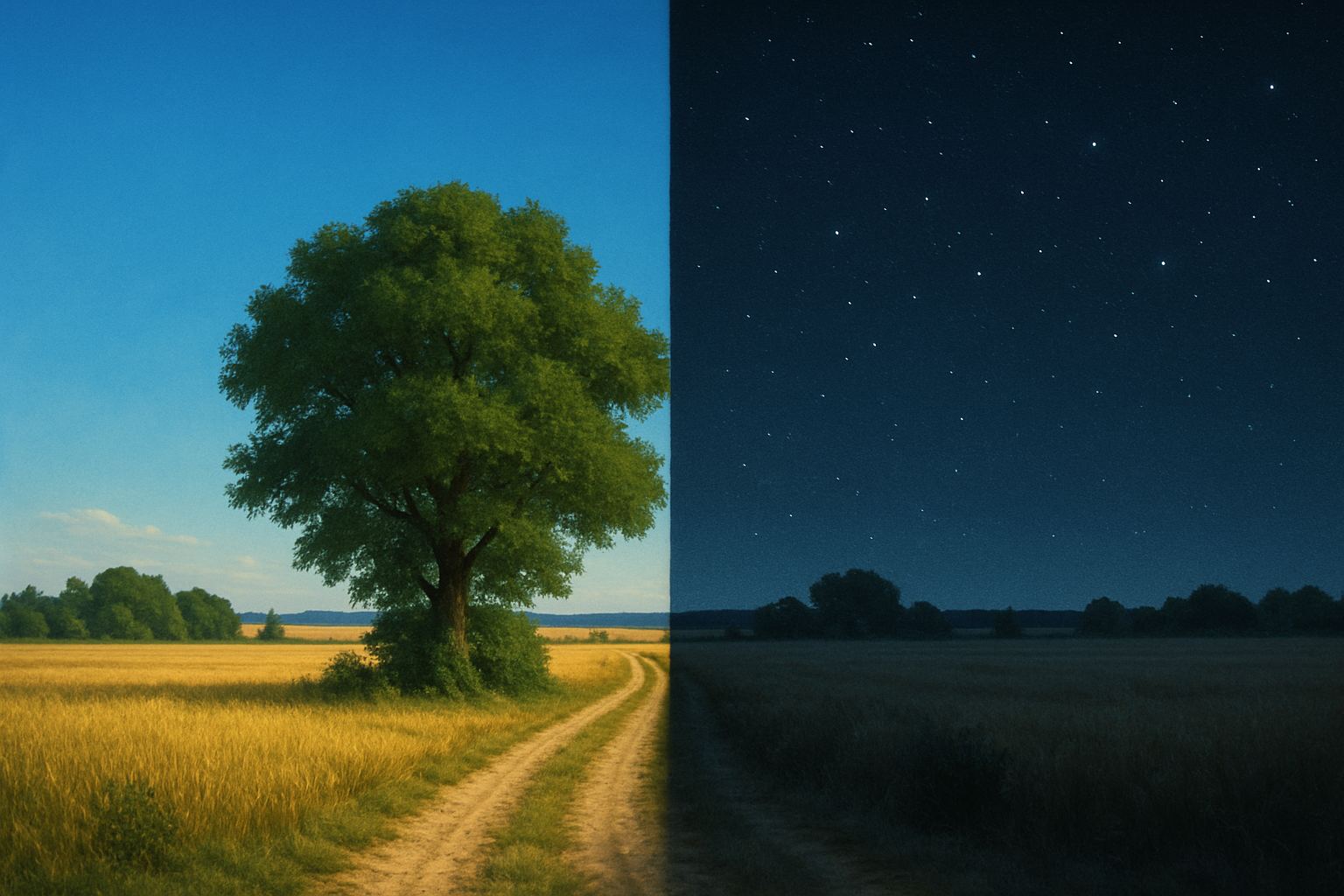
First up, 3D LUT. These presets draw inspiration from standard looks used in the film industry—letting you infuse your images with the same aesthetic used to craft dramatic or atmospheric scenes on the big screen. Whether you’re seeking to convey the foggy gloom of a noir film or the sleek aesthetic of a samurai epic, LUTs can transport your image to different worlds, such as turning a day scene into an evocative “Moonlight” night. Imagine adding a moon to a daytime landscape scene—easy peasy with the elliptical marquee tool and a splash of color.
Abstract: Where Modern Art Meets Photography
Next, we have the Abstract color lookup presets. These are like diving into a vibrant palette of modern art, with options like Blacklight Poster, Cobalt Carmine, Gold Blue, and more. Each abstract preset instantly metamorphoses your image, creating simulations that could be straight out of a pop-art exhibit. The alteration is immediate and visually striking, offering you endless opportunities to experiment and express.
Device Link: The Tech-Savvy Choice
Lastly, there’s Device Link—a choice for those who might prefer tech-savvy transformation. This includes presets like Anime Palette, Color Negative, Red Blue Yellow Smokey, and Teal Magenta Gold. Each configuration presents a new way to explore the interplay of colors, pushing boundaries while enhancing your visual storytelling.
The Power of Customization
What elevates these adjustment layers further is their customizability. Because they function as adjustment layers, you can easily tweak their opacity and blend modes. Altering the blend mode to “Vivid Light,” for instance, can dramatically change the aesthetic of a preset like Teal Magenta Gold. The options for tailoring the effect to your specific vision are limitless.
Pro Tip: Darken the Skies and Add Stars
For creatives looking to add more drama to their images, consider making the sky darker at the top and sprinkling in some stars. There’s a handy tutorial for creating a starry night sky that can add that extra layer of depth and intrigue.
Conclusion: Embrace the Experiment
Photographers, designers, and digital artists—here’s your invitation to explore the innate power of color and mood shifts with Photoshop CS6’s built-in color lookup adjustment presets. With these, you’re not just editing; you’re storytelling. Each adjustment layer serves as a brushstroke on the canvas of your creative vision. So, dive into Photoshop CS6, explore these options, and have fun experimenting with your images. You never know what masterpiece might be waiting on the other side of a simple adjustment layer.
Now, go forth and create!





