
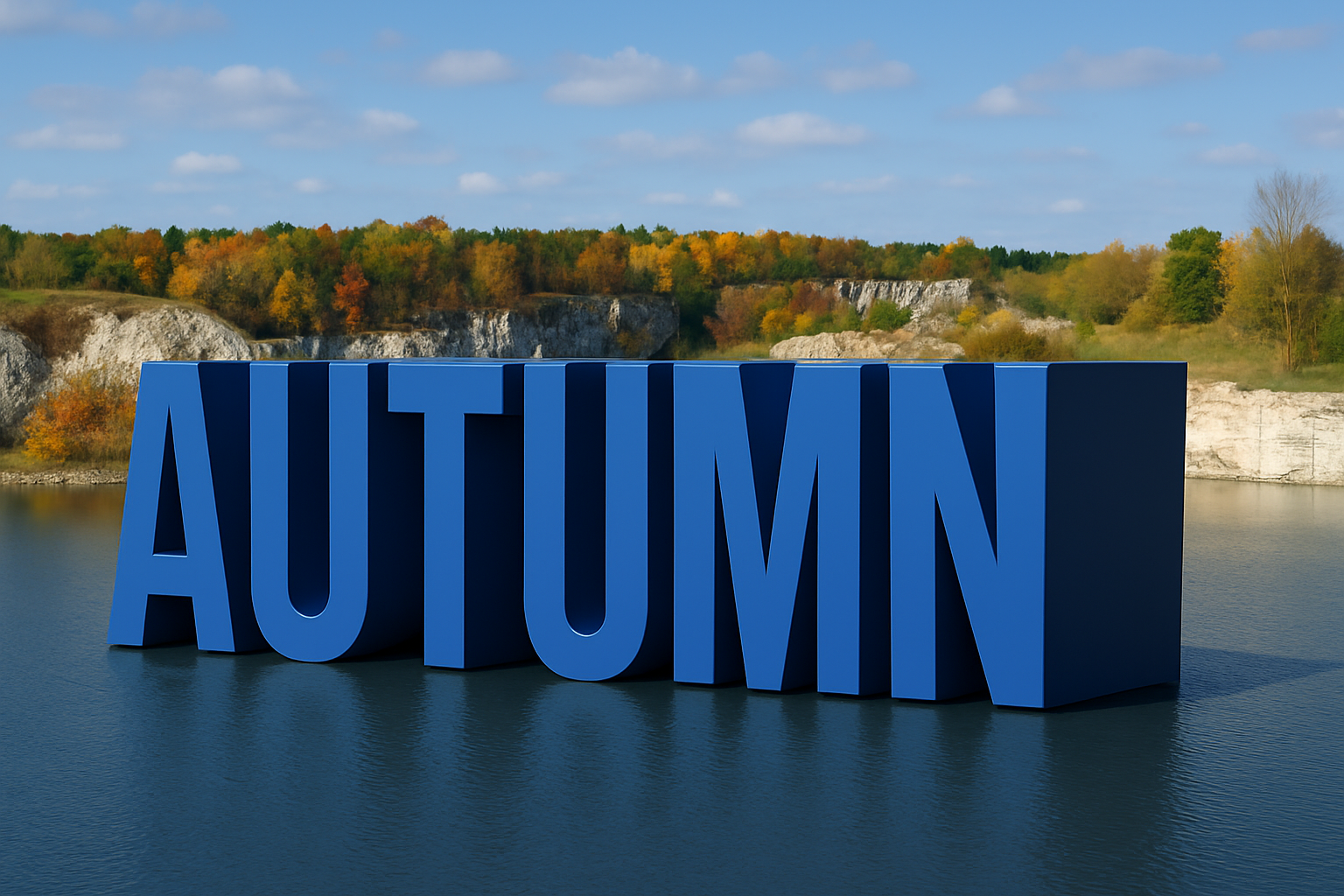
3D Text in Photoshop: Revolutionize Your Designs
Ah, Photoshop—an application best known for transforming average photos into works worthy of the Met Gala. But today, we’re diving into its hidden gem: the 3D capabilities in Photoshop CS6 Extended. Yes, that’s right! 3D features have vastly improved, allowing you to create stunning text effects with ease. We’ll walk you through placing 3D text on a background, adding jaw-dropping bevels, reflections, and shadows.
Why 3D Text? A New Dimension of Creativity
3D text in your design can serve up a smorgasbord of dynamic visual flair. Want to impress with sleek, modern typography? Need to add depth to your advertising materials? Or how about just flexing some creative muscle to decorate a project? The possibilities abound.
Using CS6 Extended’s 3D capabilities isn’t just about aesthetics—it’s about offering a multi-dimensional experience that enriches your overall design narrative. Who wouldn’t want to mesmerize their audience with captivating, gravity-defying text?
A Seamless Start with 3D Text
Open a document sized at 3600×2400 pixels, with a resolution of 300 pixels per inch. That’s your canvas. Now, make a copy of your background layer (use Control or Command + J if you’re a shortcut fanatic).
With your typing fingers warmed up, summon the Type Tool and select your desired font. Pick a color that matches your vision and commence typing. Once your text is in place, gaze upward to the magical 3D icon, click it, and confirm—voila! You’ve extruded your text into the third dimension.
Navigation and Adjustment: Seeing in Multiple Dimensions
At first glance, you may spot a secondary viewport showcasing the text from varied angles—this is your new playground. Oh, and don’t overlook the widgets and panels each teeming with options to move, scale, and rotate your beloved text.
Curious about the arrows protruding from a small white cube? That’s your cue to start manipulating. Whether moving along the X-axis, scaling uniformly, or rotating like a merry-go-round, each color-coded arrow offers tactile interaction with your text.
Meet the 3D Panel Command Center
The 3D Panel essentially runs your new 3D empire. It intricately lists every conceivable aspect of your text, from environments and scenes to light and camera settings. Adjust these settings, toggling between each to modify respective properties at whim.
Add a robust bevel to the face of your text. By default, it’s set to a 45-degree angle with the contour linear—but don’t let that prevent you from tinkering. Depending on the desired aesthetic, you may want to pump more air into your text using the inflation settings, or simply drag it to 22% bevel width using a widget.
Lighting and Reflection: The Magic Ingredients
While many elements matter, it’s the art of lighting that truly brings 3D text to life. Click on the light icon, and a surreal transformation occurs. Move the handle to alter the light source, or create new lights—whether point, spot, or infinite.
To achieve that extra dash of pizzazz, create a reflection in the water beneath your text. Tweak the opacity to 60%, and set the roughness to 20%, ensuring that when your text renders—brace yourself—it’ll look mesmerizing.
Final Touches: Smoothing the Edges
For those who strive for perfection, visibility adjustments can make or break your text designs. Boost the reflection opacity to 70%, play with the shadow opacity levels, and remove any unnecessary inflation while keeping the clean bevel.
Once you’ve nailed these critical refinements, hit the render icon for a sneak peek into your future masterpiece. If you’re content with the draft, let the full render brew while you savor a well-earned cup of artisanal coffee.
Endless 3D Possibilities Going Forward
Now you’ve unlocked the door to a whole new world of design through Photoshop CS6 Extended’s 3D magic. In future tutorials, be prepared to dive into the art of adding custom textures—transforming surfaces into mesmerizing, textured realities.
It’s your design playground. With 3D text skills now up your sleeve, the only limit is your imagination. Keep creating, keep pushing boundaries, and continue to keep the creative juices flowing!





