Turn Your Text into Eye-Catching Bling Jewelry with Photoshop
Have you ever wanted to add a little sparkle to your digital artwork? What if you could transform simple text into dazzling custom-made bling jewelry? Today, we’re diving into an exciting process involving Photoshop that will let you do just that. Say goodbye to dull and ordinary text and hello to glittery glamour with this comprehensive guide on how to create a stunning bling text effect. Grab your virtual toolkit, and let’s make some magic!
Setting the Stage for Your Bling Design
First things first, we need the right workspace. Our document is 1920 x 1080 pixels with a resolution of 72 pixels per inch. Why these specs? It’s the perfect size for digital design that balances detail with file manageability. By starting with a robust foundation, you can ensure every sparkle shines brightly.
Typography: Choosing the Right Font
Typography is the backbone of this bling transformation. It determines how your final design will convey style and flair. You can use fonts like “Giddy Up” standard for whimsical flair or “Basnew” for a more grounded look. A great place to find these fonts? SearchFreeFonts.com provides a plethora of options that won’t cost you a dime. Once you’ve chosen your font, set your text using the Type tool—essential for designing with precision.
Expanding Your Text: Preparing for Embellishment
With your text selected, it’s time to modify and expand its selection by 10 pixels, allowing more space for those dazzling gems we’re going to add. Just remember, depending on your initial text size and resolution, you might need to adjust this amount to suit your needs.
Layering On the Glam: Adding Gems
Layers are pivotal in Photoshop—think of them as the canvas, sketch, and paint all rolled into one. Once you’ve expanded your text selection, create a new layer dubbed “gems.” Enter the Paths tab and convert your selection to a working path. Now the stage is set for adding those shimmering gemstones.
Forging the Bling: Applying Brush Strokes
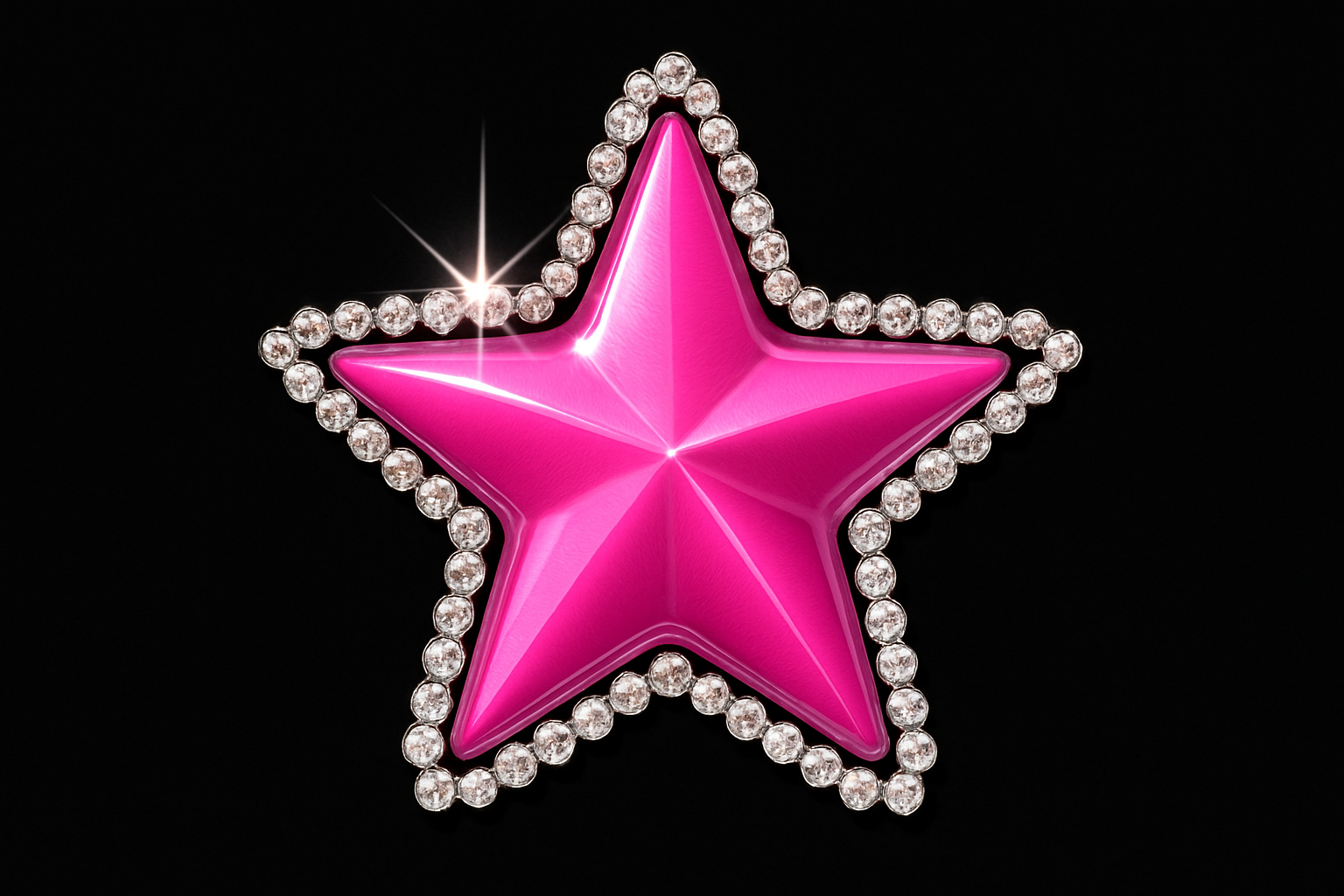
Select your brush tool and adjust the presets; size and spacing tweaks can make all the difference here. With a path laid down, locking your gems into place is easy using stroke path. Suddenly, abstract shapes transform into glittering art!
Depth and Texture Through Layer Styles
Layer styles are the unsung heroes of digital design, offering you a cornucopia of effects. With the gems still active, access the vast realm of Bevel and Emboss. Inner Bevel with a smooth technique and a glass contour can simulate the multi-dimensional shine of real jewels. Play with settings like depth, size, and opacity to achieve the most tantalizing sheen.
Connecting Text and Gems: The Final Touch
A visually compelling design mingles all its elements together seamlessly. By adding strokes to the text layer itself, spacing between letters and gems dissolves into unison. Now everything touches just perfectly. Boost this with additional Bevel and Emboss modifications, and your text becomes a cohesive unit of shiny delight.
Bringing in the Stars: Add Retro Twink
Marvelous jewelry wouldn’t be complete without a hint of celestial glamour. Let’s add some twinkling stars to finish the effect. Using a brush set with twinkle patterns, you can sprinkle retro highlights over your text. DeviantArt offers numerous brush sets you can download free of charge.
A Variety of Twinkles: Customizing Sparkle
Brushes are the magic wands of Photoshop. Adjust brush presets to modify twinkle size or even create your patterns. Experimenting with settings here reveals the spectrum of bling effects—giving you endless possibilities for customization.
Making Every Letter Dazzle
By now, you should be left with more than just “bling” jewelry text—it’s digital artwork that combines technical Adobe skills and creative panache. Share with your audience, or keep it as a personal testament to your newly acquired skills.
By following these steps, even your text can shine like real treasures. The best part? You don’t have to splurge on jewels to enjoy this aesthetic—just a dash of digital know-how and a sprinkle of imagination!
Explore More Tools and Tricks
Photoshop is brimming with surprises just waiting for keen eyes like yours. This bling effect is just one of countless opportunities to master. Stay tuned, stay curious, and let your creativity sparkle its way into corners unimagined.
Go ahead, try out this tutorial, and add some extra shine to your projects. Your digital toolbox, like your imagination, is limitless. Happy photoshopping!