
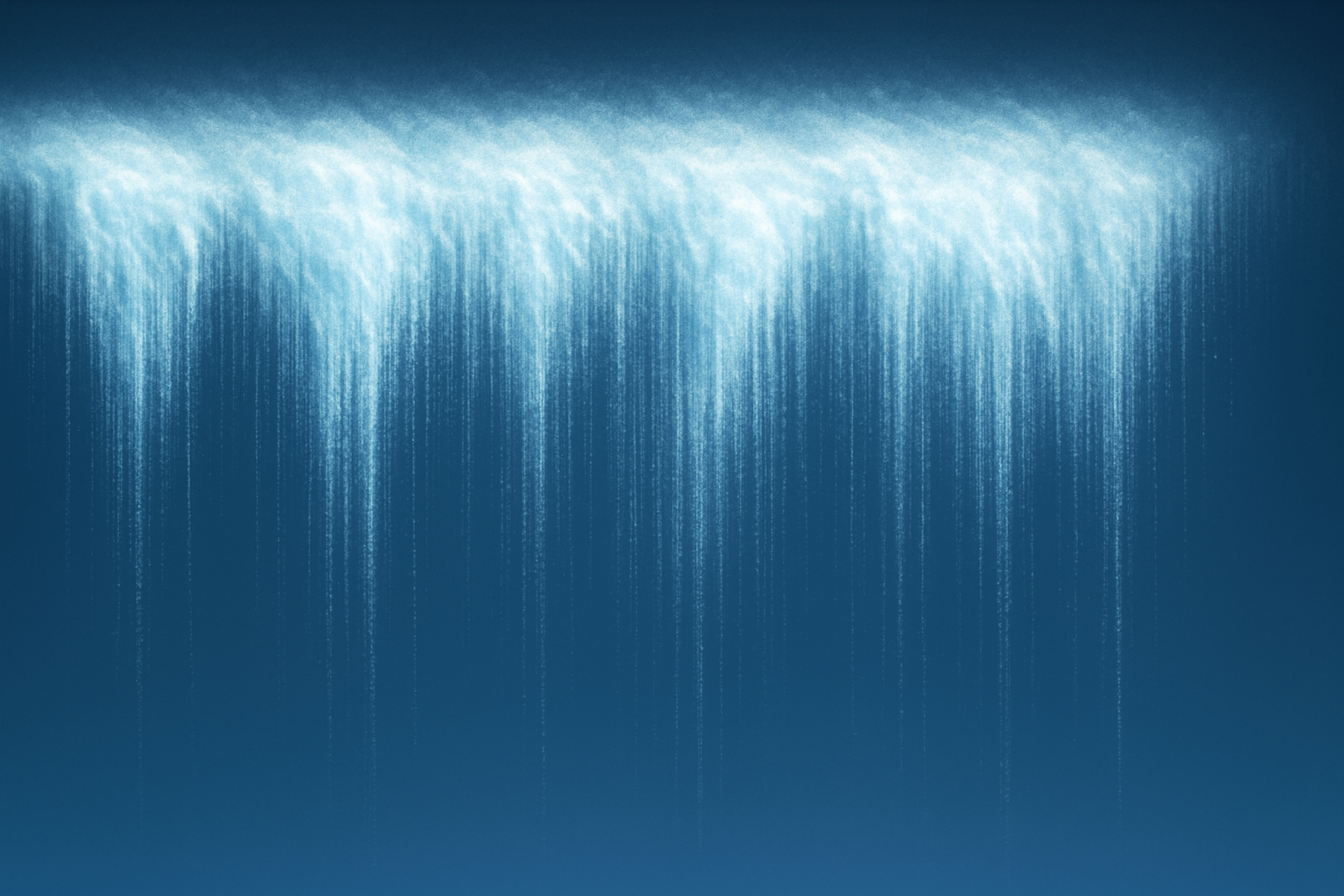
Give Your Text the Chilly Makeover It Deserves:
Ever wanted to turn your text into something more seasonal—perhaps as frosty as a winter wonderland? We’ve got you covered with a delightful guide on creating an icy frozen text effect that will make your words look like they just survived the Arctic blast. Dust off your Photoshop skills and let’s embark on this ice-crafting adventure!
Setting the Frosty Foundation
When it comes to building an icy fortress for your text, size does matter. Our base document is set at a crisp 1280 by 720 pixels with a resolution of 150 pixels per inch—the perfect frosty canvas.
First things first, make sure your Photoshop foreground and background colors are set to black and white by hitting “D” on your keyboard. If they’re misbehaving and inverted, pressing “X” will whip them into shape. Then, fill your backdrop with a solid veil of darkness by executing an Alt or Option + Delete command. Like a magician breaking the ice, we’ll soon be unveiling the magic that lies beneath.
Typeface Meets Winter Wonderland
Choose a font to reflect the chilling narrative you’re about to spin. We opted for League Gothic—because when fonts go free, we all whip out our ice skates. Available for download from Font Squirrel, this typeface plays nicely with our frozen theme. After setting the text color to white, unleash your words onto the canvas.
Need to give your text a little nudge? Use the Move Tool and slide those letters into the right position. Once content with its placement, bring synergy to your design by merging the text and background layers using Ctrl or Command + E.
The Encrusting with Ice
It’s time to pixelate the text and give it that frosty crystallized texture that screams “keep your mittens on!” Navigate to Filter > Pixelate > Crystallize. Choose a cell size that complements your text size; we went for a modest cell size of 5.
Next, we channel some magic through the Channels Panel. Click the bottom-left icon to capture those tonal values, then save your selection as “text”—because we’re creative like that.
Bending the Icy Wind
Turn the text 90 degrees clockwise, and ride the blustery Filter > Stylize > Wind highway, blowing in the direction of the right. Strengthen those icy tendrils by issuing Control or Command + F twice. Right about now, those letters are looking like they’ve weathered a few Siberian storms.
Rotate your frosty friend back 90 degrees counter-clockwise. Crystallize once more, this time toning down to a cell size of 3. Each pixel captures the playfulness of Jack Frost’s handiwork.
Layering the Ice Effects
An iced-out masterpiece is incomplete without a spectral shimmer. Select your new channel-ice selection, create a new layer, and fill it with white. Banish any leftover selections and insert a blank layer beneath it, shading it with black for depth.
With our blend mode set to dissolve, we blend icy hues using an inner glow. An icy blue color like 74c7fb, combined with a 14-choke and 10-pixel size, creates a spellbinding frozen effect.
Crafting a Cold, Gradient Landscape
No icy text realm is complete without a frosty backdrop. On your background layer, use the Gradient Tool to draw linear gradients from an icy blue 1f69ae to black. Insert a midway stop with 0e2238 for that deep iceberg ocean vibe. Hold yourself steady with the Shift key as you create this chilly gradient from top to bottom.
Compile a delicious composite layer snapshot with Ctrl Shift Alt E (or Command Shift Option E for Mac die-hards).
Final Icy Touches with Plastic Wrapping
Switch to the Channels Panel and choose the channel containing your text. Make that selection work for you in the Layers Panel by creating a layer mask. Blur those edges using Filter > Blur > Gaussian Blur with a pixel value of 1.
Time to crystallize once more (cell size 4 this time—variety is the frosty spice of life) before using Filter Gallery > Artistic > Plastic Wrap. Assign a highlight strength of 6, detail of 1, and smoothness of 4; wrap it up and watch your text thaw into something beautiful.
The hue saturation adjustment layer is the cherry on the snow-cone, colored with a hue of 199 and saturation of 50. Click to clip it exclusively to the layer beneath and marvel as the icy tendrils glow with spectral luminescence.
And there you have it—an icy masterpiece, frozen in time! Using these relatively simple techniques, even Chilly Willy would be proud of the old icy text effect you’ve conjured up.





