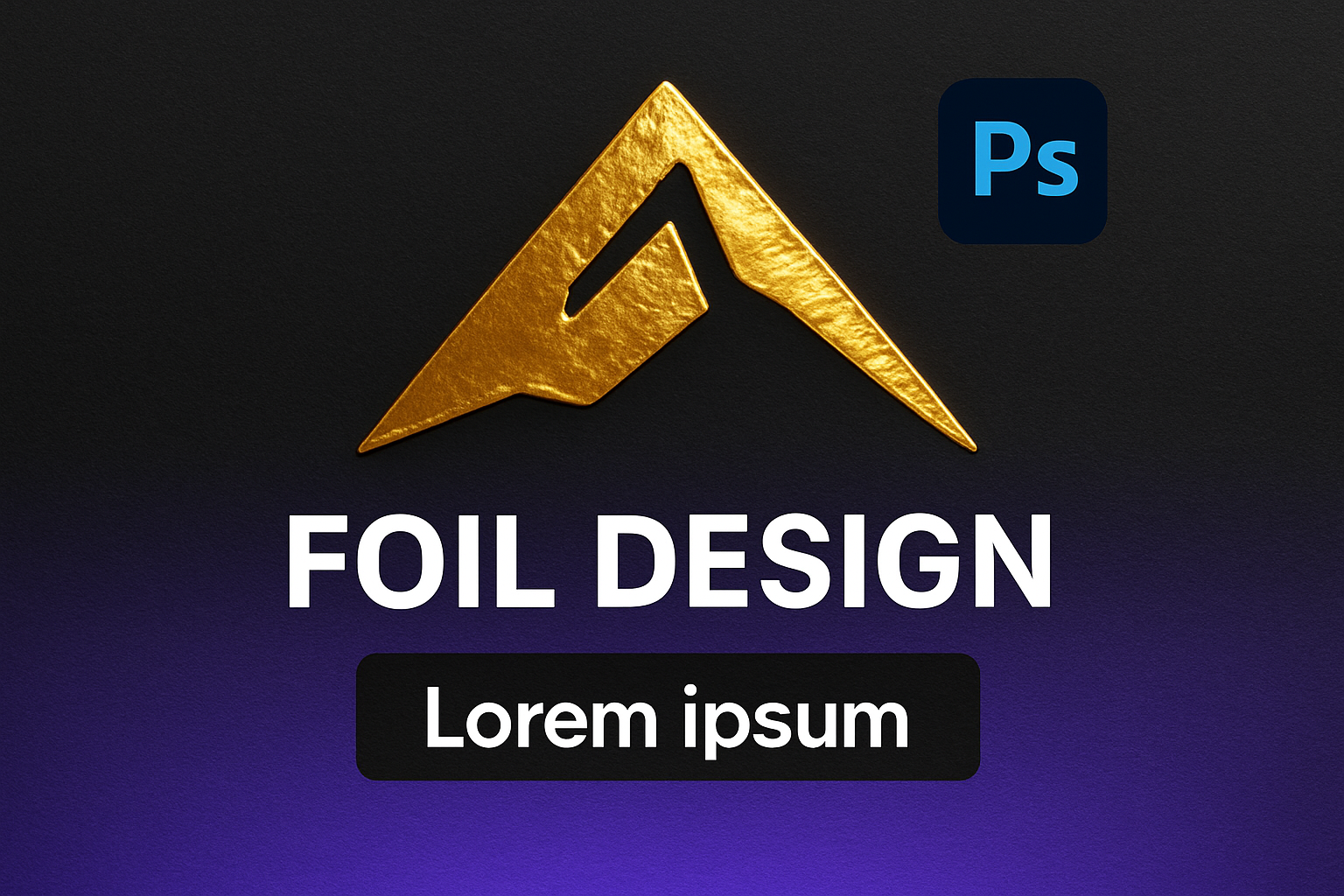
Elevate Your Design Game with Luxury Foil Stamping Effects
In the realm of digital design, there’s a quiet thrill when you achieve that opulent, embossed look that screams ‘luxury’ from behind the screen. Whether it’s for a sophisticated logo or an elegant text overlay, a golden or silver foil stamping effect can make all the difference. Not only does it elevate the visual appeal, but it’s a creative way to add depth and a tactile sense to your digital work. And guess what? It’s not as complex as you might think. Grab your favorite chair and follow along as we dive into creating this glamorous effect using Adobe Photoshop, along with a nifty preset that lets you apply the effect to any project—instantly.
Setting Up Your Canvas
Begin your mesmerizing journey by firing up Adobe Photoshop and creating a new canvas. Set your document to a neat 2,000 by 2,000 pixels—just the right size to house all the glitz and glam we’re about to unleash. Naming your layers sensibly is key to staying organized, which you’ll appreciate once you dive deeper into creating various effects.
Crafting the Foil Foundation
Your masterpiece starts to take shape by laying down the foundation of the foil. Navigate to the ‘Filter’ menu, select ‘Render’, and let clouds billow across your canvas. This soft, cloudy texture sets the groundwork for plush foil, almost like the luxurious base layer of a wedding cake ready to be iced. But hold your spatula—it’s time to swirl.
Unleash the creative chaos by venturing once more into the ‘Filter’ menu and selecting ‘Liquify.’ Armed with the Forward Warp tool and a sufficiently inflated brush size, you’ll abstractly smudge the texture. This is where digital creativity meets art therapy, and where your foil starts to ripple with high-fashion flair.
Transforming Clouds into Gleaming Foil
Blurring and distortion are your allies in turning this wispy cloudscape into shiny metal. Apply a generous dose of Gaussian Blur, with a blur radius of 30 pixels, to soften those edges. Then, in the Filter Gallery, under the ‘Distort’ category, select the Glass Filter. Tweak the distortion settings—18 for distortion and 2 for smoothness—to reach that sweet spot where abstract meets art.
Next, a concoction of colors via a Gradient Map transforms your silver foundation into rich gold. With carefully chosen colors (dark brown, deep orange, and light yellow), your digital canvas glows with the warmth and extravagance of luxury brand packaging. Save this golden essence as a pattern, ensuring you can gild anything with a click.
Repeat and Rinse for Silver Sheen
For fans of cool-toned glam, repeat the process to craft a silver foil effect. Swap gold for the likes of dark grey, light grey, and pure white in your gradient stops, and voilà—an elegant silver foil gleam, stored safely as a preset for future projects.
Applying the Foil to Text and Logos
It’s time to flex those foil presets on your typography or logo design. Create a new document, play around with background choices (pro tip: dark backgrounds bring out the radiance of foil, while light backgrounds offer a classic, elegant contrast), and leisurely introduce your logo by converting its layer into a smart object—keeping it ripe for further edits.
Once smart objectified, splash on the gold or silver pattern via Blending Options’ ‘Pattern Overlay’. Adjust angles and scales as needed to perfect that luscious, luxe finish. Sculpt depth into your work by indulging in bevel and emboss, turning your digital flatland into a tactile treasure.
Refine and Shine
For that extra flourish, enhance the realistic touch by adding ripple effects, or forgo this step if a crisp look sings more to your style. Glimmering details can be amplified even further with fine touches like gradient and outer shadows—just like adorning a fab boîte clutch with rhinestones.
Finalizing the look involves grouping, adding bevels, and strategic shadow-play through Blending Options, where finer details of lights and angles are set to forge a seamless blend.
Save, Share, and Enjoy
What good is a masterpiece if it’s locked away? Save your final style as a preset and let it breathe life into future projects. One clic, et voilà—an instant luxury overhaul for any text or logo awaiting glamorization. Modify silver to gold and tweak to your heart’s delight, customizing entirely to fit different moods or themes for your creative endeavors.
Who knew opulence could be merely a few digital brush strokes away? Add this lavish technique to your creative arsenal, and let every design stand as a testament to your creative brilliance.