Unveiling the Magic of Photoshop: Crafting an Enormous Curved Billboard Effect
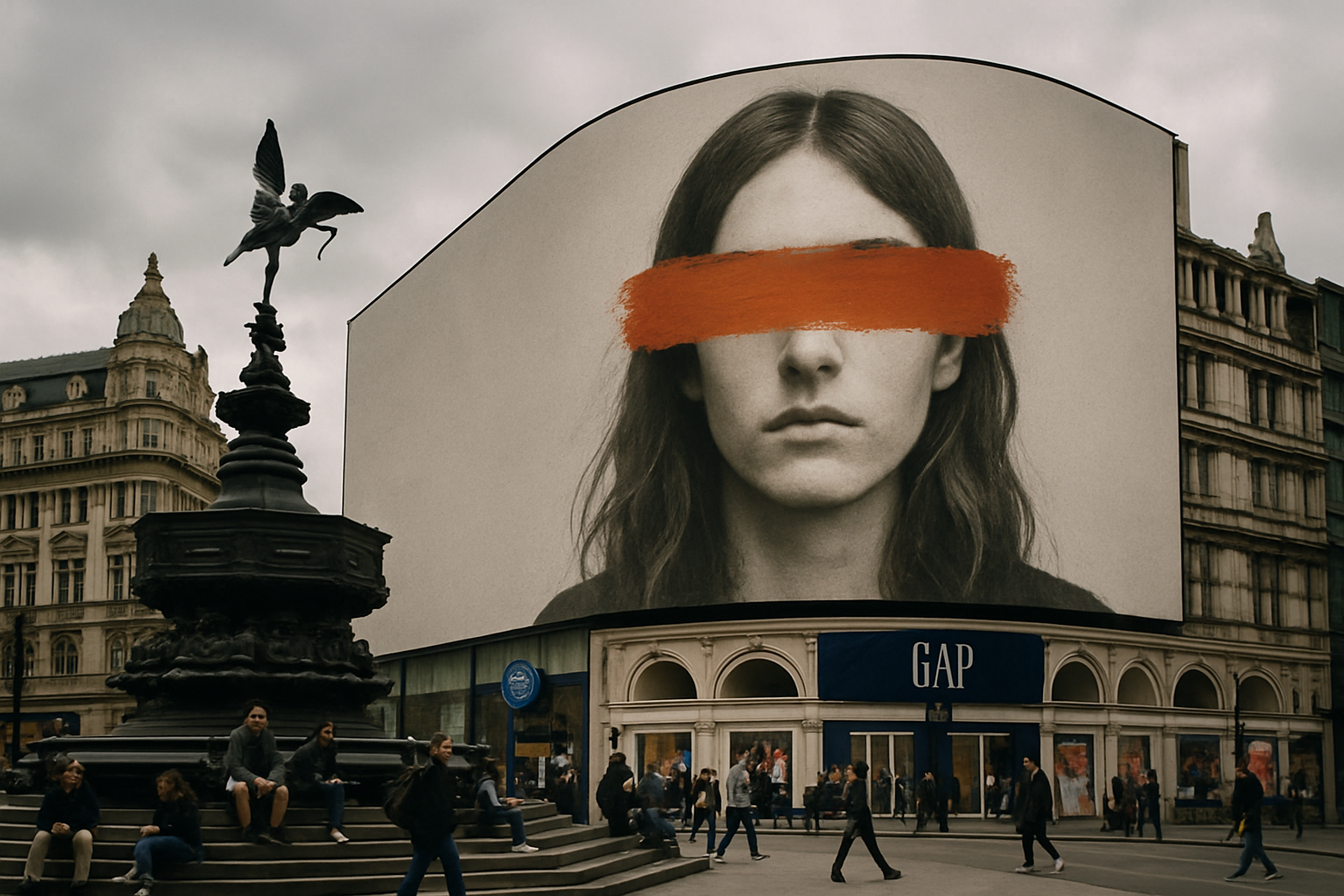
Photoshop is like a vast playground for creatives, offering a myriad of possibilities limited only by our imagination. Today, we’re diving into one of its magical realms to craft a realistic curved billboard effect. Imagine an eye-catching advertisement snugly fitted around the curves of a structure—without stepping outside your home to see it come to life. By the time you’re done, you’ll not only have a striking image but the power to swap pictures effortlessly. No more painstaking tweaks; just pure creative fun!
Setting Up Your Creative Canvas
Before diving headlong into the Photoshop rabbit hole, ensure you’ve got the right tools. To ease the process, there’s a handy Photoshop template to kickstart your journey. This template includes a sleek curved black billboard, along with channel features that act like secret passageways guiding your visual wizardry. Feel free to infuse any image you’d like onto your billboard—the possibilities are endless, from your favorite bands to quirky cat memes.
Pro Tip: When imagining your billboard scene, remember to choose images that complement the billboard’s shape—you’ll want it to look seamless.
Smart Objects: Your Creative Lifebuoy
Converting your image into a Smart Object is akin to adding a safety net for your creative adventure. With this nifty feature, any adjustments you make remain non-destructive, and swapping pictures becomes a breeze. You’ll find this option by navigating through the layers panel and selecting the smart object conversion. And voila, your masterpiece now has a versatile backbone!
Sculpting the Perfect Billboard
With our foundation laid, it’s time to unleash the transformative power of filters. Start with the Camera Raw filter to add that cinematic touch with some grain or flare. Feel free to adjust these settings based on your image’s unique charm. For that sleek professional look, applying a gentle Gassian blur can work wonders, toning down overstated sharpness.
Gradient Magic: Using the gradient tool, add a soft shadow to parts of the billboard that would naturally curve. This shadow gives depth and realism, making the billboard pop from the screen like an optical illusion.
Warp Your World
The warping tool in Photoshop is where the magic truly begins. This feature lets you shape your image to fit perfectly onto the billboard. It’s like having a virtual sculptor’s hand that bends and twists the image until it perfectly hugs the curves of the billboard. However, remember to keep those vertical lines vertical as you mold your masterpiece—consistency is key!
Adding Dimension with Shadows
Shadows are the unsung heroes of realism. By strategically adding shadow details where the billboard meets the photo, it lends an authentic touch as if it’s an actual physical structure. This involves utilizing both channel selections and layers to orchestrate a dance of light and shadow.
Clip It Right: Employ clipping masks to ensure your shadows fit snugly within the billboard confines. This precision ensures that the shadows harmonize effortlessly with the highlights, providing depth and resonance.
Fine-Tuning Colors for Impact
For those looking for a little refinement, adjusting the vibrance and saturation can alter the mood and tone of your billboard. Whether you aim for muted elegance or bright exuberance, these settings can dial your visual narrative to perfection.
Plug in Your Imagination
Once the infrastructure of your billboard is in place, the real fun begins—image swapping! Want to update your billboard with the latest trends? Simply activate the billboard layer, double-click, and open the source to replace it effortlessly. This capability doesn’t just save time; it empowers boundless creativity tailored to any story you wish to tell.
Conclusion
Creating the look of a curved billboard in Photoshop isn’t just about flexing your technical skills; it’s about crafting visuals that speak volumes. This tutorial not only walks you through the mechanics but opens a portal to infinite creative expression. So embrace the quirks of digital artistry, and watch as your conceptual worlds come alive with every click.
Photoshop’s tools are your paintbrush, its canvas your screen. The only limit? Your imagination. So go ahead, craft your digital dreams into dazzling reality!