
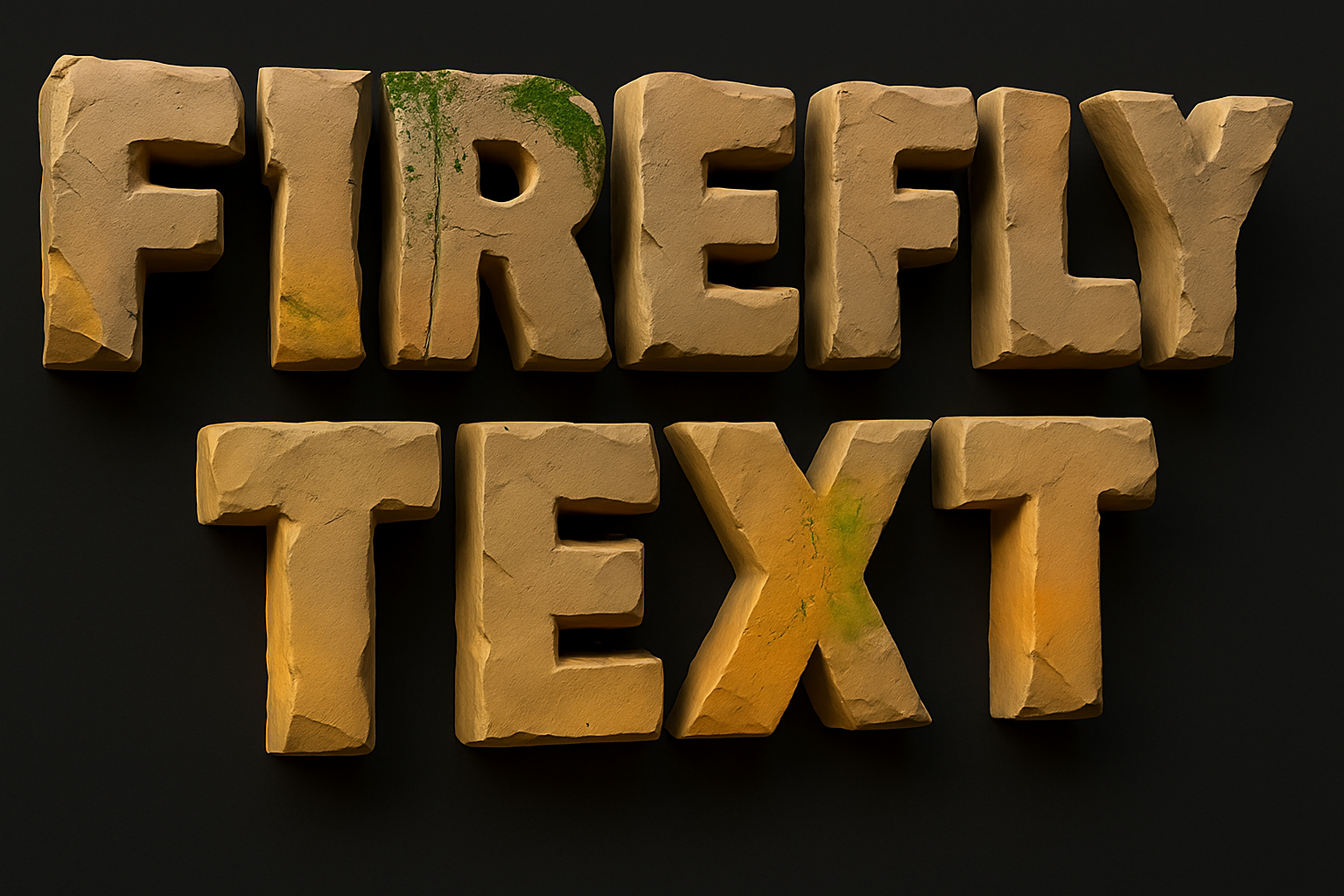
Unleash Creativity: Turn Text into Textures Using Adobe Firefly
When was the last time you looked at a block of text and thought, “Wow, that could look like large boulders!” No? Just us? Well, in a world where digital design pushes the boundaries of creativity and realism, turning mundane text into captivating material like rocky textures is not just possible—it’s easy. Thank Adobe Firefly for that, a tool that’s like your digital genie for text transformation wishes.
Creating Textures that Rock (Literally)
Adobe Firefly is your new best friend for taking text beyond the ordinary. The tool allows creatives to transform text into various materials with eye-popping effects. Whether you’re a designer, a hobbyist, or someone who’s tired of regular fonts, this feature fits right into your creative toolkit.
The tutorial kicks off with transforming text into imposing boulders. But the same steps can create text that takes on textures as diverse as metal, wood, or even more abstract materials. When creating immersive advertising, edgy social media posts, or just experimenting, the possibilities are vast.
Getting Started: Setting Up Your Canvas
Before you embark on this text-transforming adventure, you’ll need to prepare your workspace in Photoshop—a simple yet crucial step.
- Create a New Document:
– Width: 1920 pixels
– Height: 1080 pixels
– Resolution: 150 pixels/inch
– Color Mode: RGB, 8-bitKeep the background white to make those textures pop with contrast.
- Choose a Font:
– Use a thick, chunky font for the best effect. The visual impact of your material-textured text depends significantly on how much ‘material’ is available to be transformed.
Typing and Saving Your Masterpiece
Once you’ve set up your canvas, proceed to write your text. Make it substantial. The more robust your font, the more dynamic your final textured text will appear. After typing, adjust the text size to fit your design’s needs.
- Save Your Work: Save a copy of your text as a JPEG. Always handy to keep a neat backup, plus you’ll need it for the transformation process.
Harnessing the Power of Adobe Firefly
Firefly is your portal to seamless text transformation. Firefly’s intuitive interface makes it a breeze to convert text with creativity at its core.
- Sign in to Adobe Firefly:
– Open your browser, head to Firefly.com, and log in with your Adobe ID. - Generate Your Texture:
– Input your vision (like “large boulder isolated on a white background, with many cracks and weathered texture”) into the prompt. Firefly unleashes its AI magic, returning four textured options. - Fine-Tune Your Creation:
– Choose from art or photo content, adjust color modes, and tweak aspect ratios. The versatility here is second to none.
Download and Apply
After Firefly has conjured up your textured masterpieces, download your preferred choice(s). You have options galore—save one or hoard all of them for future edits.
The Final Flourish: Bringing Your Design Back to Photoshop
Round two with Photoshop involves integrating your newly textured text back into the canvas. Here, you complete the transformation by aligning your design vision with the tactile, realistic feel that Adobe Firefly can provide.
- Open Your Textured Image:
– Head back to Photoshop, navigate to your downloaded image, and open it. Now, you can make additional edits or composite the textured text into more comprehensive designs.
So, why turn text into textures? Because making visual waves in a digital ocean is all about transforming the extraordinary into the extraordinary. Adobe Firefly offers a playground for that kind of transformation. Dive in and watch as simple letters become dimensional, tangible, and downright awesome. And remember, when life gives you letters, turn them into boulders. Or wood. Or ice. Your creative territory awaits!