
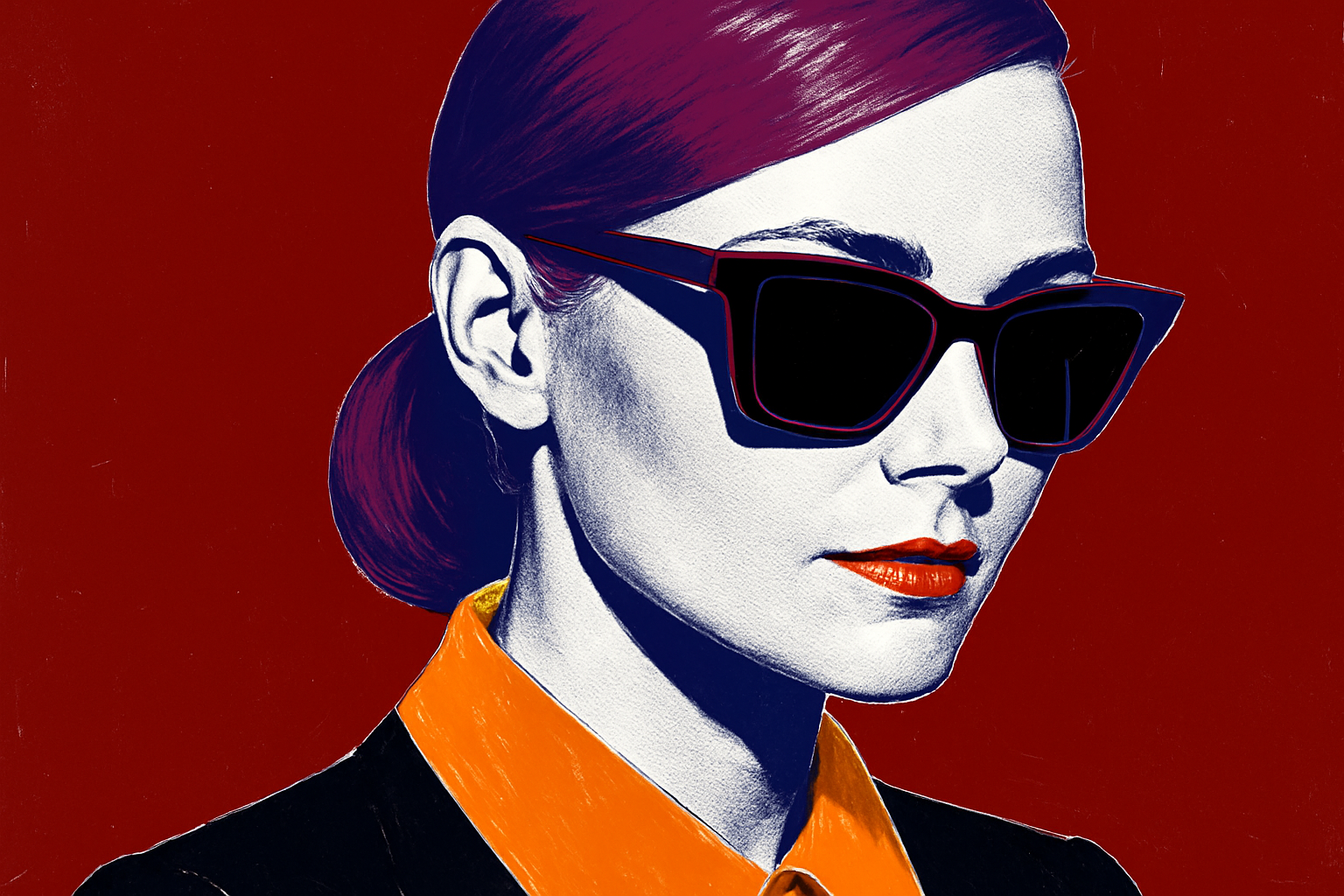
Dive into the Retro World of Andy Warhol with Photoshop
Andy Warhol—an iconic figure in the art world—mastered the intriguing art of transforming celebrity portraits into vibrant silkscreen masterpieces. Have you ever wondered about creating your own Warhol-esque pop art? You’re in luck because today, we’re blending the past and present by using Photoshop to mimic Warhol’s unique combination of bright, contrasting colors and dotted halftone patterns. This tutorial is all about unlocking your creativity, offering a fresh avenue to bring vivid pop art portraits to life.
The Process: Marry the Raw and Refined
Inspired by Warhol’s spontaneous creativity, we began with a set of heavy brushes that maximize the visual appeal of your portraits. Although these brushes are included with Photoshop, you can follow the link in the project files should you encounter any hiccups finding them. To add a unique flair, we provided a nifty font called “Kevin Wild,” perfect for adorning your finished piece with custom text. But before we burst into art-making, let’s dissect this process from start to finish.
Step 1: Unleash the Subject
The genesis of your masterpiece involves isolating your subject from its background. Thanks to recent advancements in Photoshop CC 2023, the “Remove Background” feature now autonomously separates your subject, easing what could otherwise be a tedious task.
- Unlock Layer: Begin by clicking the lock icon.
- Remove Background: Use the Properties Panel to begin the extraction.
Step 2: Fundamentals of ‘Smart Object’ Manipulation
Why should you convert your image into a Smart Object, you ask? It enables non-destructive editing—something you’ll come to value as you dive deeper into design.
- Conversion: Highlight your subject’s layer and convert it to a Smart Object via the right-click menu.
Step 3: Tweak Levels like a Pro
To capture Warhol’s signature high-contrast look, it’s crucial to fine-tune your image levels.
- Adjustment Layers: Add a Levels adjustment layer and clip it directly to affect only your subject’s layer.
- Settings: Adjust Input Shadows to 37 and Input Whites to 145.
Step 4: Creating Dotted Realism with Halftones
Embark on the most transformative stage—applying the Halftone Pattern filter.
- Halftone Settings: Navigate to Filter Gallery under the Sketch folder and choose ‘Halftone Pattern’.
- Specifications: Set the Pattern Size to 1, Contrast to 37, and Pattern Type to Dot.
Step 5: Craft Bold Edge Effects
Pop art wouldn’t be pop art without loud and striking outlines!
- Glowing Edges: In the Filter Gallery, shift over to “Stylize” and click “Glowing Edges.”
- Parameters: Adjust Edge Width to 1, Edge Brightness to 20, and Smoothness to 15.
Step 6: Paint Your Palette of Colors
One of the most liberating aspects of pop art is its color application—random yet somehow cohesive. Warhol didn’t restrict himself, and neither should you. The sky’s the limit when you choose to mix wild colors into your background and subject.
- Background Hue: Create a new layer and fill it with a background color using a brush of your choice: “Rough Flat Bristle” is recommended.
- Foreground Creativity: Cycle through colors for various elements of your subject, keeping in mind that every hue adds a dynamic layer to your work.
Mastering the Craft: Tips for the Perfect Pop Art
- Embrace Imperfection: Allow overlaps and unusual combinations to happen—these quirks add charm.
- Experiment with Blend Modes: Finding the right blend mode can uplift or entirely reshape your color’s effectiveness.
- Stay Playful: Ultimately, the process is meant to be fun. Forget the rules and indulge in the visual exploration Warhol so famously championed.
Rich with both technique and chance, this pop art Photoshop tutorial is your ticket to reviving the fearless creativity that defined Warhol’s era. Paint with abandon. Mix the old with the new. Above all, delight in the joy of the unexpected.





