
Unleash Your Inner Artist with This Face Paint Portrait Effect
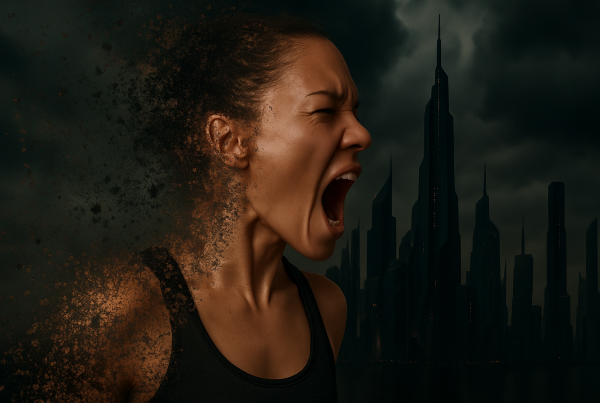
Traditional face paint can be a tad messy, but what if you could create the same dramatic effect virtually? Using the magic of Photoshop, you can transform any high-resolution close-up photo into an artistic masterpiece, complete with a powerful face paint effect. Today, we’ll guide you step-by-step to accomplish this—no actual paint required.
Setting the Stage: Your Tools and Canvas
Before you dive into the artistic process, let’s prep your digital workspace. First things first—choose a high-quality image; Shutterstock can be a great resource for eye-catching close-ups. To maintain the integrity and quality, crop your image to the desired dimensions using the Crop Tool in Photoshop. Clear the settings to start fresh and set the resolution to a crisp 2000 pixels in width. Voila, your blank canvas awaits.
Background Separation: Out with the Old
What’s a masterpiece without a clean slate? Separating your subject from the background is essential. For Photoshop CC 2020 users (and later), this is as easy as unlocking the background and selecting ‘Remove Background’ from the Properties panel. In earlier versions, fear not; the Quick Selection Tool and ‘Select Subject’ option have got your back.
Once you’ve corralled your subject away from the distractions of the background, apply that much-needed layer of black and white. This sets the basis for your face paint effect by turning down the color volume and dialing up the drama.
Smart Objects: The Non-Destructive Way
Converting your visible image into a Smart Object is an artist’s unsung hero. Why? It allows you to make detailed modifications without permanently altering the original photo. Shift-click your subject’s layer and head on over to ‘Convert to Smart Object.’ This gives you the flexibility to adjust with abandon, knowing you can always get back to what works.
Dive into the Filter World
Cranking up the artistry, you now apply Photoshop’s magical filters. Head over to the Filter Gallery and open the Artistic folder. Select the Film Grain and Dry Brush filters. These will heighten midtones and highlights, along with giving a textured, painted look. Experiment with settings—intensity, brush size, and detail—until you’re satisfied with the abstract beauty you’ve created.
Brush It, Paint It: Unleashing Color
Brushes, anyone? We’ll dive into a world of explosion brushes, oil paint brushes, and acrylic ones. Start by creating a new layer and adjusting the Blend Mode to ‘Darken.’ This begins to introduce colors that contrast beautifully with black.
With your trusty Brush Tool at the ready, select the acrylic paint brush. Feel free to rotate it, adjust its size, and play with angles as you artistically coat areas of your subject with colors that speak to you. Break the monotony by continually switching hues and brush sizes. Got too enthusiastic with the color? The Eraser Tool is your best friend here.
Layer Love: Blend Modes
Unlock the power of Photoshop’s Blend Modes. Create vibrant layers each set to darken, soft light, linear burn, and even subtract. This layered approach allows each hue to interact uniquely with your portrait, giving depth, vibrancy, and that unmistakable ‘wow’ factor. Change the Blend Mode back and forth to see how it influences the scene and adjust as needed. Every artist knows that a work of art is never quite ‘done’—so revel in those endless possibilities.
Finishing Touches: Shadow and Style
Time for the finishing touches! Add a layer of shadow to one side of the face to create depth. Set the opacity of the brush to a modest 35-40% and gently brush over the designated areas. Only bold strokes here; subtlety is key.
Convert your layers into one final Smart Object and give the image a once-over with the Cutout filter. The Edge Simplicity and Fidelity settings bring that crisp and clean ethereal artistic quality to life.
And there you have it—a vivid, paint-splattered, larger-than-life representation of your digital prowess. Your journey from a mere photo reference to an artistic rendering showcases Photoshop’s versatility and your imagination’s boundless capacity. Face painting? You’ve just redefined it for the digital age. Dive into your toolbox of brushes, colors, and filters and let your creativity run wild. Because this is just the beginning.
Feel inspired? Don’t forget to share your creations with the world and keep experimenting. After all, every stroke and splash of color is a step further into the realm of digital art mastery.