Turn Your Words into Road Art with Photoshop Magic
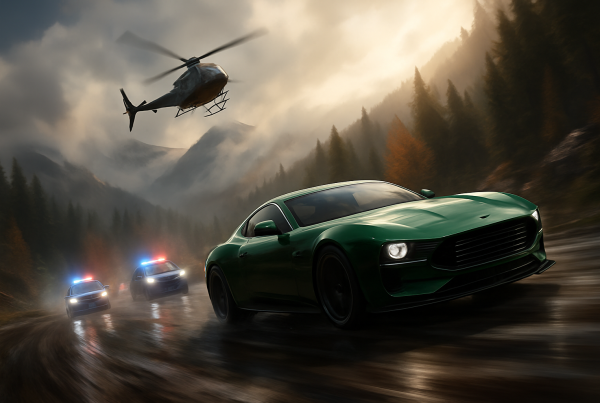
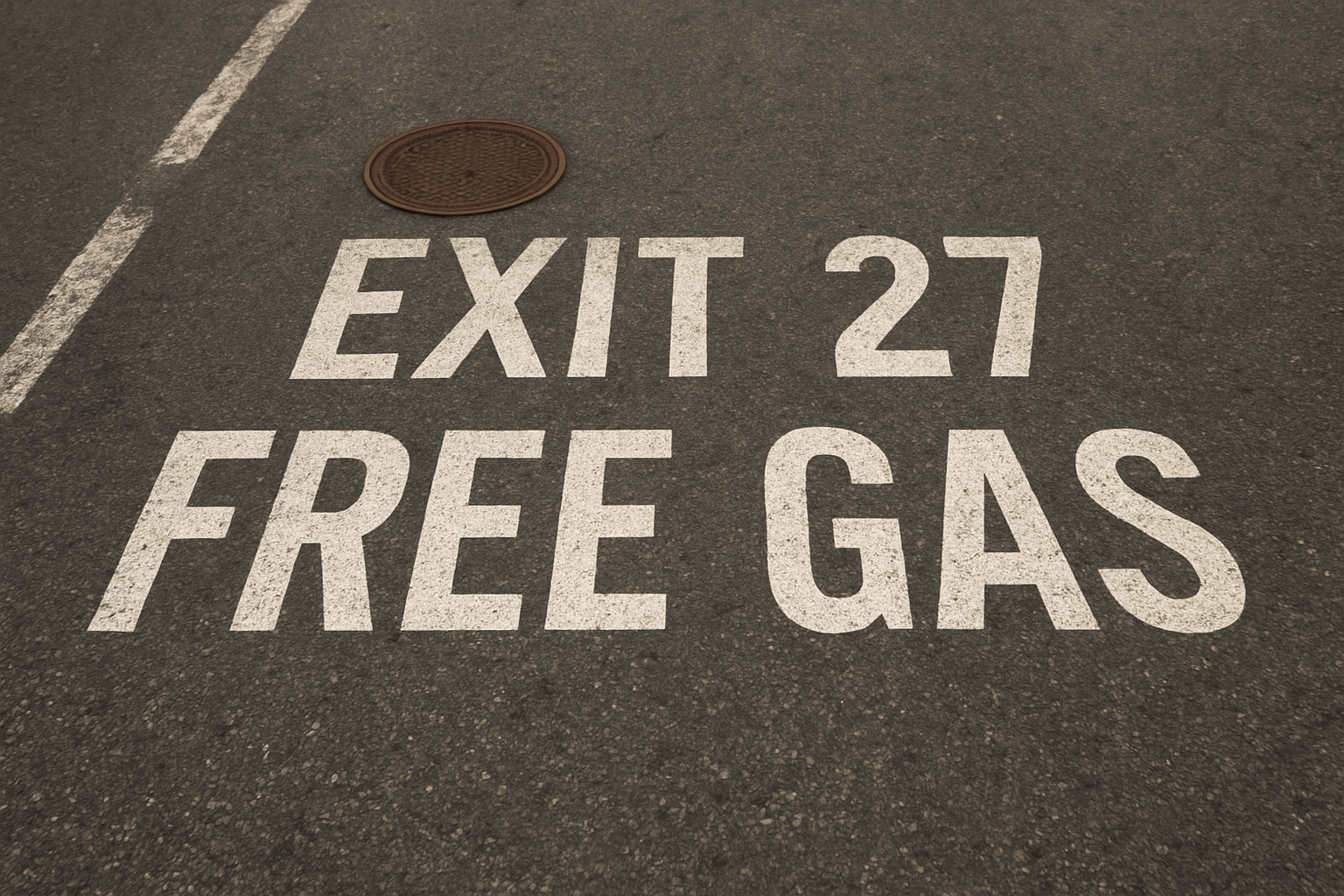
Ever glanced out the window of your car and noticed those crisp white letters painted on the road, directing you towards your destination? Now, imagine taking that look and applying it to your own digital projects. That’s exactly what we’re diving into today — transforming ordinary text into road-worthy art with a few clicks in Photoshop. Forget about spending hours on detailed tutorials. With this easy guide, your text will look like it’s freshly painted on asphalt in no time.
Groundwork: Setting Up Your Canvas
Before we dive headfirst into Photoshop, let’s lay down the groundwork. You’ll need an image of an asphalt road to start. If you don’t have one on hand, the video provides a link in the description to a free version you can use. This isn’t just any project. We’re aiming for speed and style, with a result that looks naturally integrated with the road.
Initiating with Your Text
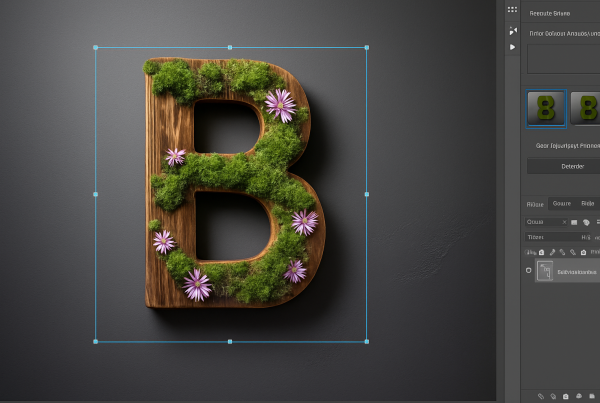
Let’s begin by grabbing your Horizontal Type Tool. To make sure your text pops (because who wants invisible text?), change your foreground color to white. If your color picker isn’t showing black and white, a quick tap on ‘D’ and ‘X’ on your keyboard should do the trick.
Next, choose a decorative font that screams you. Feel free to get creative here. Points can’t be understated enough — they’re the literal size of your text. While the tutorial used 262 points for dramatic effect, you can tailor it according to your font choice and the message’s length.
Refining the Details
To ensure your text is well-composed, let’s fine-tune a few things:
- Spacing: Highlight your text, then visit the ‘Character’ panel. Use the ‘Leading’ icon’s scrubby slider to adjust line spacing, and for more detailing, tweak the ‘Tracking’ value for character spacing. You can even go ninja by holding ‘Alt’ or ‘Option’ and using arrow keys for precision crafting between characters.
Time to smarten up your type. Converting text to a smart object is like donning an invincible armor. It allows for easy edits down the line, protecting your text from any tragic accidents during future touch-ups.
Conform and Transform
For a seamless blend, let’s put your text in perspective (literally). Road text often appears elongated, due to your eye level when you’re in a car. The ‘Transform’ tool is our superhero here.
- Vertical Stretch: Select your top/bottom anchor point and hold down ‘Alt’ or ‘Option’ and ‘Shift’ to elongate.
- Distortion Adjustment: Head to ‘Transform’ and choose ‘Distort’. Shift-drag from each corner to suit the road’s perspective.
Just remember: keep things by the book (of physics), so the vanishing point makes sense to viewers.
Feathering with Blurs
Imitating how painted letters spread their charm on asphalt means a touch of blur is necessary. We’re using Gaussian Blur:
- Blur Setting: A mere 3 pixels adds the subtlest of feathered edges — like paint slightly absorbed into the asphalt, softening those stark digital lines.
Merging with the Surface
For realism, our text needs to bind with the road’s rough surface:
- Layering Magic: Make a layer mask from the text’s shape and shift its blend mode to ‘Hard Light.’ Duplicate this layer and switch the copied layer to ‘Soft Light’.
Amplifying natural shading requires a bit of the ‘Blend If’ magic. By adjusting the luminosity using sliders, we can make those letters seem as though they’re part of the asphalt, rather than floating above it.
Fine-Tuning the Blend
‘Blend If’ can be nuanced, but here’s a simple breakdown:
- Splitting Sliders: Hold ‘Alt’ or ‘Option’ to bifurcate any slider. Drag specifications can vary till you hit that aesthetically perfect sweet spot. The goal is to have the texture of the asphalt show through just enough to make the text look genuinely painted.
By matching your artsy text with the layer underneath, you’ve cunningly knitted your Photoshop magic into an awe-inspiring street canvas.
The best part? You’re not just adding text to an image; you’re embedding it, integrating art with infrastructure, and creating a piece that’s both inventive and attention-commanding.
Ready to take your digital road-marking skills to new heights? Whether you’re designing for personal projects or aiming to venture into a new artistic style, this Photoshop technique is your road to greatness — pun very much intended. So, go paint that digital asphalt with your imagination!