Unleash Your Inner Artist: Turn Photos into Watercolors
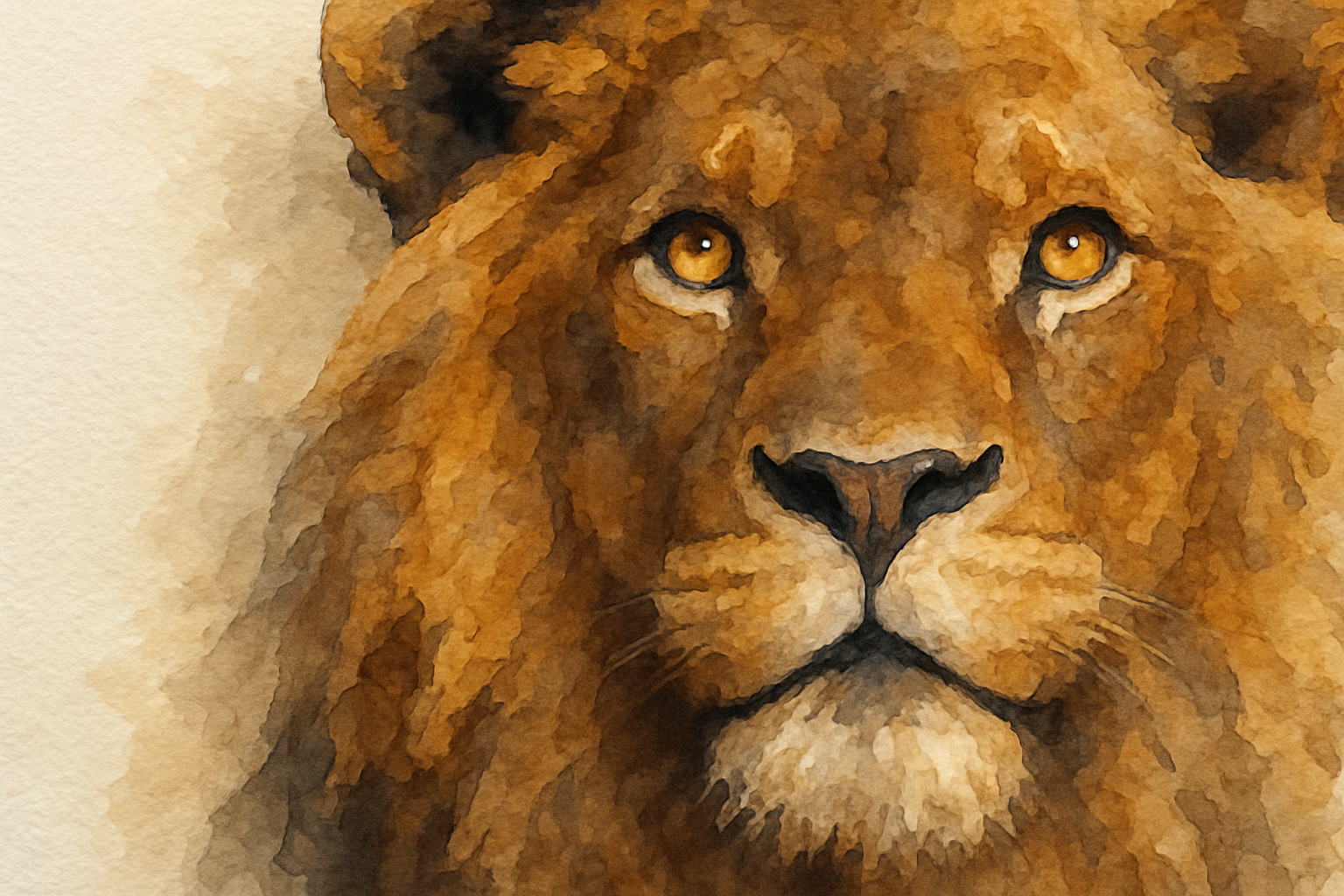
Have you ever gazed at a watercolor painting and wished you could instantly infuse your photos with the same dreamy quality? You’re in luck because today we’re diving into the magical world of Photoshop to transform your photographic masterpieces into watercolor wonders. You’ll learn how to wield filters and layers like a virtual paintbrush, giving ordinary photos a burst of artistic flair.
Gather Your Supplies: The Essential Tools
Before we embark on this watercolor journey, you’ll need a photo and a texture that mimics the look of watercolor paper. Luckily, resources are abundant—whether you capture your image or obtain one from stock websites like Shutterstock. Additionally, you’ll want to have a watercolor paper texture handy. It’s vital to ensure your photo’s resolution is 72 pixels per inch for the best results, though adjustments are possible for other resolutions.
Preparing Your Canvas
To start this creative adventure, duplicate your photo layer in Photoshop and convert it into a Smart Object. This move is like putting your photo in a protective casing, allowing you to apply filters non-destructively. If only our real-life decisions had such a nifty undo!
Next, load your watercolor paper texture and transform it into a pattern by navigating to Edit and Define Pattern. Once you click OK, you’re ready to splash your canvas with digital paint.
Creating Your Watercolor Background
Create a new layer to serve as your paper background. Fill this layer with a color—black and white work best for simplicity. You can easily toggle between these by pressing the “D” key, and then fill using Alt/Option + Delete.
Open the Layer Style options to apply a Pattern Overlay, choosing your newly minted paper pattern. Adjust its scale to your satisfaction; say hello to your virtual watercolor paper.
Brush Up on Your Artistry: Applying Filters
The magic unfolds as we apply various filters, transforming your photo into an ethereal watercolor rendition:
1. Dry Brush and Cutout Filters
Head over to the Filter Gallery, opening up the Artistic folder for the Dry Brush effect, followed by the Cutout settings. These create the bold, painterly strokes of a watercolor painting.
2. Smart Blur and Soft Edges
For a dreamy, diffused glow, apply Smart Blur with a high-quality setting. Don’t forget to tweak its Blending mode to Screen for optimal softening.
3. Find Edges for Striking Details
The Find Edges filter helps to outline details. Set its mode to Soft Light for a more subtle effect. Adjust blending and opacity for finesse.
Color Play: Adjusting Vibrance and Levels
Now that your photo resembles a traditional artwork, it’s time to play with levels and color. Adjustments in the Levels panel will refine shadows and mid-tones, while increasing the Vibrance creates vibrant, lively hues that define watercolor’s charm. Remember, Vibrance targets less saturated colors, unlike Saturation that douses all colors equally.
The Final Touch: Painting with Brushes
Here, we’ll use the Brush Tool to paint over our photo creatively. Select a watercolor brush from Photoshop’s Legacy Brushes, or let your imagination roam. With your brush, reveal parts of your digitized painting, creating stunning layers of texture and color that mimic real paint.
Keep opacity in mind as it affects the transparency level of your reveals. Try different brush sizes and opacities to enrich your artwork with depth and layers.
Embrace the Joy of Digital Watercolors
With these techniques in your arsenal, you can turn any photo into a breathtaking watercolor painting. Whether it’s for personal enjoyment or to dazzle an audience, the digital world offers you an unlimited palette tailored to your vision. So, unleash your inner artist and paint the world in watery wonder, one pixel at a time!
In the digital age, creating art doesn’t require physical paints and brushes, just your creativity and a trusty mouse (or pen tablet). Whether for digital galleries or personal projects, transforming photos into watercolors promises a uniquely personalized artistic experience.
Happy painting! And remember, the joy is in the journey—and maybe a little bit in the filters.