
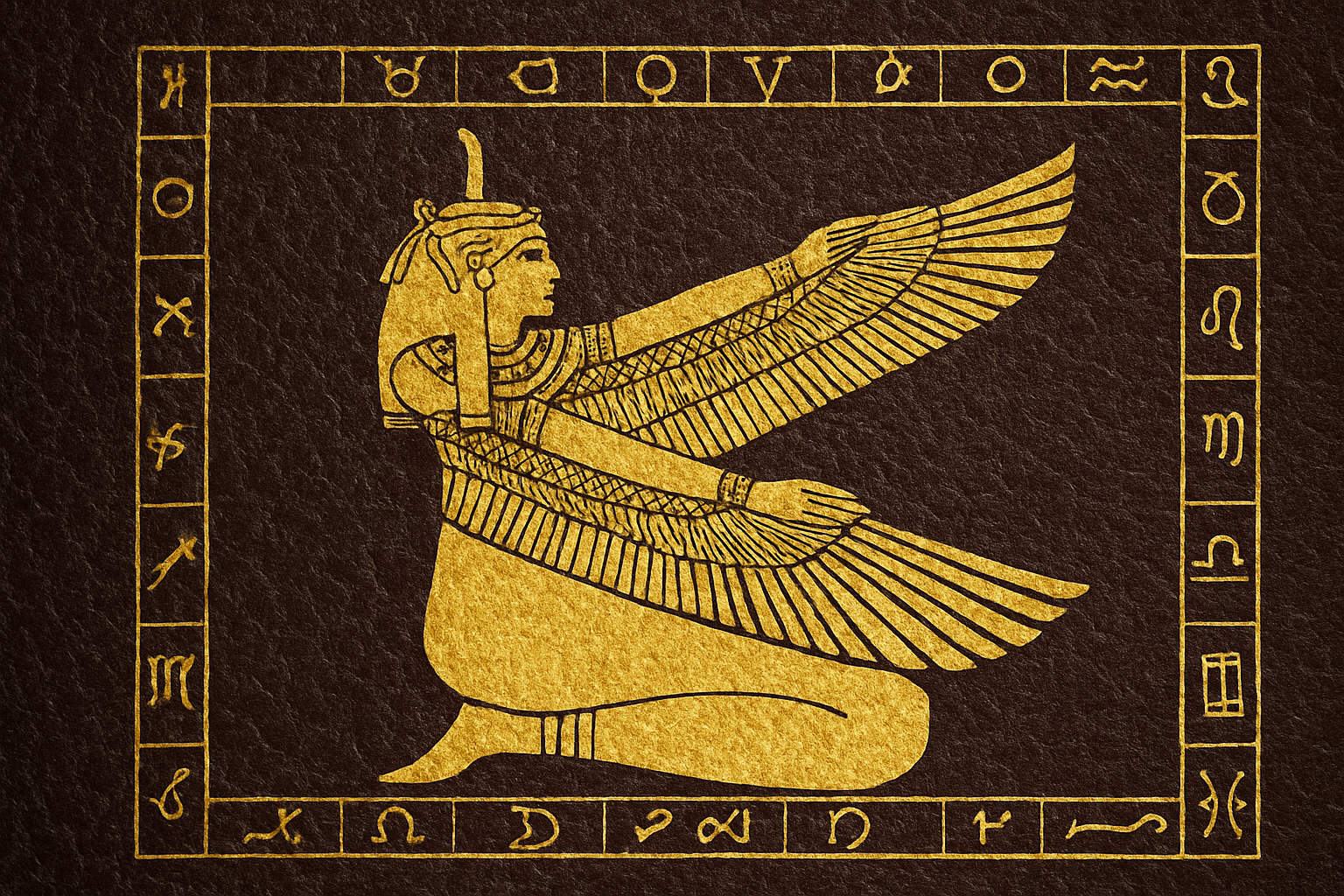
Crafting Elegance: The Magic of Gold Leaf on Leather
In the ever-evolving landscape of digital art and design, achieving stunning effects with minimal effort is the holy grail for creatives. Photoshop is our digital canvas, and today, we’re exploring how to create the exquisite appearance of gold leaf on a leather texture. This technique is not just for impressing your clients or followers—it’s a celebration of artistry that intersects the luxurious with the handcrafted charm.
Gathering Your Resources
To kick things off, you’ll need two key components: a leather texture and a high-contrast black and white graphic. If you fancy an easy start, there are downloadable links to these resources in the project’s files. This setup forms the bedrock of the potential golden elegance you will soon unleash.
Laying the Foundation: The Graphic and the Leather
Now, let’s get our tools straight—grab the Move Tool, because we’re about to merge these textures into something fabulous. Drag your graphic onto the leather canvas until it’s dead center. Use the ‘Shift’ key to maintain correct alignment, keeping everything neat and aligned.
Next, check the purity of your graphic. Use ‘Auto Contrast’ from the ‘Image’ menu to ensure your blacks are as dark as a freshly brewed coffee and your whites as crisp as a winter morning. Adjust the size to about three-quarters of your canvas to leave space for the magic that’s about to unfold.
Preparing the Displacement Map
Our design magic runs deeper than meets the eye, starting with the creation of a displacement map. This simple trick ensures the graphic conforms to the leather’s texture, integrating both elements seamlessly.
To start, hide the graphic, duplicate the leather layer, and zap out its color with ‘Ctrl + Shift + U’. Then, bring some light into it—hit ‘Ctrl + L’ and slide those highlights until they’re hovering somewhere between 90 and 100. Add a touch of blur (Gaussian, 2 pixels should suffice), and you’re set for the next stage.
The Art of Displacement
Duplicate your newly processed layer into a new document and save this as a PSD—this is your map to grandeur. Later, when it’s time for the grand displacement act, this map will guide your creation, allowing your gold leaf simulation to contour beautifully to the leather’s surface.
Adding Gold Clouds to Your Sky
Back in the realm of color, it’s time to get those fingers dusty with some gold in your palette. Tap into the color picker and type ‘B27D29’ to get a deep, rich tone. Create a new layer and unleash the Clouds filter. This foundation will shimmer as northern lights when enhanced with the ‘Glass’ effect from the Filter Gallery.
Sculpting with Light – The Final Touches
Final steps are all about refining and enhancing this digital alchemy. Convert elements into smart objects, allowing for non-destructive tweaks down the line. Add curves to brighten select areas, adjust midtones, and imbue your leather with a tangible sense of depth.
Perspective Transformations
Now, for the pièce de résistance: transforming your layered creation into something that’s more than the sum of its parts. Use the Transform tool to adjust angles and positioning. These tweaks allow for the most flattering perspective and bring a polished finesse to the final product.
Artistry in Software
Photoshop isn’t just about altering images—it’s your workshop, your gallery, and ultimately, your playground. Learning to use its features to simulate effects like gold leaf on leather not only expands your creative toolkit but bridges the gap between real-world textures and the limitless potential of the digital age.
So next time you’re clicking your way through a design template, remember this: Each pixel is a potential masterpiece waiting for your touch. Whether you’re a seasoned designer or a curious beginner, relish the power you wield with each tool and brush in Photoshop. Now go forth and let those gold leaves unfurl across your digital canvases!





