Craft Your Own Portrait on Paper Currency
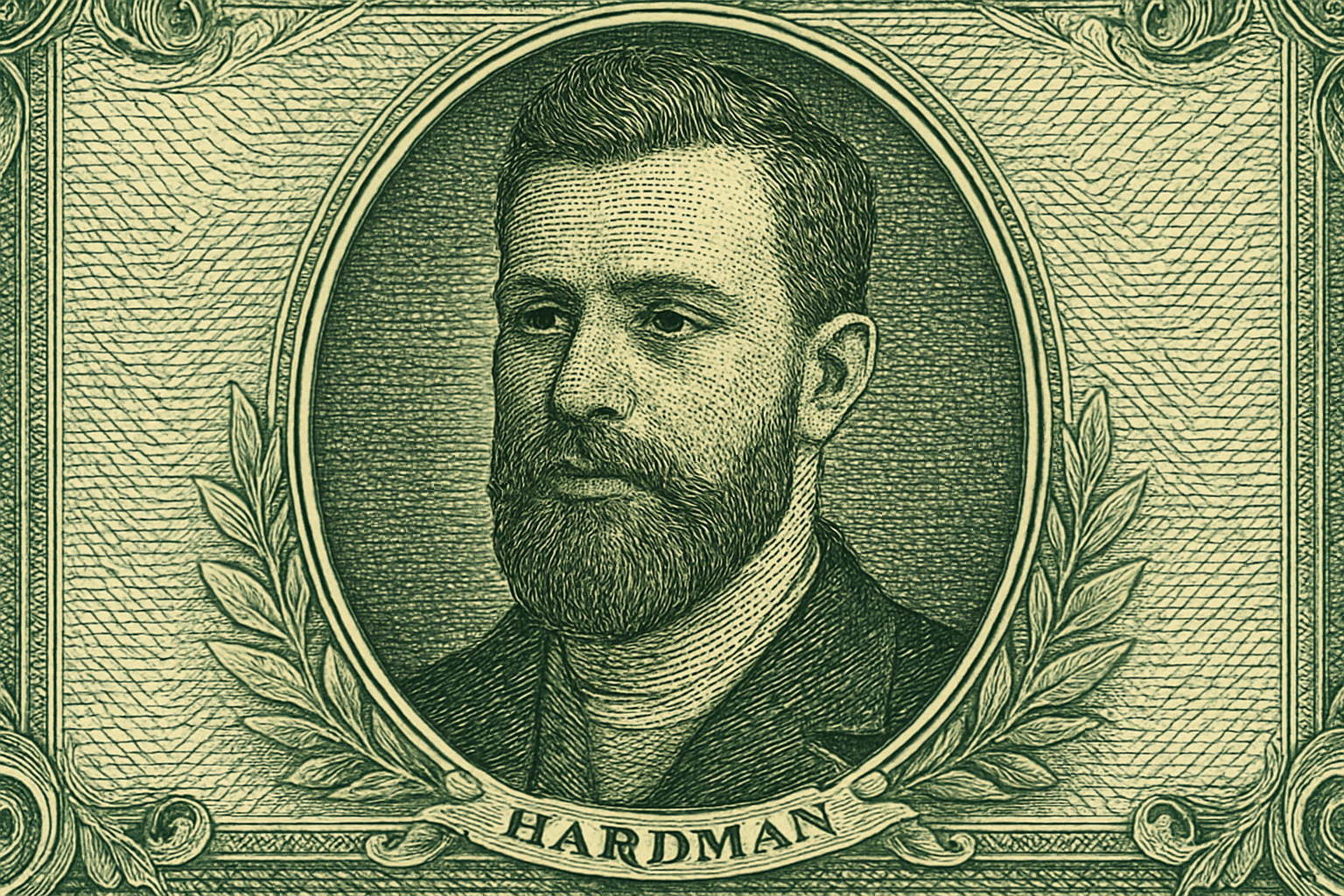
Are you ready to see your face immortalized on paper currency? No, we’re not secretly suggesting you print counterfeit bills—because that’s illegal (and also, don’t do that). But we do have an exciting creative exercise for you that lets you convert your selfie into a classic steel etching like the ones found on real money. This technique is a great way to elevate your Photoshop skills while having a little fun with digital artistry. Let’s dive right into this nostalgic craft-meets-modern-method process, using tools in Photoshop!
Resources You’ll Need
Worried you might muddle the complex details or get tangled up in extravagant settings? Fear not, dear reader. We’ve got a Photoshop template all set for you, complete with a channel to position your visage right where it belongs on this faux-financial masterpiece. Plus, there’s a link to the font—which is also free—to customize your name in a typography style reminiscent of real currency. Both of these nifty little helpers can be found in the description under our engaging YouTube video.
Preparing Your Subject
To start crafting your money-personification, pick out a photo that showcases your features well. We chose an option from Shutterstock, a treasure trove of stock images. It’s vital to ensure your photo is cropped to a precise height and resolution before moving forward. Don’t worry; we’ll walk you through it.
- Open your image in Photoshop and select the Crop Tool.
- Hit the Clear button to reset any preset dimensions.
- Enter 1000 pixels for Height and 150 pixels per inch for Resolution, leaving the Width unspecified.
- Carefully drag to crop, ensuring space beside your face — no sardine packing here.
- Hit Enter or Return twice to apply these settings.
Now, secure a copy of this image (Ctrl or Cmd + J) before desaturating it to bring out its grayscale beauty (pressing Ctrl or Cmd + Shift + U). Increase its contrast using Auto Contrast (found under Image > Auto Contrast).
Creating the Etching Effect
A steel engraving is subtle yet striking, defined by its intricate lines. Here’s the magic trick to replicate it:
- Create a new Photoshop document, sized 1500 x 1500 pixels, at 150 pixels per inch resolution.
- In Background Contents, select “Custom” and fill the field with 808080 for a 50% gray stress-relieving tone.
From here, the artistic endeavor includes:
- Applying a Halftone Pattern (Filter > Sketch > Halftone Pattern, Type: Line, Size: 1, Contrast: 50).
- Add a wave distortion (Filter > Distort > Wave with specific settings mentioned in our captions above).
Duplicate this curated pattern and invert it (Ctrl or Cmd + Shift + I), followed by a jaunty Transform spin (Edit > Transform > Rotate 90 degrees Clockwise).
Combining Elements and Finalizing
Returning to your subject, elegantly drag it onto your newly snazzy pattern. Ensure it maintains center stage (hold Shift while dragging). The key nuance lies in blending techniques that simulate the engraved effect:
- Set the top pattern’s Blend Mode to “Overlay,” then repeat for the second pattern.
- With the completed layers active, convert them to a Smart Object to allow non-destructive adjustments.
The Big Finish
Transfer this composite over to the money template. Blend this element into the template with a “Linear Burn” Blend Mode to seamlessly integrate your visage.
And finally:
- Tweak the exposure, aligning it to only influence the subject (apply a Clipping Mask and head to Adjustment Layer > Exposure).
- Adjust the gamma levels subtly to set the perfect tone ratio (suggested Gamma Correction value: 2.46).
To sign your masterpiece fittingly, utilize the provided “Legal Tender” font. Warp it until it fits snugly into the designated name ribbon beneath your smirking, etched expression.
There you have it—your very own face showcasing its steel-cool mug on currency. This project offers countless possibilities to flex both creative and technical muscles. So turn on some tunes, sit back, and transform yourself into a money-worthy work of art!