
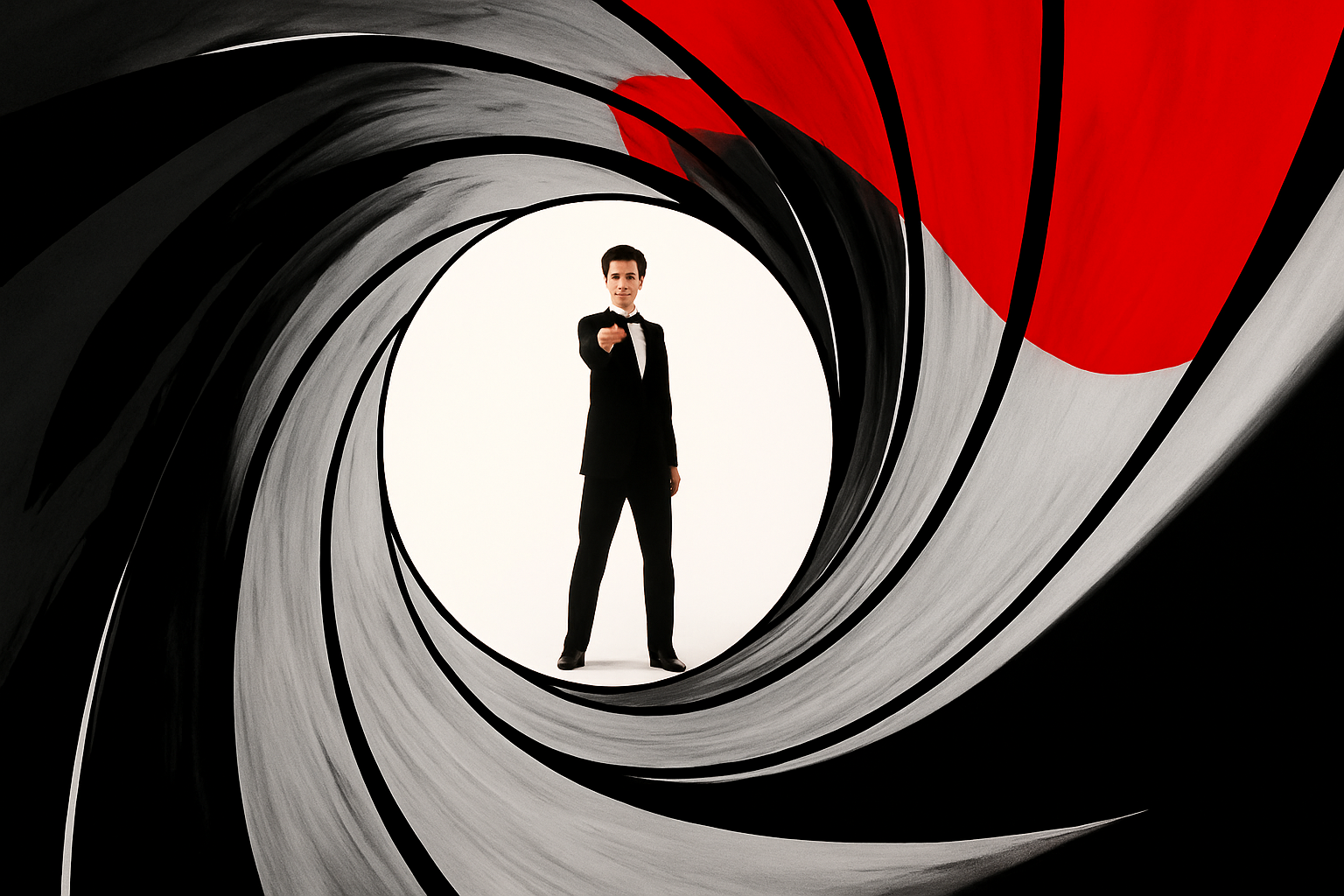
Dive into Creating a Classic Movie Intro with Photoshop
Have you ever watched a James Bond film and found yourself mesmerized by the iconic gunbarrel sequence that plays at the start of each movie? It’s a classic blend of mystery, style, and intrigue—all wrapped up in a few seconds. Well, hold onto your spy gadgets, because we’re about to break down how you can recreate this emblematic image using Photoshop. Yes, you read that right. It’s time to become a Photoshop super-agent without leaving the comfort of your creative lair.
Assemble Your Arsenal—The Project Files
To get started, you’ll need the right tools, much like any secret mission. I’m talking about the Photoshop files you can download, which consist of essential layers ready for you to tweak:
- A cinematic letterbox shape
- An image of none other than James Bond (played by Pierce Brosnan in this case)
- A muzzle hole shape
- The iconic rifling twirl
With these assets at your disposal, you’re halfway to reliving those first electric moments when the music kicks in and you know 007 is about to make an entrance.
Prepping for Action: Checking Image Specifications
Before you unleash your creative powers, double-check that your image is in fighting shape! Ensure that it is a perfect square with dimensions hitting around 3100 by 3100 pixels. The resolution is best set at 72 pixels per inch. Why? Because details matter when you’re crafting something as sleek as a Bond intro.
Setting the Stage with Guidelines and Layers
Silently and swiftly, like any good agent, let’s navigate through layers and guidelines:
- Guide Layout: Head to “View” and then “New Guide Layout.” Uncheck “Rows” and set “Columns” to 2. For earlier versions, you’ll manually create a vertical guide at 50%.
- Transforming Layers: Rotate top layers, move them around until James Bond is taking center stage—just as he deserves.
In no time, you’ll have your layers behaving like orderly secret agents, ready for further manipulation.
Painting the Base—Creating a Skyline Effect
With your smooth operator skills, you’ll harness tools like the Rectangular Marquee and Move Tool to carve out your skyline effect. Duplicate layers, use Transform, and voila! You have a vibrant cityscape backdrop.
- Arrange skyline layers into a folder for easier management.
- Apply blend modes such as “Hard Light” to give it that cinematic touch.
- Lower opacity to achieve that mysterious yet stunningly sharp look.
Drawing the Eye to the Target—Creating the Gunbarrel Twirl
The heart of the gunbarrel image—a mesmerizing twirl—can be crafted with finesse using Smart Objects:
- Twirl Effect: Filter > Distort > Twirl. Set at an angle of -673 degrees to get that perfect spiral.
- Pinch Adjustment: Distort > Pinch, crank it to 100% for that tunnel vision effect, like you’re staring down the barrel of a Walther PPK.
Casting Shadows—Adding Depth and Realism
Every shadow holds a story, and in this narrative, drop shadows are your ally:
- Adjust the “Drop Shadow” on the “Rifling twirl” layer, ensuring it’s perfectly angled to capture mystery and depth.
- Fine-tune the muzzle hole with its own shadow. Keep it stealthy and unexpected—like Bond himself.
Enter Bond—Integrating Agent 007 into the Scene
Clipping masks prove as precious as any top-secret gadget. With a few shortcuts, like Alt + Ctrl + G, Bond steps into position with seamless precision.
Painting the Past—Blood and Suspense in the Classic Sequence
Now, to add that theatrical red—a testament to the drama and flair that defines any Bond intro:
- Draw using the pencil tool, fill it with a vibrant red via the paint bucket tool.
- Blend modes like “Multiply” or “Soft Light” add the final layer of dramatic tension, revealing just enough with the layer mask to keep the viewers on edge.
Creating this iconic gunbarrel sequence is an open secret—yours to decode, adapt, and bring to life, one layer at a time. Whether you dream of movie-making or love all things design, we hope this guide empowers your next big creative endeavor. Get your Photoshop license to thrill and start crafting your own masterpiece today!





