
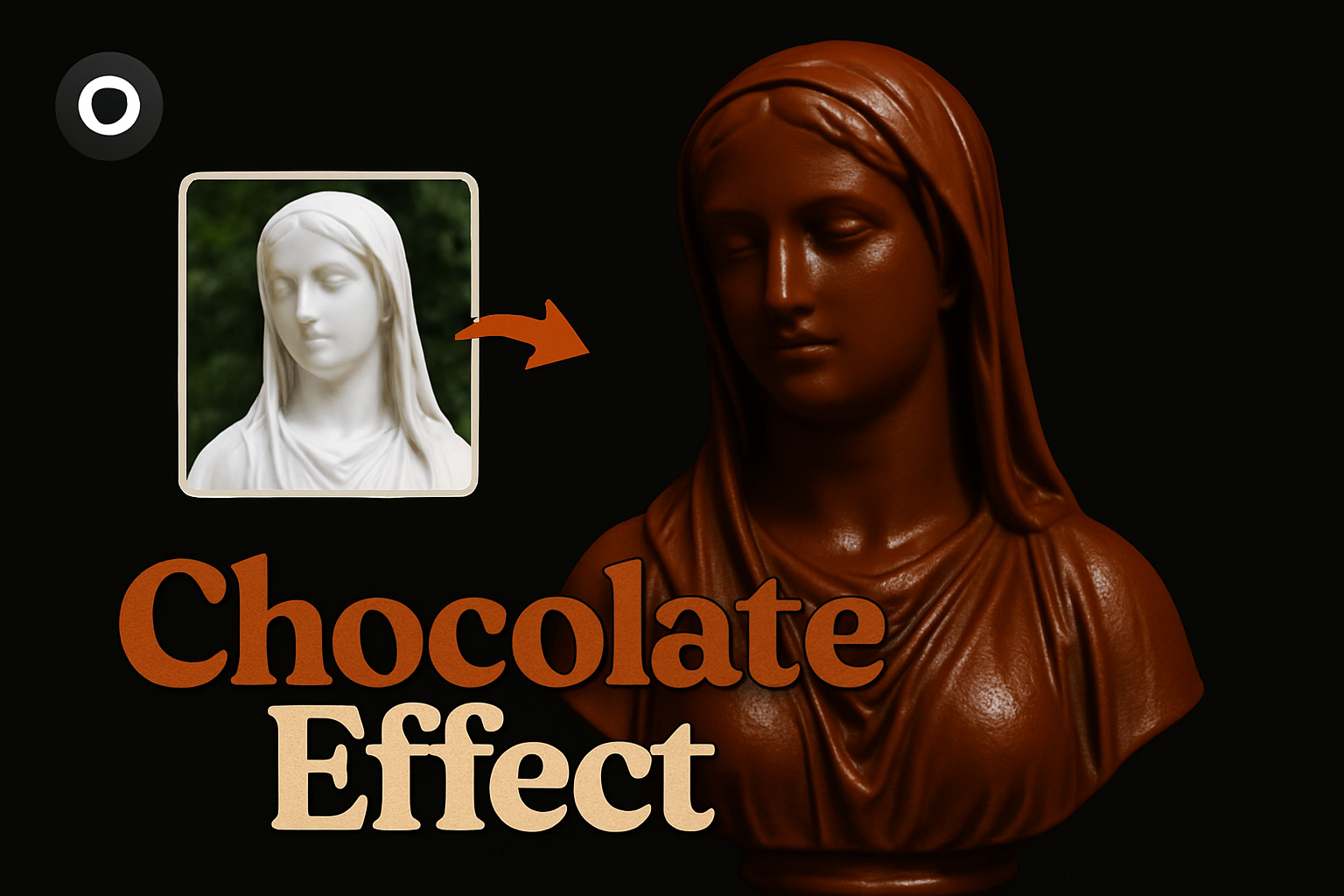
Unlock the Sweet Art of Chocolate Transformation
Photoshop has long been the playground for creative minds to bend reality and infuse artistic brilliance into mundane images. Today, we’re diving into a delightfully rich and creamy world—transforming everyday objects into mouth-watering chocolate masterpieces. Picture the luscious look and sweet aesthetic of solid chocolate and imagine applying it to single-tone objects of any shade—white, black, or even the ambiguous tones in between. Who knew Photoshop could satisfy your creative sweet tooth?
The Chocolatey Update You’ve Been Craving
In our digital confectionery adventure, we’re revisiting and revamping an older Photoshop tutorial. This update isn’t just a treat for the eyes; it promises increased speed and flexibility. The effect, which captures the essence of luxurious chocolate, works best on single-color objects with a range of natural shadows. For those eager to follow along, we’ve supplied an image of a stone statue to experiment with. This stone-to-chocolate metamorphosis is sure to leave any creative soul inspired and perhaps a tad hungry.
Prepping Your Canvas: The Statue Selection
To begin our process, the subject of transformation—the statue—needs to be separated from its background. This selection process is made deliciously simple with the Quick Selection Tool, an efficient feature available in Photoshop CC 2018 and later. If your software version is a little behind the curve, a manual quick selection will suit just fine.
- Step 1: Use the Quick Selection Tool by selecting the “Select Subject” button to allow Photoshop’s wizardry to identify the prominent subject automatically. Those using a version before CC 2018, wield your Quick Selection Tool skillfully to capture the essence of your subject.
- Step 2: Press “Q” to view the selection as a quick mask and tweak any overlooked areas for perfection.
- Step 3: Once satisfied, press
Ctrl + J(orCmd + Jon Mac) to cut and collect your subject onto its own layer.
Smart Objects & Preparing the Base
Now, we need to convert this layer into a Smart Object. This not only safeguards against destructive edits but also aids in achieving that smooth, chocolatey sheen.
- Smart Object Conversion: Click the menu in the Layers panel and opt for “Convert to Smart Object.”
- Create a Base Layer: Next, generate a new layer beneath it and introduce a rich black fill as the canvas for your chocolate piece. A simple
Alt + Delete(orOption + Deleteon a Mac) will suffice here once you’ve ensured black is your foreground color.
A Glossy Surface: The Magic of Blur
To smooth your sculpture and free it from all impurities, the Surface Blur filter is your friend. It interestingly balances a polished look while preserving those vital edges.
- Surface Blur Settings: Visit Filter > Blur > Surface Blur. Here, adjust the Radius and Threshold to smooth your image—use 10 for Radius and 5 for Threshold as a starting point.
Adjusting Your Layers for Depth
With our base and shadows set, let’s delve into depth using adjustment layers. These serve as the creative cocoa in our Photoshop recipe.
- Exposure Tweaks: Under adjustment layers, opt for “Exposure” and tweak to taste. A pinch of -0.2 for Exposure, -0.1 for Offset, and 0.4 for Gamma should darken things up nicely. Clipping this adjustment to only affect the chocolate layer is crucial—just press
Alt + Ctrl + G(orOption + Cmd + Gon a Mac). - Hue/Saturation Magic: Add a “Hue/Saturation” layer, clip it, and enable “Colorize” with the Hue set to 15 and Saturation to 40, to tint your subject the perfect shade of mouth-watering milk chocolate.
Final Touches: Wrapping it All Up with Filters
The closing act in our confectionery creation leverages the Artistic Filter called “Plastic Wrap,” providing that decadent sheen chocolate is famous for.
- Plastic Wrap Application: Within the Filter Gallery, navigate to the Artistic folder and choose “Plastic Wrap.” For most scenarios, striking a balance with settings like Highlight Strength: 5, Detail: 5, and Smoothness: 15 works wonders. Still, always adjust based on the unique attributes of your project.
In turning stone into chocolate, or frankly any object into a delightful treat, the key lies in experimenting with these techniques. So there we have it—the transformation from everyday materials into the coveted, luxurious look of solid chocolate is at your Photoshop-ready fingertips. The road to creative indulgence never looked so sweet!




