
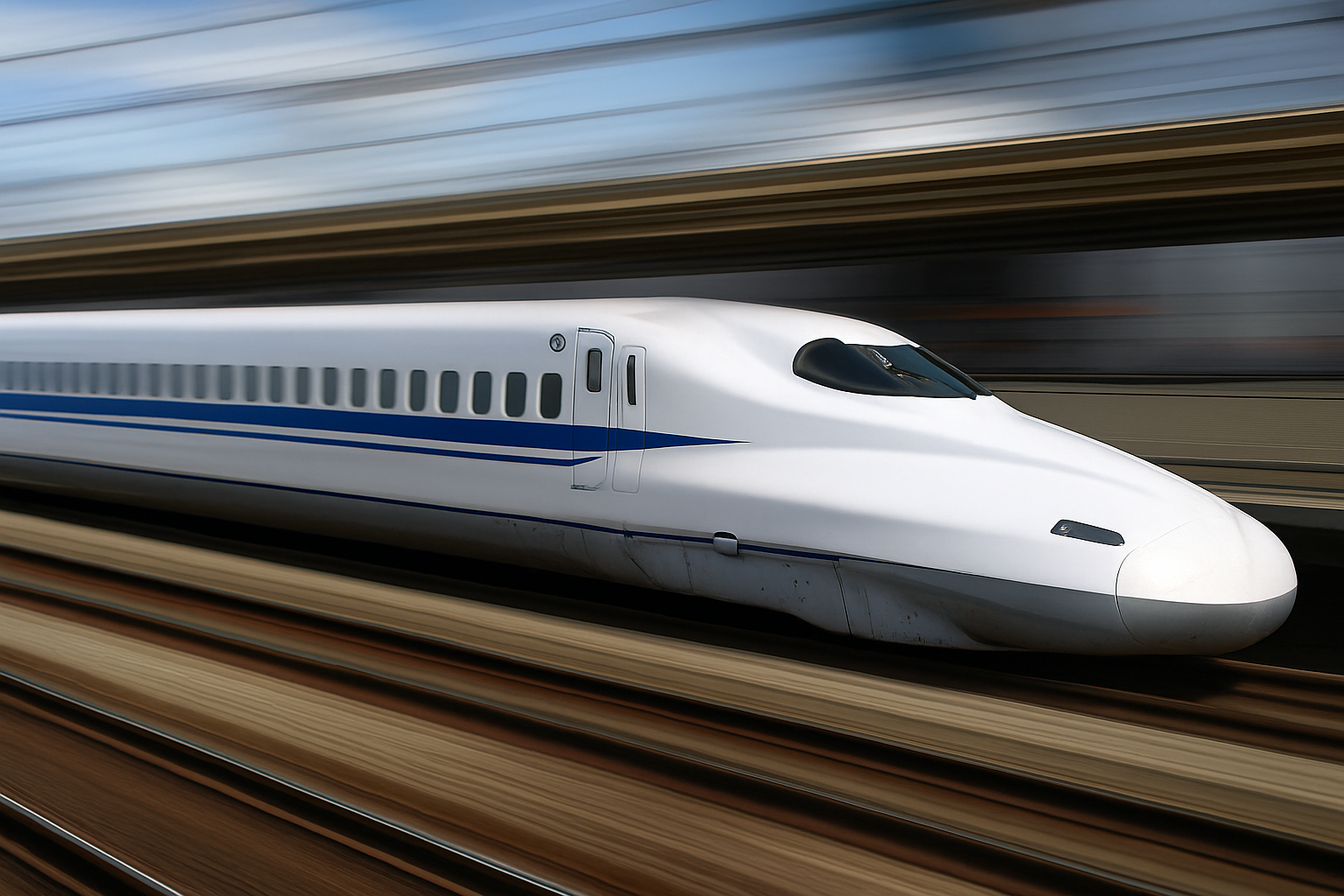
Create the Illusion of Speed with Motion Blur in Photoshop
In a digital age dominated by dynamic visuals, there’s something breathtaking about capturing speed in photography. But what if your subject, like a trusty bullet train, refuses to budge? Fear not, because with the magic of Photoshop, even the most stationary subjects can transform into sonic speedsters. Join us as we delve into the world of motion blur, a technique that’s super-charged with creativity and endless possibilities.
The Art of Creating Motion from Stillness
Photoshop is akin to a wand for visual wizards. With a few adept flicks, we can take something decidedly static, like a photograph of a stationary bullet train, and transform it into a dynamic portrayal of ultimate speed. This is accomplished by employing Photoshop’s blur capabilities, specifically the Path Blur tool. Introduced in CC 2014, Path Blur opens up a world of fast-moving possibilities for creators, enabling realistic motion blur on a whim.
Step-by-Step: Creating Motion Blur
1. Initial Setup: First things first, you’ll need a high-quality image of your subject. Fortunately, the fine folks at Blue Lightning TV offer such assets with their tutorials, complete with links found within the video descriptions or provided project files.
2. Isolate the Subject: For precision, the key is to separate the subject from its background. This tutorial walks you through using channels to create a precise selection of your subject — in this case, the train’s nose — placing it onto its own layer.
3. Duplicate Your Image: Ensuring you have your original image untouched is essential, hence the mantra: duplicate your layer using Ctrl or Cmd + J.
4. Background Fill: To prevent any odd ghosting issues from the blur, the tutorial suggests filling in the subject’s nose with the background using the Content Aware Fill (Shift + F5).
5. Convert to Smart Object: This is a crucial step because encoding your image as a Smart Object allows for non-destructive editing, meaning you can change the blur effects later without damaging your original image.
Employing the Path Blur Tool
The Path Blur tool is pretty much a Photoshop game-changer. Here’s a quick rundown on leveraging this tool:
- Path Initiation: With the Path Blur tool, motion paths are created directly on your image. These paths are manipulated by dragging them into place, following the natural perspective of the photograph to ensure realistic motion trajectories.
- Configuring Blur: Path Blur lines are further customized by adjusting Blur Shapes. This dynamic control lets you tweak how speed manifests across different sections of your image, emphasizing the speed where necessary and dialing it back where it’s not.
- Noise Adjustment: Sometimes, motion blur can eliminate the natural grain of a photo which, ironically, reduces realism. Simply bump up the noise to counteract this, reintroducing grain to maintain a natural feel.
Finishing with a Flawless Fusion
For ultimate authenticity, have the camera appear as though it’s panning with the speeding train. Uncovering any motion blur artifacts with the Move Tool (v) ensures your foreground and background seamlessly blend.
Finally, it’s all about masking and brushing with precision. Dynamic control over brush settings lets artists softly merge the subject with the motion; a softer brush ensures no hard edges, which could betray the illusion of motion.
Save Your Masterpiece
After crafting this masterpiece, preserving it properly is key. Blue Lightning TV provides two methods for saving, ensuring both convenience and original project integrity are maintained:
- Flatten and Save as JPEG: After saving your complete layered PSD, flatten your image and save it for web use.
- Composite Snapshot: Create a composite snapshot (
Alt + Ctrl + Shift + Eon Windows orOption + Cmd + Shift + Eon Mac) for a non-destructive alternative before saving.
Speed Up Your Workflow
In the world of creative photo manipulation, the right technique can propel a still image into a mesmerizing action shot. With these guided steps, your audience will feel the rush of movement, captivated by the illusion of speed. Whether you’re animating trains, cars, or any stationery objects, Photoshop’s Path Blur helps you create compelling and dynamic images effortlessly.
So why let immobility stifle your art? Push the limits, blaze trails, and let Photoshop do the heavy lifting as you flash by — metaphorically, of course.





