
Mastering Circular Text in Photoshop: Quick Tips for Designers
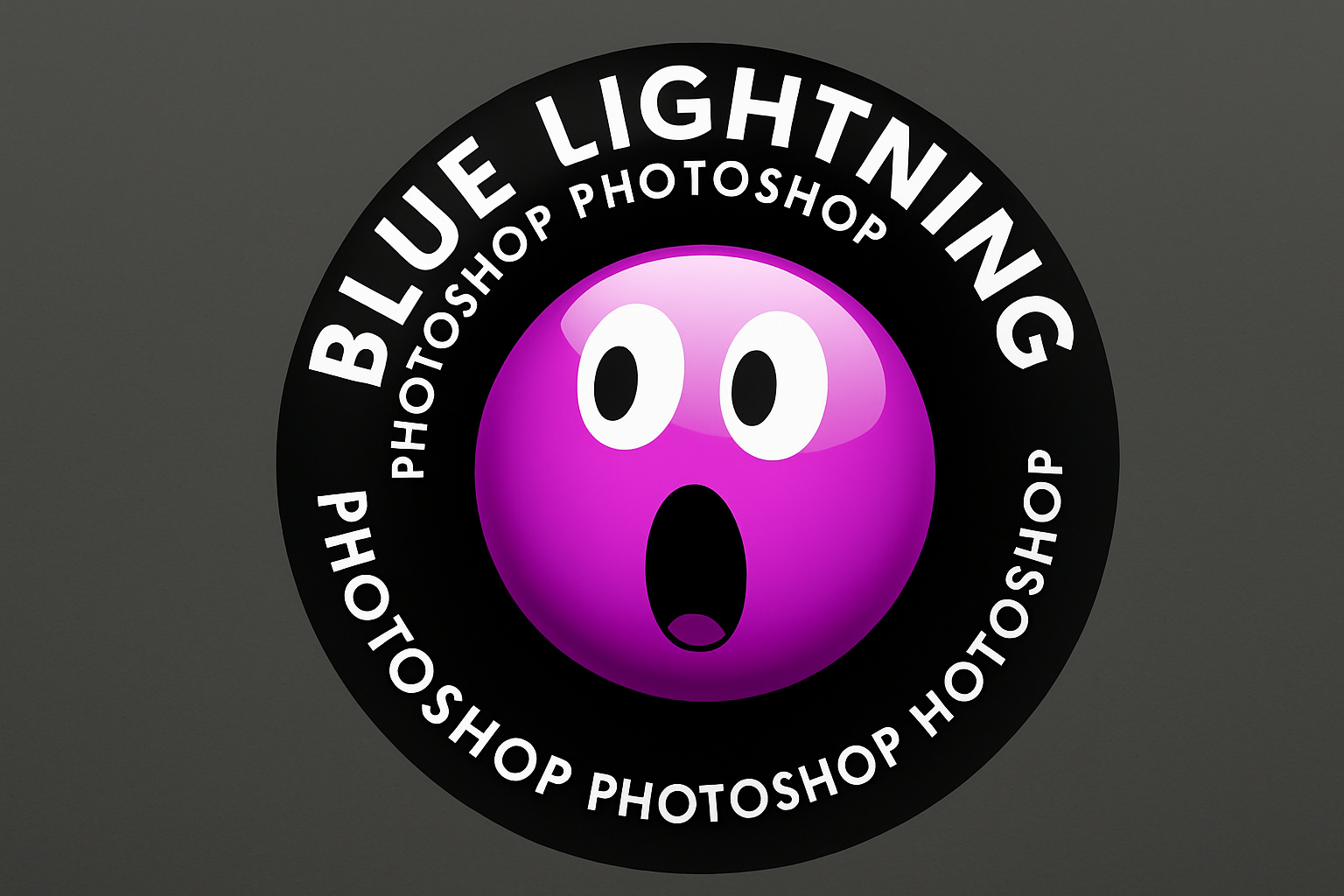
Ah, Photoshop—our faithful companion in the creative journey. It’s the magic wand for visual wizards, providing the tools to bring imaginative visions to life. Today, we’re tackling a nifty trick that’ll add a touch of elegance to your typography prowess: crafting text inside and outside a circle. It’s more than a graphic design party trick. This skill can jazz up logos, create impressive badges, and more. Let’s break it down.
Creating Your Editable Canvas
First things first: create a new document. You can do this by smacking the trusty shortcut CTRL/Command + N or by heading to ‘File > New.’ You’ve got the freedom to decide the dimensions, but for the sake of this tutorial, we’ll roll with 1920 by 1080 pixels at a resolution of 150 pixels per inch. This gives you enough pixel real estate to comfortably work on your masterpiece.
For clarity, fill the background with a soft grey. This ensures our soon-to-be dazzling black circle and pristine white text take center stage, catching the eye like a sleek Instagram post.
Drawing the Perfect Circle
Photoshop’s Ellipse Tool is your BFF here. Make sure you’ve set it to ‘Path’ mode. By clicking the gear icon, you can choose ‘Circle’ and check ‘From Center’—this ensures you’re drawing symmetrical circles (not some rogue oval). Drag from the center outward to form your circle and make it roughly the size you’re envisioning for your design.
Need visuals? Open the ‘Paths’ panel via ‘Window > Paths.’ Click on it and opt for ‘Fill Path’—select ‘Black.’ Voilà! Your work path is still visibly outlining your artistic territory.
Setting the Stage with Text
Time for some fun with typography! Navigate back to the ‘Layers’ panel and grab the ‘Horizontal Type Tool.’ Press ‘D’ to reset default colors to black and white, then ‘X’ to flip them, making sure your text stays visible against the background.
You can choose whichever font speaks to you—because what’s a designer without a little freedom of expression? Also, select a size that provides readability without obscuring your circle design.
Align and Conquer
Position your cursor at the circle’s top. When greeted with an icon showcasing a curvy dotted line, click and unleash your text. To tweak the size, tracking (space between letters), and distance from the circle, highlight your text and access the ‘Character’ panel (found under ‘Window > Character’).
Adjust the baseline shift to zero points to ensure your text perches perfectly on the path. If size needs tweaking, drag it left or right until it’s just right. Use the tracking tool to fine-tune spacing, ensuring the coherence and flow of your typography.
Flipping the Script: Text on the Outside
To rotate your text so it dances around the circle, wield your ‘Path Selection Tool.’ At the circle’s center, drag your text left or right to fit your artistic vision. If you need the text to flip and face the opposite direction, use the same tool for precision adjustments.
The grand finale: achieve perfect alignment by using the baseline shift option once more, adjusting it so the top of your letters rest cleanly against the circle’s invisible edge.
The Final Word: Practicing Perfection
Incorporating text inside and outside a circle can elevate your designs, making them look polished and professional. Whether creating logos, badges, or captivating promotional graphics, this skill helps you stand out in a sea of digital content.
Remember, a true designer is never afraid to experiment. Practice with different fonts, colors, and arrangements to find the perfect balance.
Now that your Photoshop circle game is on point, take this newfound skill and let it inspire your next design masterpiece. Happy designing from Blue Lightning TV, where your creativity finds its spark!





