
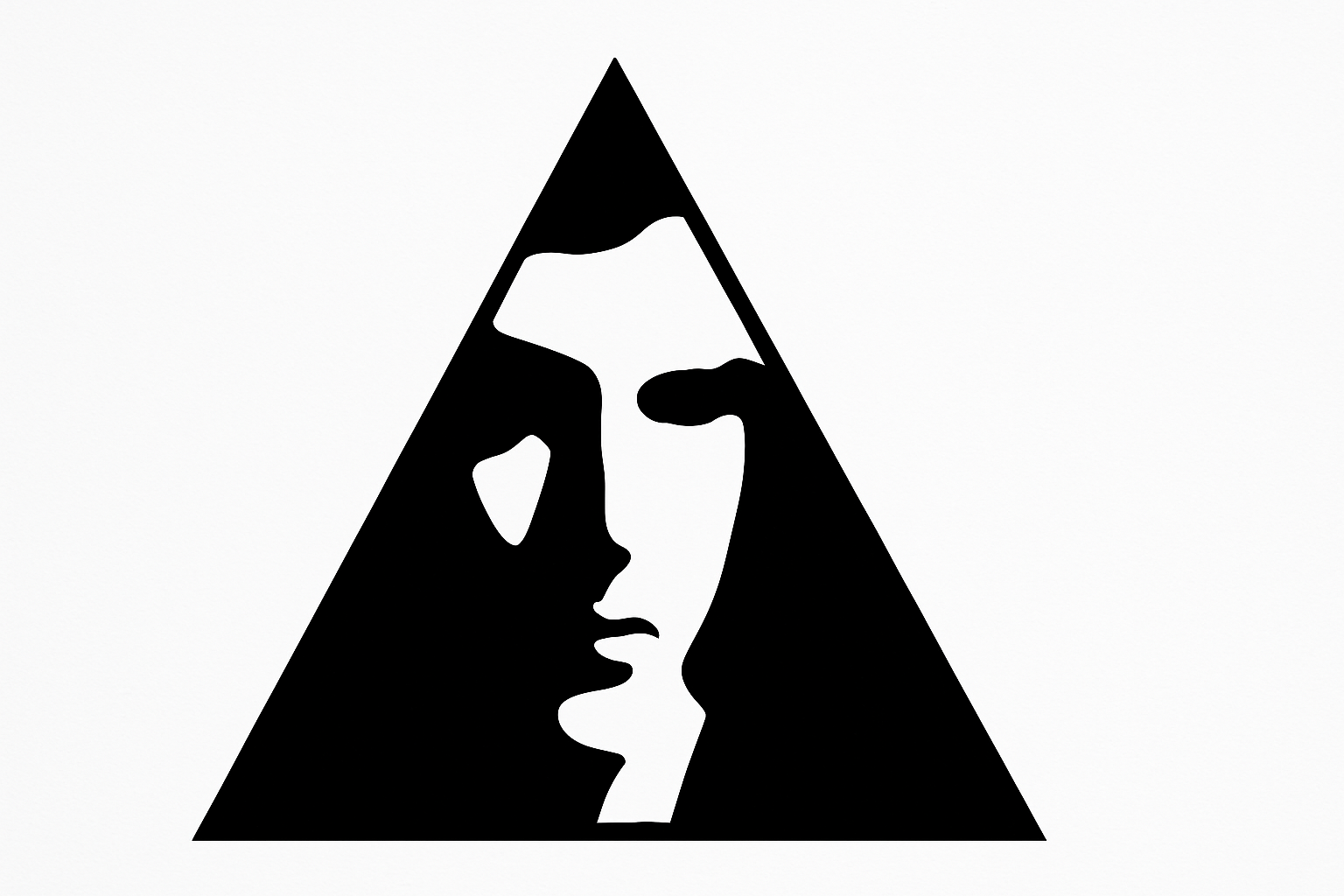
Create a Personalized Logo That’s Uniquely You
Imagine having a logo that is not only unique but also a visual representation of your identity. A logo featuring your face and name is a powerful way to add a personal touch to your brand. Creating this distinct logo may sound complicated, but with Photoshop’s versatile tools, it’s easier and faster than you might think. Whether you’re a Photoshop ninja or a beginner just starting to dabble in the mysterious arts of Adobe, this tutorial has you covered.
Step 1: Choose Your Portrait
The journey begins with selecting a photo of your face (or someone else’s, if you’re feeling generous). For this guide, we’ve used a stock image sourced from Shutterstock. After all, every creative process demands a dose of inspiration, and choosing the right face is your first task.
Step 2: Isolate the Face
It’s time to separate the wheat from the chaff—or in this case, your face from the background. The Quick Selection Tool is your go-to. Drag over the subject with precision, and voila, you’ve got your selection. Hold onto your hats because the magic alt/option key removes any unwanted background areas. This part of the process ensures that your portrait takes center stage without unwanted distractions.
Step 3: Preparing the Canvas
Next, let’s work some digital wizardry with the canvas. Adding a new layer below the face-filled layer with a black background creates a stark contrast, giving your logo a bold look. This will make the silhouette pop when it’s time to execute the smarts and tweaks.
Step 4: Make It Smart
Transform your visible image into a ‘Smart Object’—a feature in Photoshop that’s as cool as it sounds. This allows you to make tweaks and adjustments non-destructively. Sound complicated? Don’t worry, it just means you can edit without fear of permanently messing things up. Select all visible layers and convert them to a Smart Object.
Step 5: Blur It Out
What happens if my logo looks more like blurry lines than defined features? you ask. Embrace the art of blurring. The Gaussian Blur filter comes into play here to soft-pedal the details a bit, about 5-10 pixels of blur will do the job nicely. Frame it in threshold mode, and set the parameters to a soothing 128. This interaction between blurring and threshold will dictate how much detail and style your logo boasts.
Adjust the Blur as Needed
If your threshold game yields something a little too Mona Lisa—which is to say, enigmatic—you can reduce the blur. Double-click on Gaussian Blur in the Layers panel to change the effect on the fly.
Step 6: Expand the Workspace
As with any creative endeavor, sometimes you need more room to express yourself. We add 30% more canvas space to ensure our design has room to flourish. It’s analogous to your creative ideas needing space to breathe, is it not?
Step 7: Defining Lines
Simplicity reigns supreme when dealing with logo designs. After eliminating white from the portrait with your trusty pencil tool, create a triangular shape at the center of the portrait. Why triangles? They naturally represent stability and dynamism, and, frankly, look pretty killer.
Step 8: Add Some Text Zest
No logo is complete without text. Using the Deco Tech TL Regular font, type your name or whatever word brand you aim to promote. Align appropriately and adjust until it’s just perfect. This rounds out the identity of your logo keeping it both personal and professional.
Step 9: Final Touches
With layers snugly packed into a folder, make a selection and create a layer mask to render it immaculate. Finally, a crop tool is wielded to assure everything fits together snugly and beautifully within your workspace.
In Conclusion: Your Face, Your Brand
By the end of this tutorial, your logo will not only act as a reflection of your visual identity but also flaunt your mastery over Photoshop’s powerful toolkit. Watch your logo come alive, and let it tell your story.
Creating a logo that integrates your face and name brings a whole new level of brand personalization to your work. Remember, the creative process is all about experimenting until something sticks out—and hey, now you can rock your brand with a hint of your own style.
Ready to get creative? Check out the video linked above to see this process in action, or dive right into Photoshop and let your creativity shine.
Happy Designing!





