
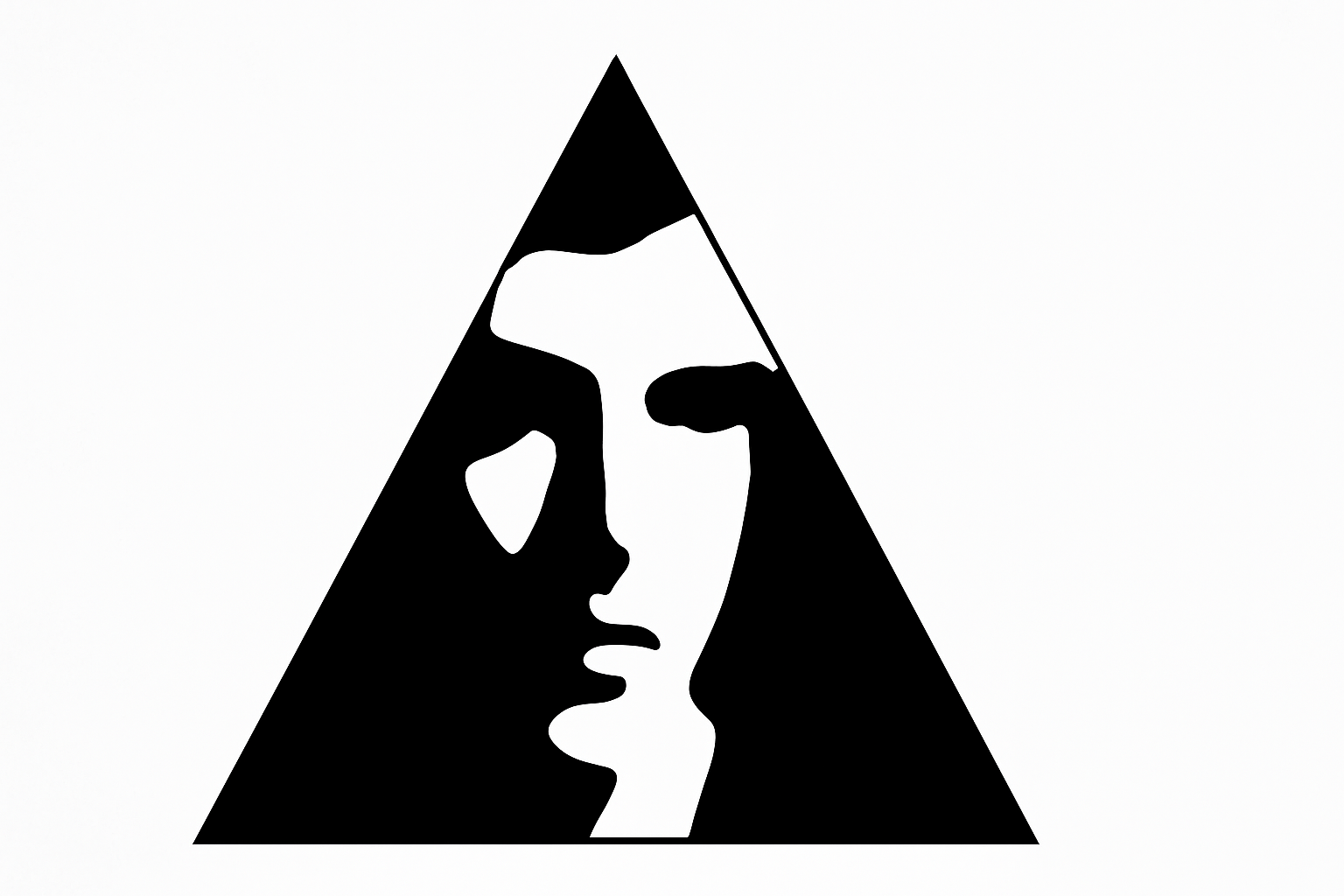
Transform Your Portrait into a Striking Logo
Who said logos are just for brands and businesses? Today, we dive into a fantastic creative exercise—crafting a personalized logo using your face and name. It’s as easy as combining a touch of Photoshop magic with a dash of your personality. Perfect for sprucing up your social media avatar or branding your creative projects. Let’s get rolling!
Master the Art of Selection
The cornerstone of our face logo transformation is selecting your subject—aka your lovely mug. To kick things off, open up your chosen portrait in Photoshop. For a clean start, you’ll want to remove that classic high school photo backdrop. We lean on the trusty Quick Selection Tool here. Simply drag it over your face (or someone else’s, if you’re feeling generous) to create a selection. Want to fine-tune the selection? Hold down ‘Alt’ (Windows) or ‘Option’ (Mac) as you maneuver around those pesky background bits.
Layer Masking: Your New Best Friend
Once you’ve corralled your selection, make sure to click that Layer Mask icon. Doing this slaps a snazzy mask onto your subject, separating them from the mundane background. Next, it’s time to darken the mood—create a new layer beneath your subject and fill it with black. Quick tip: Ensure your foreground and background colors are set to black and white, then press ‘D’ on your keyboard to set things straight.
Preserving Your Edits
Now we’re making it official: convert your images into a Smart Object so you can tinker non-destructively. Simply shift-click the top layer, summoning the all-seeing layer gods (just the top right icon), and choose Convert to Smart Object. Voilà! Your image is ready for non-committal edits.
Embrace the Blur with Gaussian Blur
Next up, we give your portrait the classic I-look-better-in-a-photo effect using Gaussian Blur. You’ll find this under Filter > Blur > Gaussian Blur. We’re aiming for a subtle blur, say around 5 to 10 pixels, but feel free to experiment. It’s all about finding the sweet spot between dreamy artistry and retaining some detail.
Threshold Magic
With blur set, it’s time to splash some dramatic contrast on our canvas. Head over to Image > Adjustments > Threshold and stick with the default level of 128 to start. This converts your portrait into a striking black and white image—no fifty shades of grey here.
Creating Space: Canvas Expansion
Our logo will extend beyond its minimalist roots, so let’s add some breathing room by expanding the canvas. Adjust the Canvas Size to 130% (both width and height), granting you leeway to work your artistic magic. Then, fill the visible background with a bold black color.
Tidying Up the Details
Sometimes white areas sneak into the portrait—which we do not want—so zoom in and clean them up with the Pencil Tool. Set the hardness and opacity to 100%, and scrub away those errant areas.
Framing with Style
Ready for some geometric action? Grab the Polygon Tool, set it to 3 sides, and create a triangle that nestles perfectly with your portrait. Once the triangle is there, transform it into a selection and add a 10-pixel black outline by playing with the stroke settings.
Personalize with Text
This logo isn’t officially you until you, well, add your name. Activate the Horizontal Type Tool and choose a font that screams YOU. Feeling fancy? Try Deco Tech TL Regular, a retro-style font that has been making waves. Center your text below your portrait, and tweak the size until it’s just right.
Final Flourishes
For the grand finale, we refine the arrangement—unlink the portrait and layer mask to adjust them independently. This dance ensures the face fits majestically within your edgy triangle frame.
Logo Meets Canvas: The Big Merge
To give your logo space to interact with a dramatic black background, we need to make minor contractions. Use the Select > Modify > Contract feature to bring in 2 pixels, preventing any unwelcome white fringes.
Now, encapsulate your layers into a folder and slap a layer mask over this neat package, filling any backdrop with black. Finally, let’s trim the excess fat—use the Crop Tool to streamline down to a slick 1000×1000 pixels, with a resolution of 300 DPI.
And there you have it! Your personalized face logo is ready for the digital world. Whether it graces your social media profile, business card, or band album, it’s an unmistakable blend of your artistic flair and personality.
Stay curious, keep creating, and let your style shine through every pixel!





