
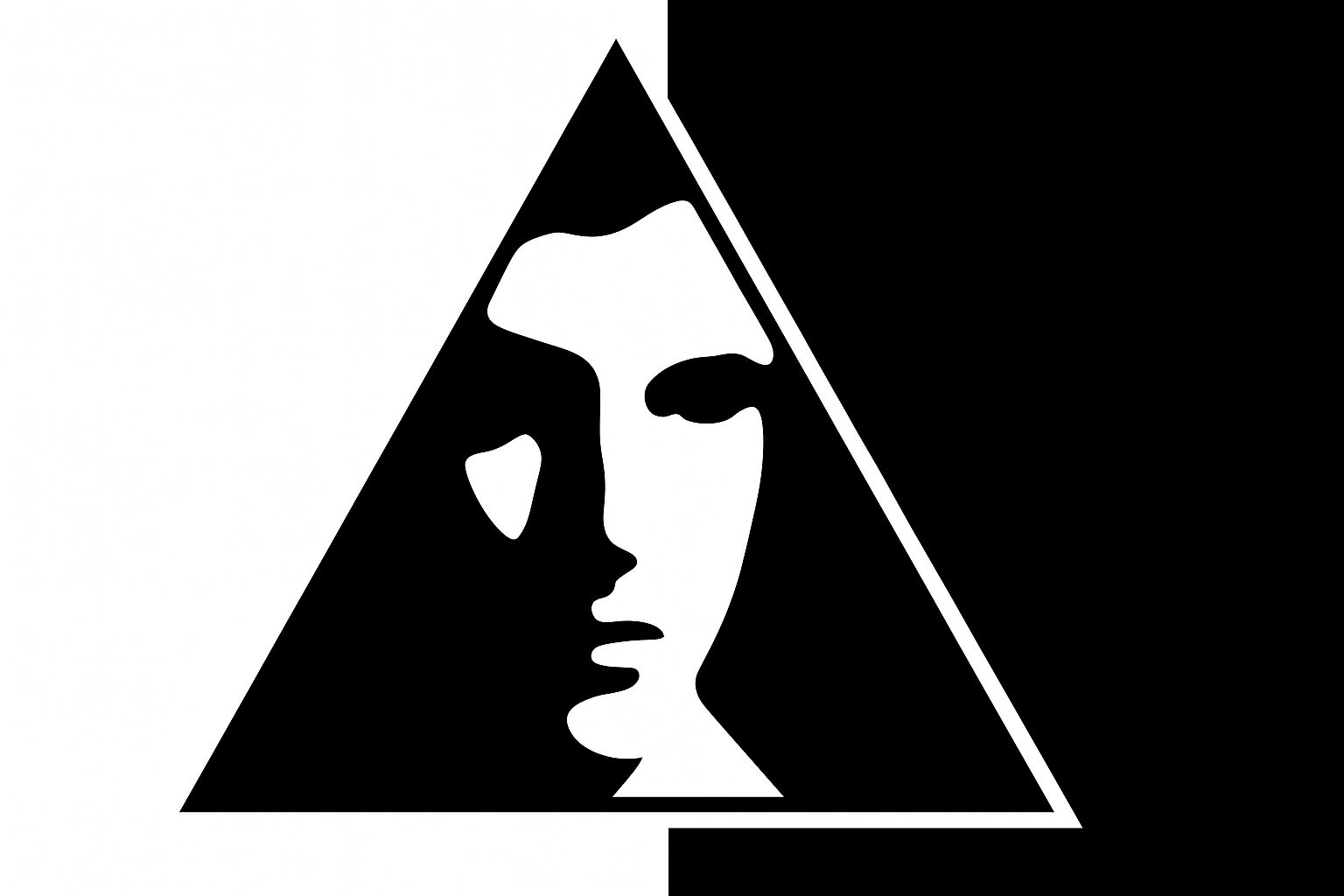
Craft Your Unique Logo with Photoshop Wizardry
Ever fancied a logo that embodies not just your name but your very own face? Imagine the power of a personal brand that’s both relatable and memorable. For creatives and businesses alike, a logo is more than just an emblem; it’s an identity. This time, let’s step away from the generic and make something uniquely yours. Today, we invite you to explore the fascinating world of Photoshop where you can transform a simple photo into a striking logo that reflects your persona.
The Power of Custom Logos
Before diving into the nuts and bolts, let’s talk about why having a personalized logo matters. In the digital age, where the average attention span is measured in seconds, a unique, engaging logo can make or break your first impression. It should convey the story, emotion, and essence of your brand at a glance. Blending personal elements like your face and name brings an authentic touch that’s sure to resonate with your audience.
Get Started: Prepping Your Photo
To kick off this magical transformation, you’ll need a crisp photo of your lovely face. Don’t hesitate to use someone else’s face for practice if you’re camera-shy. Shutterstock is a great resource for those needing a placeholder. Once you’ve got your image ready, it’s time to make that face pop by separating it from the background.
Step 1: Making the Selection
Fire up your favorite photo-editing tool — we’re using Photoshop here. Select the Quick Selection Tool and drag over the subject of your image. This tool is like a magical wand capturing the essence of your subject without the background noise. Press and hold ALT/Option to refine your selection, carving out any excess areas.
Building the Foundation: Masking and Layering
Once your selection is picture-perfect, it’s layer mask time. Click the Layer Mask Icon to isolate your subject snugly in its own layer. What’s next, you ask? A brand-new layer beneath filled with bold black. Set your foreground and background colors to black and white (press ‘D’ if they aren’t already), then engage the powerful ALT/Option + Delete maneuver to fill it efficiently.
Step 2: Convert and Blur for Depth
To embrace your image in all its glory, we’re converting it to a Smart Object — a noble feat allowing non-destructive editing (fancy, eh?). After conversion, head to Filter > Blur > Gaussian Blur and play around with the pixel slider. Somewhere around 10 pixels should do the trick. This gives your portrait a nice, subtle mystique.
Carving Clarity with Threshold
We’re shaping the details now with Threshold Adjustments. Keep it at the default 128; if the result doesn’t zing, tweak the Gaussian Blur for balance. Add a new layer beneath all this theatrical magic and fill it with black to bring out the contrast.
Step 3: Spacing Out with Canvas Adjustments
Your logo might extend beyond visible bounds — freedom, sweet freedom! So, let’s tweak the Canvas Size using percent values. Punch in 130% for both width and height; this ensures your creative progress isn’t boxed in. Don’t forget to take a step back (CTRL/CMD + 0) for a scenic view before filling up the extravagant space with black.
Detailing: Remove, Draw, and Frame
Any rogue white areas will stand out against your polished canvas; zoom in (press ‘Z’) and engage the Pencil Tool to paint them away. Once you’ve meticulously cleared the stage, it’s time for masking magic again. Convert those layers into a Smart Object, and prepare to outline with flair.
Step 4: Triangle Drama with Shapes
Grab your Polygon Tool. Set it to three sides for a cool triangular frame effect. Drag the shape across your portrait while holding Shift + Space Bar to position like a pro. Convert the triangle path into a selection and toss away the temp layer — minimalism at its best.
Creating Edgy Text Inside
Now, let’s jazz it up with some text. Here comes the Horizontal Type Tool to the rescue. Whether it’s for your name or snazzy slogan, font choice counts. We fancy Deco Tech TL Regular for this task; it’s stylish and futuristic. Center align, size, and perfect your text before nestling it precisely beneath your portrait.
Step 5: Perfecting Placement
Think it’s all set? Let’s finesse! Use the Transform Tool (navigate using ALT/Option + SHIFT) to resize or reposition your masterpiece within the triangle’s embrace. Unlink layers if you want to maneuver portrait or shape independently — the possibilities are vast.
Bringing It All Together: Forming Your Legacy
Finally, enclose all your layers into a neat little folder. This ensures your processes remain tidy like a craftsman’s table. Contract selections to avoid pesky white fringes and fill in any gaps with gritty black for unbreakable impact.
Step 6: Finishing Touches with Precision Cropping
Tidy up with a quick crop using the Crop Tool; adjust dimensions to seal your logo into 1000 pixels of square satisfaction. And voila! You wield a stunning logo, perfectly poised to capture attention and etch your identity into the digital sphere.
Crafting your personalized logo using nothing but a photo and an idea is not only empowering but also an invigorating adventure. Whether you’re a seasoned Photoshop aficionado or embarking on your first digital art journey, there’s limitless scope in the union of creativity and technology.
Get out there and let your face, quite literally, do the talking!





