
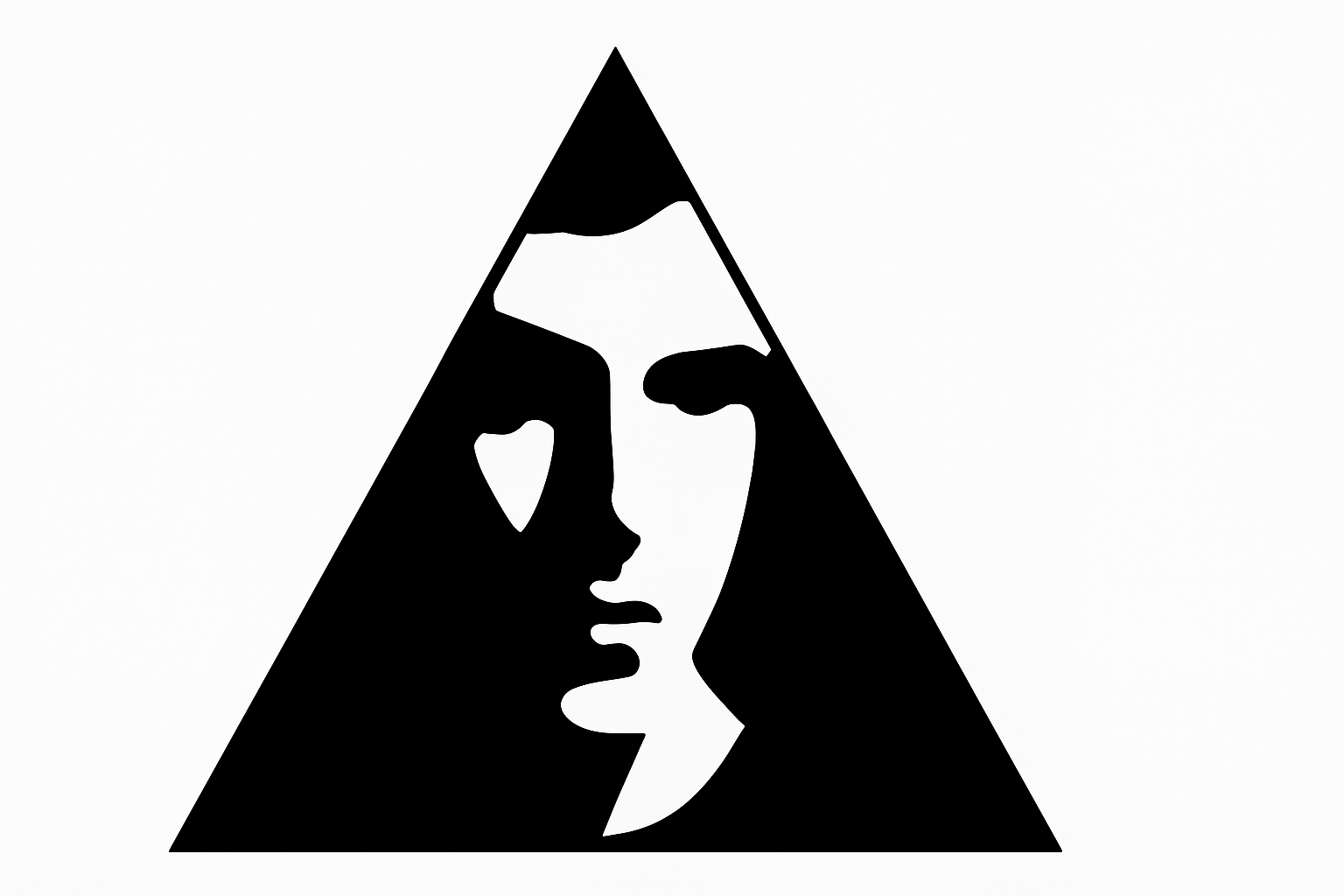
Turn Your Portrait into a Personal Logo
The concept of turning something as personal as your face into a logo is right out of the superhero playbook. Now, you too can have an emblem as iconic as Superman’s “S” or Wonder Woman’s “W.” All you really need is a decent portrait and Adobe Photoshop. In this tutorial, we’ll show you how to create a simple yet powerful logo featuring your visage and name. Your face will become your identity—digitally speaking, of course.
Step-by-Step Photoshop Process
So, convert your Sunday selfie into a sensational logo with a few simple steps:
Grab a Decent Portrait
Start by opening a photo of yourself or someone else. Maybe you’ve snapped a crisp, clear image on one of those I-feel-cute days, or if needed, utilize stock images from platforms like Shutterstock. Either way, a good portrait is the cornerstone of your new endeavor.
Separate the Subject from the Background
Initiate the process by selecting the face you want to preserve. Use the Quick Selection tool—it’s like Photoshop’s magical wand for isolating subjects. Hold the Alt (or Option on Mac) while you exclude areas beyond the subject. Your goal is to pinpoint just the face, not the whole entourage.
Lay the Foundation with a Layer Mask
Once selected, apply a layer mask to detach the face from its backdrop. This foundation allows you to build creative constructions atop it. Next is to create a black canvas beneath your face, the perfect setting for dramatic digital storytelling.
Convert to a Smart Object
Inside Photoshop’s zoo of features, the Smart Object is the obedient elephant, never forgetting its original state no matter how wildly you play around. Converting your layers into a smart object will allow you to modify them non-destructively, paving the way for brilliant blurring and beyond.
Add Some Blur (but not too much)
Now let’s turn down the visual noise. Slightly blurring your smile with a Gaussian Blur (start at 10 pixels and adjust as per your artistic whim) adds a pop-art punch that simplifies the image down to its essentials without obliterating all resemblance of identity.
Threshold Effect: The Digital Signature
Moving to Image Adjustments, try on the Threshold effect. This stipples or pixelates the image, transforming it into a stark black-and-white representation. It provides the high-contrast appearance that logos love. Test a few settings till you find that iconic balance.
The Artistic Play with Shapes and Space
Shape Your Face
The Polygon Tool is your friend here. Create shapes to frame your face—imagine a heavy-metal band logo or a clandestine spy organization emblem. This geometric context says a lot about the personality you want your logo to exude.
Final Touches: Text and Style
Bring your name into the mix. Choose a font that speaks to your aesthetic (Deco Tech TL, anyone?). With your Horizontal Type Tool, align text with the design, considering both size and style. This is typography joining your pictorial party in a clear, visually comfortable layout.
Bringing it All Together
Finally, pop the entire logo into its own organized folder, as you might do with photos on your desktop; only this project turns chaos into clarity. A neat layer mask finishes it off, creating a uniform silhouette that looks professional and proud, ready to be your virtual autograph.
Showcase Your Identity
This isn’t just an exercise in photography or Photoshop; it’s a chance to brand your own likeness into an eye-catching symbol. Once you’re done, your logo can live in multiple spots—personal social media profiles, email signatures, and beyond. Be your own brand ambassador with a logo that shouts authenticity.
By following these steps, with a touch of Photoshop ingenuity, you craft something beautiful to look at and, dare we say, something iconically you. Happy designing!





