
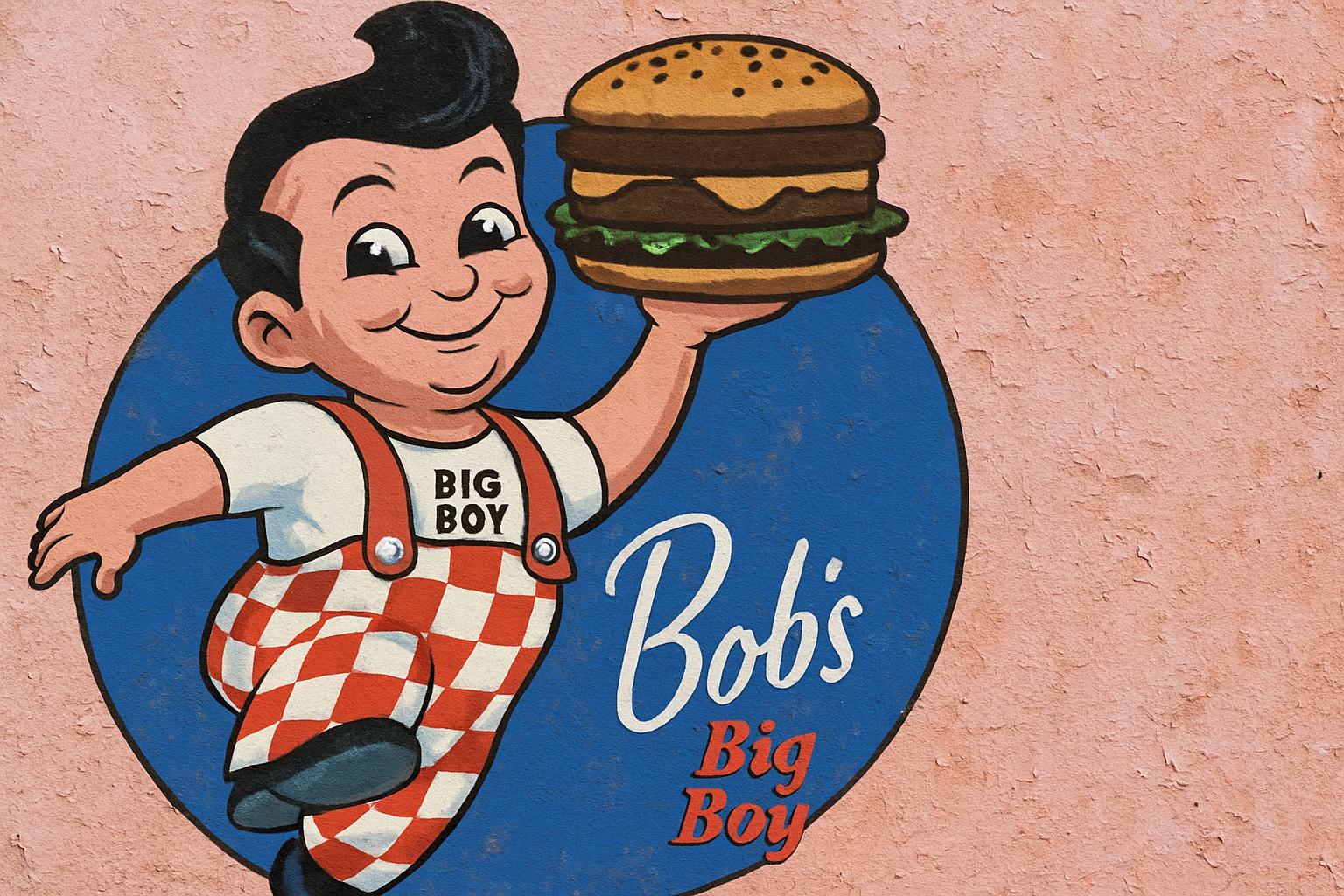
Embrace the Chaos: Eroded Textures in Graphic Design
In the ever-evolving world of graphic design, sometimes imperfection is the key to perfection. You might wonder how graphic designers achieve that stunning look of aged, worn-out text or imagery in their artwork. Look no further! Today, we’re diving into Blue Lighting’s secret sauce for making your graphics and text look like they’ve weathered the test of time—and it’s all about a little erosion.
From Pristine to Weathered: Getting Started
What’s the secret behind making graphics look like they’ve been through a few world wars but still look fresh on your screen? It’s all in the textures. The technique we’ll explore today is so versatile, it can transform any distressed surface to look convincingly real.
Start with your Canvas: You can either download our provided rusty, painted metal texture, which is conveniently linked in the description of the video, or use your own texture. Once you’ve got your texture ready, you can decide to either type out text over it or open a pre-existing graphic.
Unleash the Mighty Magic Wand
Our first mission is setting apart the graphic from its background if your graphic already lands on a scene. Imagine you have a standalone logo over a bright, white sea. To isolate it, grab the Magic Wand Tool—this is your jiu-jitsu for graphics sans background. With “Contiguous” checked, a simple click outside your graphic will seal the selection deal.
But what if that selection doesn’t feel right? Your keyboard friend “Q” steps in, toggling you into a quick mask to preview, or tapping back to that bustling marquee of selection lines. After that, a little housekeeping: press the lock icon, hit Delete, and voila—the background vanishes, leaving pure graphic glory behind.
Drag, Drop, and Tweak
Once isolated, it’s time to give your graphic a new home—merge it onto the textured canvas. Use the Move Tool (shortcut “v”), bundle your graphic onto the tab of your chosen texture, and drop it in place. The Transform Tool is your ally to resize and reposition: a simple Ctrl/Cmd + T and it’s at your command. If bounds seem daunting, Ctrl/Cmd + 0 is your space-altering trick.
Crafting the Layered Masterpiece
With the graphical elements in place, the artistry of erosion truly begins. Dive into the Channels panel to hunt for the highest contrast channel. This process of elimination involves clicking through Red, Green, Blue, and assessing—like Sherlock at a suspect lineup. A channel test revealed our image swathed in red lends itself to maximum contrast.
Bring It Home with Layers: Clone the channel with the “best personality” into a new layer and amplify its contrast by summoning the Levels window (or Ctrl/Cmd + L for the initiated). Here’s the challenge: finding that Goldilocks contrast. Too much? The gritty artistic subtleties fade. Too little? The graphic shrinks back while textures hog the spotlight.
After nailing the contrast balance, Ctrl/Cmd + click the thumbnail to coronate it with tones galore, and back in Layers, throw a layer mask on that bad boy to erode it forward in time.
Adjust and Wow: Hue/Saturation
With textures and mask in harmonious chaos, perhaps a subtle desaturation’s next. An adjustment layer—Hue/Saturation in the role—might be necessary. But don’t eager-beaver it right into everything. Instead, make it a Clipping Mask, sparing uncontrolled drama for the sole layer it touches.
Drag that Saturation slider thoughtfully, just so the tones nod to decay while staying in aesthetic bounds. Thus, through erosion, desaturation, and texture-layer magical dance, your graphic glory is temporarily sealed—at least till the next creative spark.
Whether a weathered signboard look for your band’s latest album cover or a brand logo gasping with age-old charm, this tutorial has you equipped to conquer. Throw a glance over our video to see it come alive, then proceed to age your graphics with seasoned finesse.
In an industry where perfection is often a pixel away, sometimes it’s the perfectly orchestrated chaos that grabs attention. You need not worry if your digital artifacts come out looking beaten up; that’s the look to groove with. As we blend the old with the new, remember—true art doesn’t just preserve history; it helps create it. Happy Designing!





