
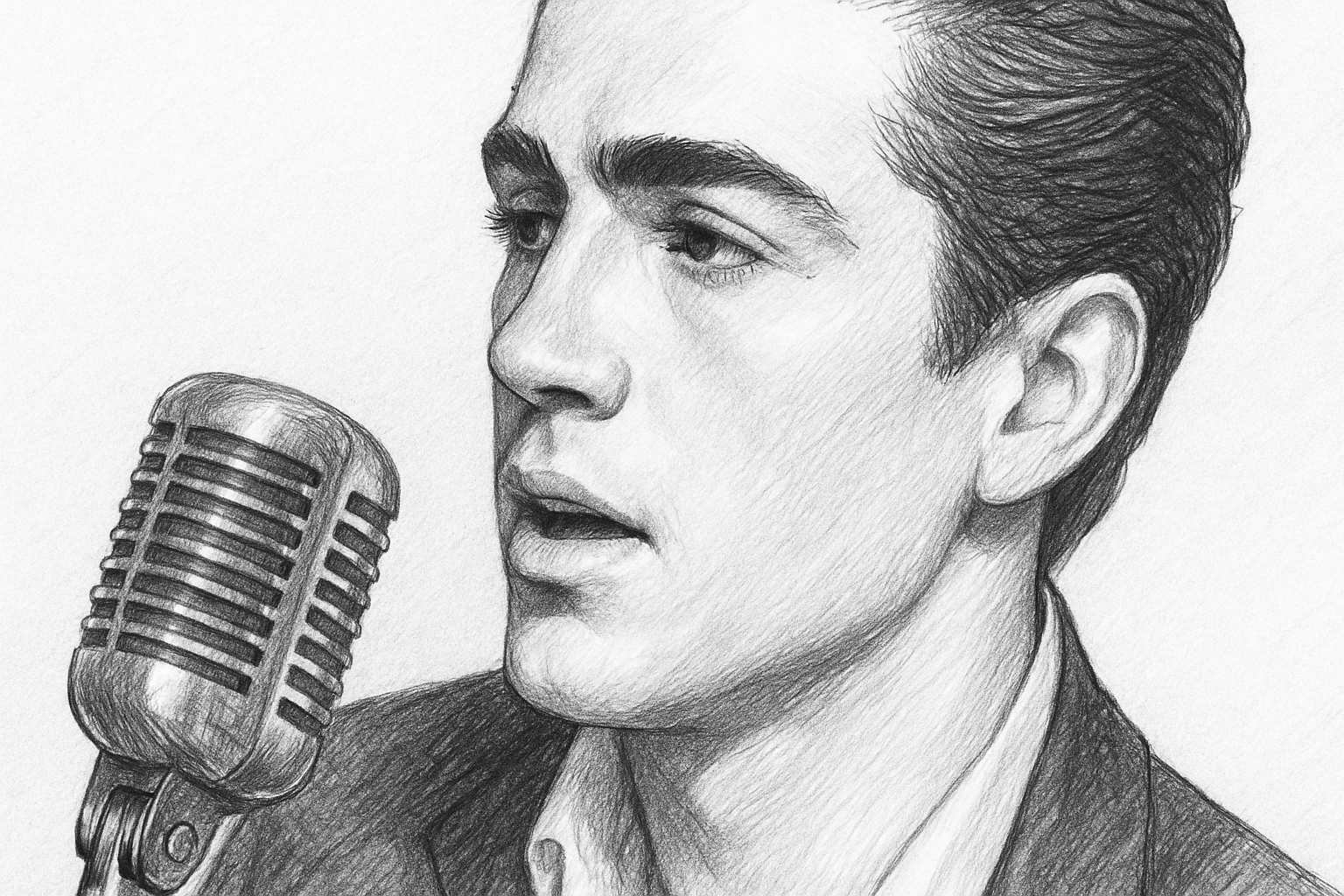
Unleash Your Inner Artist: Turn Photos into Pencil Drawings
Ever wish you could blend the precision of photography with the soul of a pencil drawing? Welcome to Photoshop wizardry, where you can conjure up exquisite pencil art from mere photographs. For those of you who adore the charm of hand-drawn art but don’t have the time (or the patience) to dedicate to sketching, here’s a Photoshop technique that’s as magical as it is effective. Whether you’re a Photoshop novice or a seasoned pro, transforming any photograph into a pencil drawing is just a few clicks away.
From Pixels to Pencil Strokes
The journey begins by choosing a photo that you want to transform. This tutorial works wonders on portraits, landscapes, or any image that you want to infuse with artistic flair. To follow along and create this look:
- Duplicate Your Image
– First, open your chosen photo in Photoshop. Begin by making two copies of your image: simply pressCtrl + Jon Windows orCommand + Jon Mac, twice. - Remove Color and Adjust Tones
– On your topmost image layer, strip away the colors by pressingCtrl + Shift + UorCommand + Shift + U. This turns the image grayscale. To further refine, adjust the brightness and contrast by usingCtrl + Shift + LorCommand + Shift + Lto apply autotone. - Smart Objects & Applying Filters
– Convert your top layer into a smart object by clicking the icon at the upper right of the Layers panel and select Convert to Smart Object. This magical move allows you to edit filters non-destructively.
Brush Up on Blurs and Edges
The essence of a pencil drawing is its nuanced delivery of light and shadow. This is achieved through filters:
- Gaussian Blur: On the originally grayscale image layer (inverted as a smart object), apply a
Gaussian Blur. Start with a radius of around 7 pixels. This step is essential to create the appearance of depth and texture. Adjust as needed based on your image’s resolution. - Glowing Edges and Charcoal Filter:
- With a newly created “Glowing Edges” layer, navigate to Filter > Filter Gallery, then choose the “Stylize” folder and select “Glowing Edges.” Adjust the settings for width, brightness, and smoothness to refine your art piece.
- Duplicate this layer, rename it “Charcoal,” and add some charcoal magic from the “Sketch” folder. Set your thickness to 2 or so, adjust detail and light/dark balance to your liking.
The Grand Blend
Now, let’s blend these effects seamlessly:
- Blend Modes: Set your glowing edges and charcoal layers to ‘Multiply’ to give them a darker finish and emphasize the pencil-like quality.
- Tweaking blend options further, under the smart filter’s blend options, choose ‘Linear Dodge’ to crank up the artistry.
Why This Technique Rocks
Combining filters and blend modes this way results in an authentic pencil-drawing effect, which retains the photo’s intricacies while adding an artistic spin. And the best part? Because all adjustments are nondestructive (thanks, smart objects!), you can revisit any step and tweak to your heart’s content. This means you retain complete creative control all throughout your Photoshop journey, without ever worrying about losing quality or detail.
Customize and Create
Feel free to experiment with other sketches or filter settings to discover unique effects. The wonders of Photoshop make it possible to create various artistic impressions from any photo, pushing the boundaries of creativity. What are you waiting for? Dust off that old photo and infuse it with new life and artistic flair. Who knew turning pixels into pencil art could be so thrilling?
Remember, as with all artistic endeavors, practice makes perfect. With Photoshop’s immense bag of tricks, every photo you have can become your masterpiece. So roll up those sleeves, channel that creativity, and create artwork that even Van Gogh would envy.
Happy photoshopping!
Check out more Photoshop tutorials and dive deep into the world of digital art





