
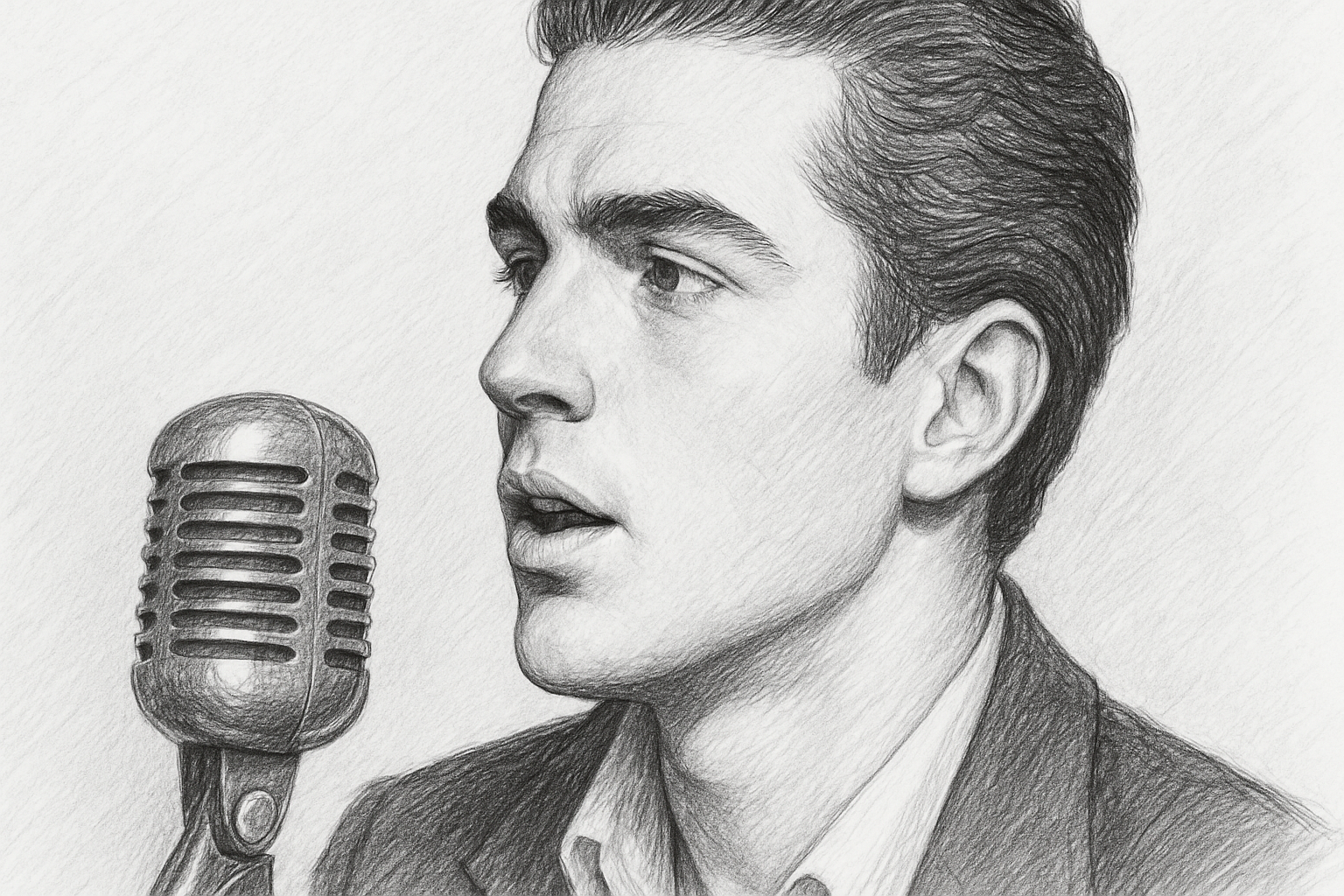
Unleash the Artist in You — Convert Photos into Pencil Drawings
Imagine taking your favorite photograph and giving it the timeless, artistic flair of a pencil sketch. Sounds intriguing, right? Whether you’re a digital artist, a scrapbook enthusiast, or just someone looking to add a classic touch to your digital photo collection, transforming your photos into pencil sketches can add a whole new level of creativity. Fortunately, with Photoshop and a splash of creativity, we can easily achieve this transformation. Let’s delve into this captivating technique.
Step-by-Step Transformation Process
To kickstart this artistic transformation, the process involves converting colors, playing with layers, and applying specific filters to achieve the desired sketch effect. We’ve broken these steps down to ensure you can follow along, even if Photoshop isn’t your second language.
1. Create Copies and Desaturate
- Duplicate Your Image: Open the photograph you want to transform. You’ll start by creating two copies of your original image. On Windows, use
Ctrl + Jor on a Mac,Cmd + J—twice. More layers, more flexibility. - Desaturate the Top Layer: Let’s remove all colors from the top copy by pressing
Ctrl + Shift + U(Windows) orCmd + Shift + U(Mac). Now, you’ll see your image stripped of its colors, poised for the sketch makeover. - Adjust Brightness and Contrast: Hit
Ctrl + Shift + L(Windows) orCmd + Shift + L(Mac) to auto-tone your image. This step ensures your photo is neither too dim nor too bright — it’s all in the details.
2. Convert to Smart Object
Before we dive into the nitty-gritty of filters, convert your image to a Smart Object. Head to the layers panel, click the icon at the upper right, and opt for “Convert to Smart Object.” This way, you can tweak your filters anytime, offering you god-like creative control.
3. Create the Magic: Filters and Blend Modes
- Let’s Add Some ‘Glowing Edges’: For a truly stunning edge, use the filter gallery. Go to
Filter > Filter Gallery > Stylize, then select “Glowing Edges.” Tinker with the settings until you are satisfied (try Edge Width set to 1, Brightness to 20, and Smoothness to 7 for starters). - Multiply Mode for Realism: Change this layer’s blend mode to Multiply. Now the magic happens—the colors and shading should begin to resemble those of a pencil drawing.
4. Charcoal Layer Addition
Next, make your charcoal layer visible and active. You know, just like adding some extra seasoning to your dish.
- Check Your Colors: Ensure that your foreground and background colors are set to black and white respectively—hit
Don your keyboard to do this quickly. Back to filters, head toFilter > Filter Gallery > Sketch, and click on “Charcoal.” Adjust the settings like thickness, detail, and balance to achieve a textured, lived-in look. - Blend for Perfection: Finish off by setting your charcoal layer’s blending mode to Multiply as well. This ensures seamless integration with the layers below.
Final Touches and Adjustments
Got your masterpiece in place but feel like experimenting more? You can freely adjust the blur settings or experiment with different filter settings to achieve a look that is uniquely yours. That’s the beauty of Smart Objects — they allow for endless possibilities.
Why Photoshop for Your Art?
Photoshop is more than a tool; it’s an artist’s toolkit—digital brushes, canvases, and endless creativity rolled into one. Whether it’s transforming a photo into different art styles or manipulating digital frames, the control it affords to artists, novices, and professionals alike is unparalleled. It lets you realize your vision while providing ever-expanding potential for experimentation.
In Conclusion
Ultimately, transforming your photographs into pencil drawings using Photoshop is not merely a digital trickery — it’s a gateway to unlock new artistic pathways for your existing images. Use this technique to craft your own book of sketches or weave in some hand-drawn charm into your next digital project.
Now, armed with these insights, go ahead and give your photos the pencil-drawn touch they deserve. You might surprise yourself with how artistic you truly are!





