
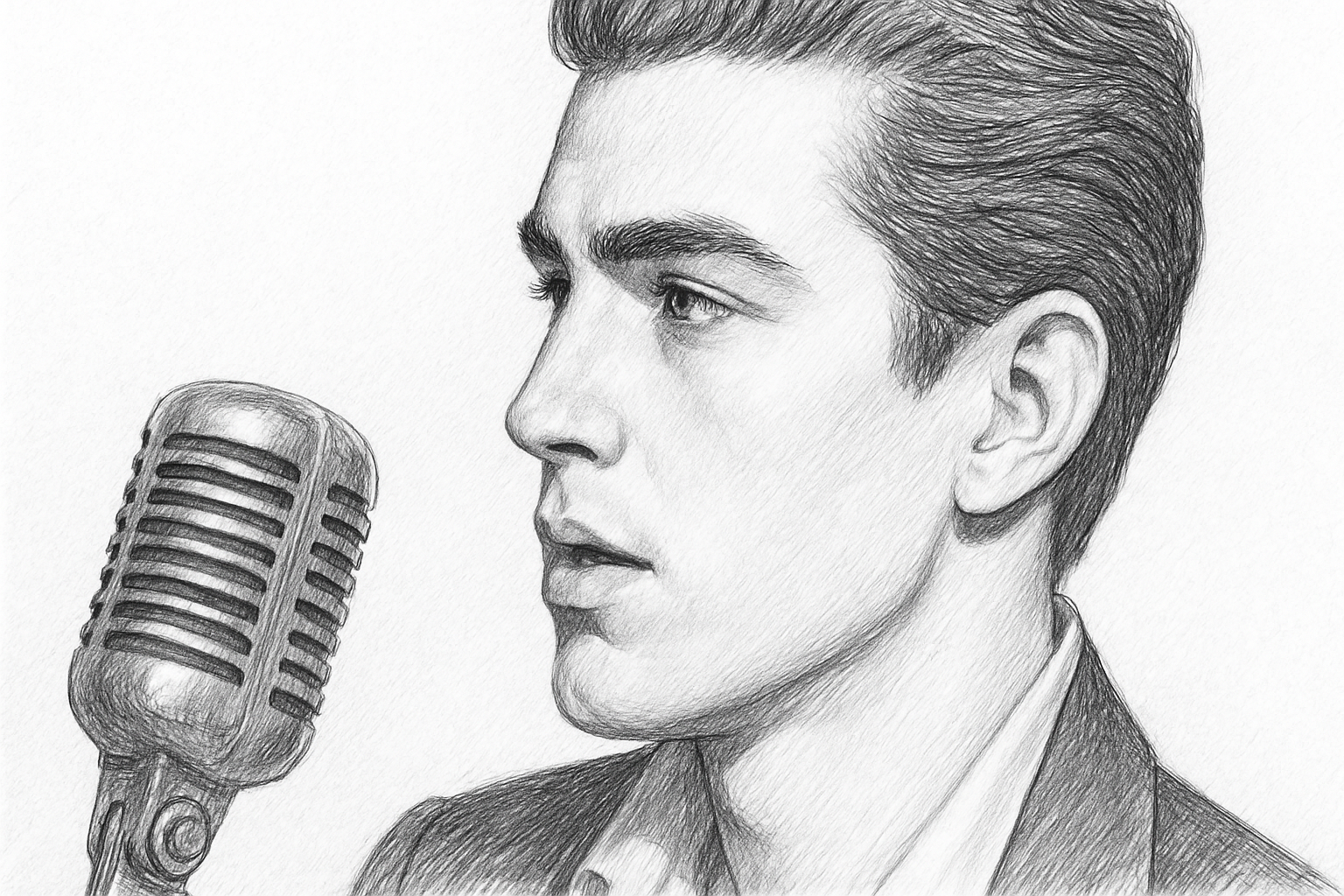
An Artistic Transformation at Your Fingertips
Ever looked at a picturesque moment in a photograph and wished you could sketch it out with a pencil? Good news: you don’t need to brush up on your pencil skills. With the magic of Photoshop, you can effortlessly transform any photo into a stunning pencil drawing. This is more than just a step-by-step guide to digital artistry; it’s about tapping into new creative avenues without having to invest in an arts degree.
Why This Technique is Perfect for Creatives
Photoshop isn’t just an industry standard for photo manipulation—it’s a versatile tool that opens up a world of creative opportunities. Turning a photograph into a pencil drawing isn’t just about mimicking an art style; it’s about exploring new dimensions of visual storytelling. Whether you’re a graphic designer, digital artist, or just someone wanting to refresh their social media feeds with unique images, mastering this technique can add an artistic flair to your projects.
The Pencil Drawing Effect: A Timeless Classic
The pencil drawing effect is an age-old favorite that blends contemporary technology with classical art forms. This process brings out the intricate details and textures that might otherwise go unnoticed in a photograph. Imagine showcasing a product in your online portfolio with a detailed, pencil-sketched look or creating a personalized gift that blends digital and traditional art forms. With Photoshop, this is all within reach—no charcoal smudges required.
Step-by-Step: The Digital Sketching Process
Grab a cup of coffee, open up your favorite photograph, and let’s dive into transforming it into a stunning pencil drawing using Photoshop:
- Duplicate Your Image: Start by making two copies of your photo using
Ctrl + Jon Windows orCommand + Jon Mac. This sets your layer foundation to work from without altering the original photo. - Desaturate the Image: On the topmost layer, remove all color by pressing
Ctrl + Shift + U(Windows) orCommand + Shift + U(Mac). - Adjust Brightness and Contrast: Invoke Auto Tone with
Ctrl + Shift + Lto automatically adjust the brightness and contrast. This step helps emphasize the pencil lines as we move forward. - Convert Layers to Smart Objects: Convert your layers into Smart Objects. This smart move gives you the freedom to adjust filters without losing original image data, essentially keeping your editing non-destructive.
- Create the ‘Glowing Edges’ Effect: Add a copy of your first layer and rename it “Glowing Edges.” Apply the “Glowing Edges” filter from the
Filter Gallery > Stylization. Play around with the settings but aim for subtle lines that accentuate the edges.
Refining and Perfecting the Pencil Look
At this point, you should see a transformation taking shape, albeit your image might look a bit like a hyperactive light show:
- Inverting and Blending: Invert the layer (
Ctrl + I) and change its blend mode to “Color Dodge.” If your image seems predominantly white, fret not; we’re just getting started on the details. - Blurring for the Right Effect: Use Gaussian Blur (
Filter > Blur > Gaussian Blur) to bring out your pencil drawing’s subtleties. The radius setting here is key and might require tweaking based on your image’s resolution and size. - Charcoal Detailing: Bring out the chalky details by selecting the “Charcoal” effect in the
Filter Gallery. Adjust the thickness and light-dark balance for that authentic pencil sketch texture. - Final Touches with Adjustments: Lock in your artist’s signature look by subtly adjusting opacity levels, tweaking layer modes (like switching to Linear Dodge for brightness control), and maybe even adding a touch of color for a pop-art effect.
Exploring Beyond the Pencil Sketch
Sure, the pencil sketch effect adds undeniable charm, but this journey through Photoshop can lead you to other creative playgrounds. Combining layers, exploring various blend modes, and experimenting with different filter effects can yield surprising, artful compositions. Consider using this tutorial as a launching point to venture into other edits, from watercolor painting effects to grunge textures.
In this digital era, embracing these enhancements isn’t just about the end result. It’s about understanding the toolset at your disposal and capitalizing on your creativity. Whether you’re branding, storyboarding, or simply escaping into your passion for digital art, Photoshop empowers you to redefine what’s possible with your images.
Ready for your masterpiece? Give these steps a whirl, and let’s pencil in some creativity to your next photo project. Happy sketching!





