
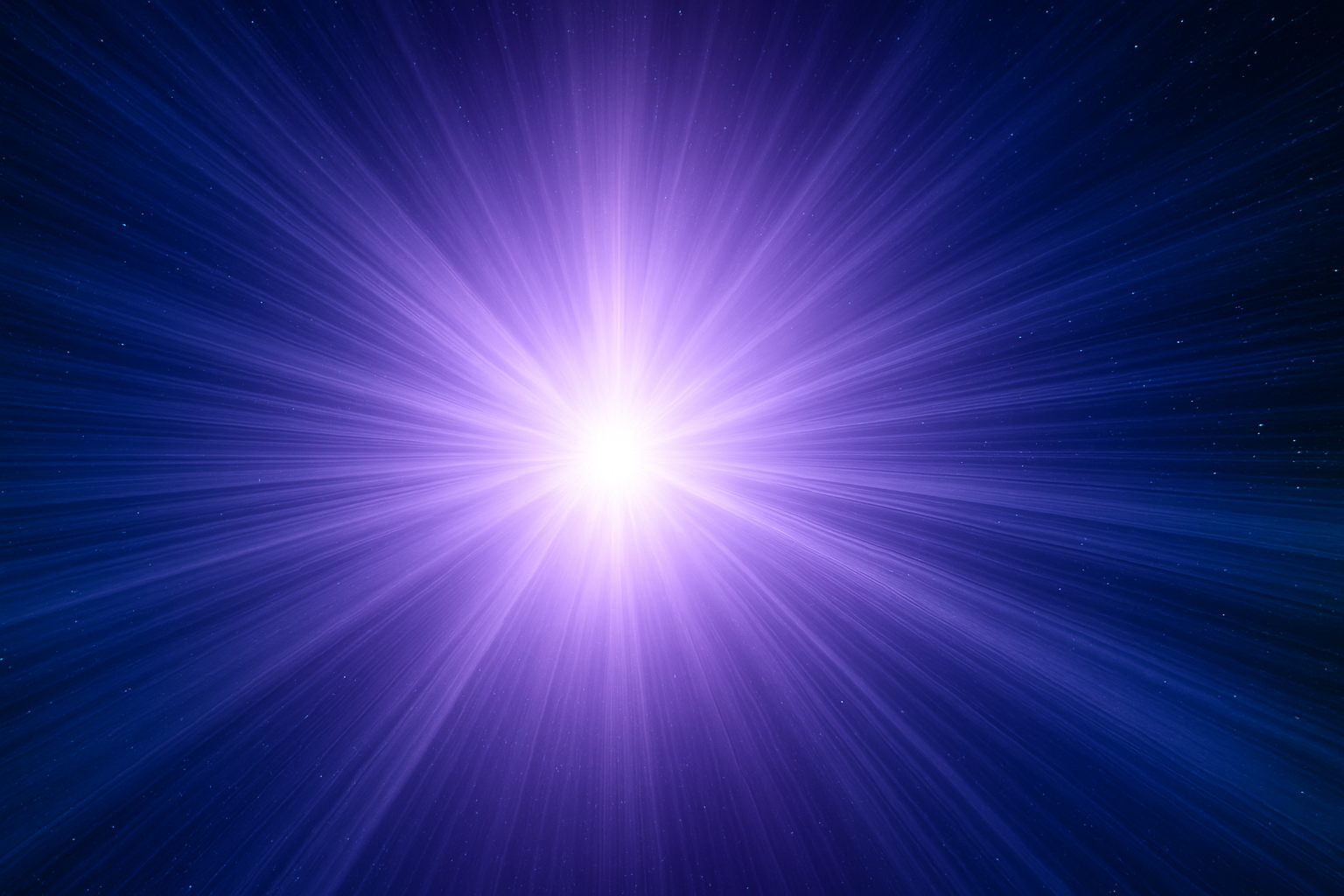
Become a Photoshop Wizard of the Cosmos
Ready to morph into a digital Leonardo da Vinci of the cosmos? Whether you’re a design aficionado, a sci-fi lover, or you’re just looking to spice up your Instagram game, this guide will teach you how to create a stunning deep space Stargate right from scratch in Photoshop. No, you don’t need to own a starship or have a physicist on speed dial. Just some Photoshop wizardry and a few minutes of your time will have you journeying through a space-time rift in no time. Let’s blaze through the pixels and land in an intergalactic masterpiece!
Initiating the Cosmic Canvas
First up, we create our new space canvas. Start by going to File > New, and set the dimensions to a width of 1550 pixels, height 870 pixels, and resolution at a crisp 150 pixels per inch. Make your mode RGB with 8 bits per channel. Hit OK, and voilà — your blank void of the universe awaits.
Painting the Black Hole
To fill the cosmos with the right dark hue, ensure your foreground and background colors are set to black and white. On your keyboard, press D to set this palette. Then fill the canvas with black using Alt + Delete (Windows) or Option + Delete (Mac). Copy your cosmic canvas by pressing Ctrl or Cmd + J and the mystery deepens as you place the copy into its own folder (Ctrl or Cmd + G).
Cloudy with a Chance of Nebulae
With the background set, let’s weave some cosmic clouds. Click the Layer 1 thumbnail to activate it, then swim through the galaxy using Filter > Render > Clouds. Stretch these celestial wonders horizontally by calling in the Transform tool (Ctrl or Cmd + T). Crank up the width to 300% and press Enter.
Cropping Out the Void
Now, we reign in any rogue clouds populating beyond your Stargate dimensions. Hit Ctrl or Cmd + A to select your document’s width and height, and chop it down to size with Image > Crop. Finally, deselect it with Ctrl or Cmd + D.
Adding the Cosmic Cinemascope Magic
Here’s where we’re about to give Hollywood blockbusters a run for their money. Turn on rulers and snap guides under the View tab. Crop the canvas by typing 2.66 for width and 1 for height. Set your sights on that original cinemascope aspect ratio, and position guidelines along the top and bottom of your cropped area. These are the digital enforcers for straight aligning. Zoom out using Ctrl or Cmd + Minus and get set to box your cinematic galaxy.
Starry Eyed Stargate Details
Time to invert those airy clouds into mystic space trails with Ctrl or Cmd + I. Now let’s spotlight that galactic epicenter. With the elliptical marquee tool, press Alt or Option and drag to the desired space-age eclipse. Soften those edges with a 100-pixel feather (Select > Modify > Feather).
Cosmic Brush Play
Now, with Photoshop as your light saber, create a new layer and arm yourself with a brush of 600 pixels in size and 0% hardness, ready to strike magnificent white at the center.
Gradient Kaleidoscope
Enter the color mind-bend area via the gradient adjustment layer. Choose your gradient zen and set it to a radial style. Crank up the scale, while as a maestro, orchestrate those colors daringly to your fantasy.
Go Starry Or Go Home
Set the stage and make the cosmos glimmer. On a new layer, use Ctrl or Cmd + Delete to have black take command. Switch to a Screen blend mode and sprinkle the sky with noise (Filter > Noise > Add Noise). Blur it with a soft Gaussian caress via Filter > Blur > Gaussian Blur, set at a delicate 0.5 pixels.
Add sparkle-level control via Ctrl or Cmd + L. Input shadows at 75 and highlights at 160. Want your Stargate even more mesmerizing? Plunge into radial blur for motion trails that whisper tales of light-speed travel.
And with that, you’ve whipped up a cinematic Stargate, all from the comfort of Earth! Who needs a flux capacitor when you’ve got Photoshop, right? If you’re dying to find more ventures into the design cosmos, remember there’s always more to explore. Whether through time, space, or pixels, the only limit is your imagination.





