
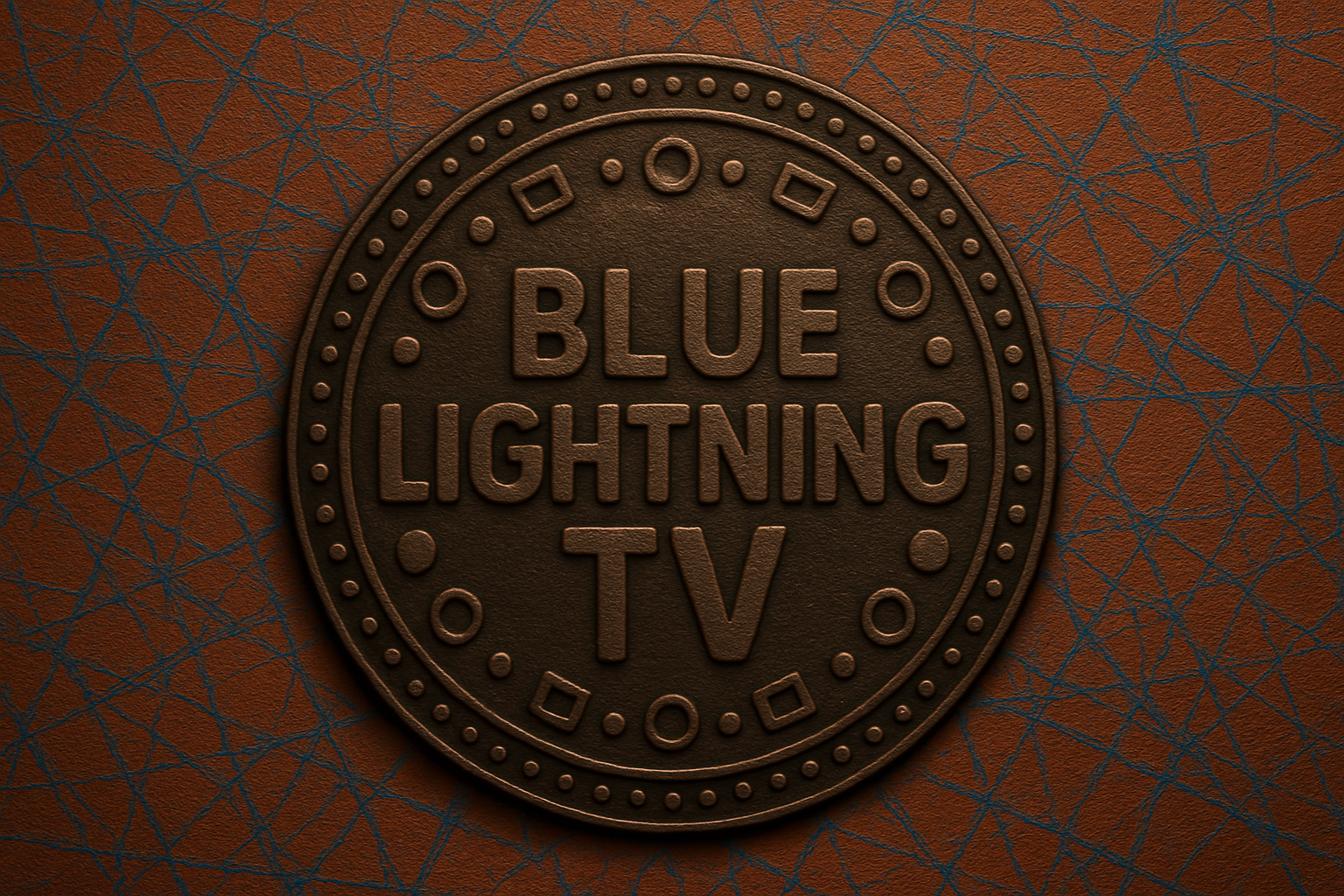
Transform Your Designs Into Scrumptious Visuals
Baking may not be your forte, but designing drool-worthy cookies in Photoshop might just hit the sweet spot. Grab your digital baker’s hat, because we’re diving into a whimsical tutorial that mixes creativity with a sprinkling of technical skill—Perfect for any digital artist looking to craft sweet visuals without ever turning on an oven.
Part 1: Design Your Digital Cookie
Before we jump into creating the actual cookie, let’s get our design fundamentals covered. This canvas brings to life the ambitious merger between a bakery and a digital studio.
Setup Your Canvas
Start with a fresh document of 1300×1000 pixels, setting your resolution to 72 pixels per inch—ideal for screen displays. Begin by clicking the new layer button to craft a fresh layer for your designs.
Crafting The Perfect Circle
No magic here—just some precision use of the Elliptical Marquee Tool. You’ll want to create a perfect circle by holding Shift + Alt (or Shift + Option for Mac warriors) while dragging from the center of the canvas. Fill it with black to set the stage for a standout cookie façade.
Textual Creativity
Text on cookies? Why not! Open your Type Tool and set up the Character and Paragraph panels. Choose a robust font like Frankfurter Medium, a free download from Fonzo Net, and craft your text in eye-catching white—though, technically, you could go any shade that tickles your fancy. Adjust font sizes as needed to maintain cookie-wide cohesion.
Part 2: Add Dimensions and Details
Now that you’ve created your cookie’s face, let’s add some crunchy details.
Layering for Effect
Strategically add new layers for textural elements, using Ctrl (or Command) clicks to add selections around your core cookie shape. ‘Select and Transform’ is your secret ingredient here, helping create strokes that mimic tasty layers or even frosting drizzles.
Intricate Dot Work
Circles within circles? Yes, please. With strategic use of your Pen Tool and some clever path-stroking, create dotted accents that encircle your main design. Fiddle with spacing (200% worked for us) to ensure your dots are neither too crowded nor spread far apart—think precision baking, Photoshop style.
Symmetrical Sorcery
Duplicate and edit existing components using the Transform flip feature for a harmonious, mirrored design. This step is akin to ensuring both sides of your gingerbread house align perfectly.
Essential Techniques for Finishing Touches
Rectangular Frame Mini-Designs
Ensure that your thematic cracker text is framed perfectly. Rectangular selections topped with strategic stroke application deliver professional finishes to your design.
Inner Circle Embellishments
Make smaller rings within your frame for bonus symmetry points. Incorporate a few lines from the ring to the corner, using the pencil technique—crafted to pixel-perfect precision.
Layer Merging
Finally, homogenize your layers, merging smaller elements into a single, powerful design piece. This step ensures that your virtual cookie is ready to be transported or showcased across digital space.
Conclusion: What Next?
The visual feast continues in Part 2, where we’ll transform this cookie into a delicious 3D treat and position it within a scenic background. Until then, master these layers—your Photoshop prowess will thank you for it. Go ahead, polish your newly acquired cookie-design skills, and become the top (digital) baker in your circle!
Missed a step? Intimidated by the layers? The video above provides a clear step-by-step walkthrough to ensure no crumbled pixels stand in your way.





