
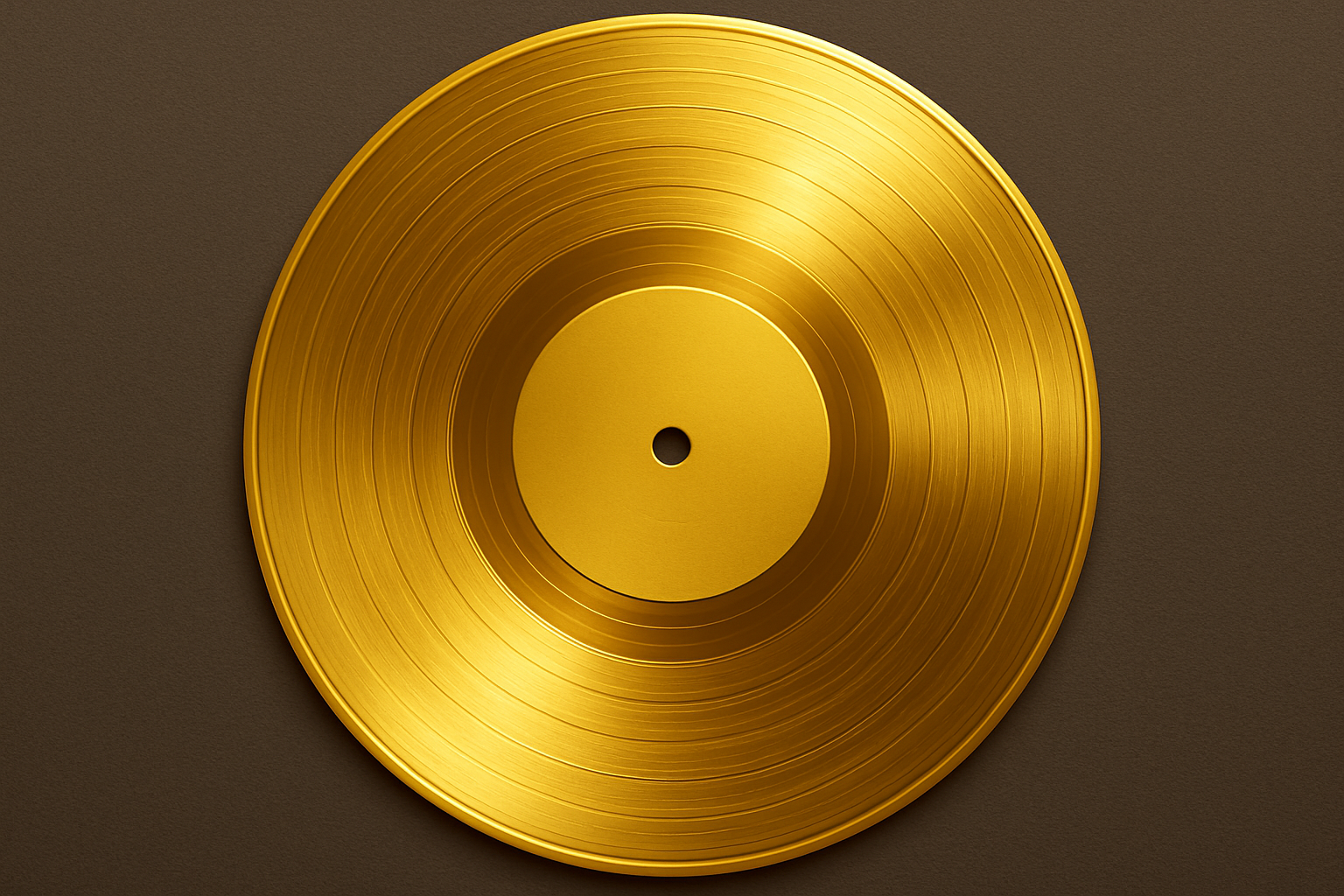
From Blanks to Beats: Personalizing Your Gold Record
Have you ever dreamed of owning a gold record? Whether you’re a rock star with platinum aspirations or just looking to jazz up your digital portfolio with a personal touch, you’ve come to the right place. In our previous tutorial, we walked you through creating a shimmering gold record from scratch. Now, we’re concluding the journey by adding a custom label to that masterpiece. So, grab a seat, fire up your Photoshop, and let’s dive into the details.
Setting the Stage: Initial Preparations
We begin with a document that’s 1000×1000 pixels and has a resolution of 150 pixels per inch. These settings ensure that our custom label will look sharp when placed on our glittering digital disc.
Next, you should have a layer mask for your record shape ready from our previous tutorial. If you missed that step, you might want to circle back and get that sorted. You’ll need to ctrl-click or command-click (if you’re on Mac) on that layer mask to convert it into a selection. Then, we take a brief detour to the ‘Select’ menu, opting for ‘Transform Selection’ to adjust the dimensions of the label.
Scaling with Precision
Once in the ‘Transform Selection’ options, unlock proportion constraints by hitting the chain link between the width and height. Set the percentage to a precise 33.8%—the perfect dimensions for a stylish record label without overpowering your record’s glorious aura. Confirm by hitting enter or return, and voilà, your workspace is ready for the next step.
Crafting the Label’s Core
Now it’s time to house that label. Click the folder icon to create a new group, intuitively named “Label.” With the selection active, click the layer mask icon to attach a mask to this group, linking all enclosed elements to the label’s boundary. Within this group, we now have the creative freedom to test color, texture, and typography without restriction.
Painting with Gradients
To breathe life into the label, select the gradient tool and open the gradient editor. Start with a basic ‘foreground to background’ gradient, but here’s where it gets interesting. At the lower-left stop, adjust brightness to 50%, while the lower-right stop will sport a moody 10%. Close the windows when done, and unleash the gradient across your label in a strategic 45-degree sweep.
Textual Tactics: Fonts & Positioning
With the framework of your label set, we pivot to the all-important textual elements. Using the ‘Type Tool’, begin with a splash of your chosen text. We opted for the bold allure of the ‘Babas Neue’ font available at DaFont.com. Your text will automatically align within the mask’s range, ensuring it doesn’t stray beyond the label’s circumference.
You might even find that the initial text layer was merely a guide—after positioning, it can be discarded to bring sharper attention to the decorative pieces. Engage your gradient tool once more to refine the text’s finish, adjusting brightness to harmonize with the overall theme.
Finer Details and Flourishes
Zoom into the label’s heart, changing up fonts with the same flair you would sift through vinyl classics at your neighborhood record shop. Whether ‘Deco Tech’ or classic ‘Arial’, select fonts from DaFont.com that echo your creative essence with clarity.
For additional texture, experiment with outer glows or subtle shadows—a 35% opacity in white delivers a light, celestial aura to your text. Finally, create a path with the ellipse tool, enabling text placement around your label’s perimeter for that professional touch.
Colorizing and Final Adjustments
With all elements snugly anchored, it’s time for the final flourish. An adjustment layer for ‘hue saturation’, with the ‘colorize’ option checked, offers that finishing gleam, setting your hue to 225. This will give your label just the right tint and polish.
And there you have it—your own bespoke gold record label, complete with custom text, unique branding, and an aesthetic that promises to pop, whether viewed as a digital asset or a glossy print. At Blue Lightning, we’re not just about teaching; we’re about empowering you to make each project a pixel-perfect reflection of your vision. Now, go forth and bask in your creative crowning glory.





