Transforming Serenity into Chaos with Photoshop Magic
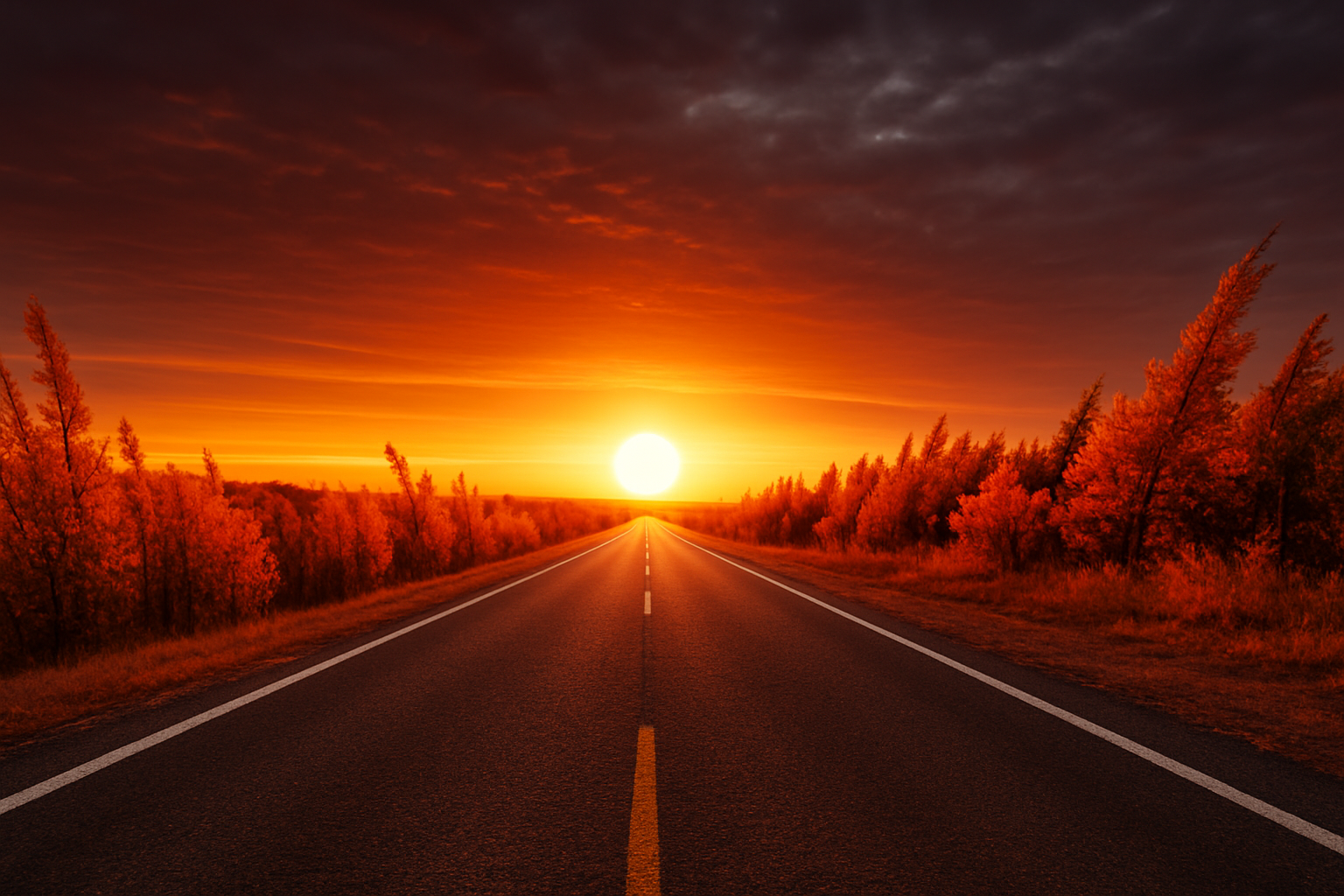
If you’ve ever wondered how to take a calm, serene landscape and transform it into a scene straight out of a post-apocalyptic movie, you’re in luck. Today, we’re diving into the wonders of Photoshop to create an intense nuclear explosion effect. This tutorial will guide you from a peaceful landscape to a thrilling depiction of chaos using a series of adjustments and transformations. Get ready to unleash your inner digital artist and make your images explode—literally.
Setting the Stage: Your Workspace
Let’s set up our workspace before we begin. Start with a document size of 1280 by 720 pixels at a resolution of 72 pixels per inch. This setup provides a good balance between resolution and ease of manipulation, ensuring smooth workflows.
Adjustment Layers: A Game Changer
To kick things off, let’s tackle the color of the image. Click on the adjustment layer icon and choose “Hue/Saturation.” But wait, there’s more! Clicking “Colorize” will give the image a consistent color tint. You’ll set the hue to 0 and the saturation to 50, giving the image a striking red tint. Also, remember to bring the opacity down to 50 percent, adding the perfect shade of drama to the scene.
Layer Manipulation: Crafting the Blast
Create a new layer for a composite snapshot by pressing “Ctrl + Shift + Alt + E” (or “Command + Shift + Option + E” if you’re on a Mac). Then, make a copy by pressing “Ctrl or Command + J.” Now zoom out a bit with “Alt or Option” and a few clicks to give yourself some space to work.
Next, call up the Transform tool with “Ctrl or Command + T,” and prepare to bend reality by clicking on the Warp icon. Here, manipulate the grid by dragging the points and lines. The goal? Achieving the dramatic curve of trees swaying from an imaginary blast.
Building Effects with Filter and Lens Flare
Create a new layer and fill it with black using “Alt or Option + Delete.” Go to “Filter” > “Render” > “Lens Flare” to add that intense brightness, setting it to 75 percent with the 50 to 300-millimeter zoom lens setting. Motion blur junkies, rejoice! Head over to add a Gaussian Blur with a 25-pixel blur. This combo gives the explosion its signature blurry brightness.
Playing with Light
Change the newly blurred layer’s blend mode to “Color Dodge.” Duplicate the layer, switching the blend mode to “Hard Light” for added depth and realism. Now, transform this layer using “Ctrl or Command + T;” adjust the width to 400 percent and the height to 150 percent—this will give it an exaggerated effect, stretching the light horizontally.
Here comes the fun part: create yet another copy, and this time, while transforming again, link the width and height for a synchronized scale and type in 5000 percent to blow it all out. Change its blend mode to “Overlay” for that luminescent glow that says, “Here comes the apocalypse.”
Fine-Tuning Dramatic Details
To ramp up the intensity, consider duplicating any of these layers. Focus on the sliver of light and carefully place it on the horizon line using your Transform tool. In artistic terms, this adds a focal point and depth to the scene.
Add more by duplicating and transforming this sliver; thicken it slightly for added volume, and amp up its intensity with another copy. The layers you’re working with now serve as your universe’s foundation—command this digital universe!
Clouds and Colors for Final Touches
It’s now time to set the dramatic atmospheric tone: Create a new black-filled layer, apply “Filter” > “Render” > “Clouds,” and set the mode to “Overlay.” This step adds texture to the explosion, making everything feel more dynamic.
To wrap up, incorporate a gradient map for harmonious color blend. Use a bright yellow for the foreground and a dark brown for the background. With the gradient selected, create a clipping mask over the clouds layer, so the effect applies only there. Voila! You’ve just added the scorching drama of an explosion using mere colors!
Conclusion: Where Serenity Meets Catastrophe
Transforming a serene landscape into an apocalyptic scene might seem intense, but with Photoshop’s fascinating toolkit, you can create narratives as grand as any action movie’s climax. These steps are just an invitation to explore the bounds of creativity and indulge in the dramatic arts—through pixels and layers. So, go ahead, unleash chaos, and see where your digital creativity takes you.
Always remember, destruction, in this case, is not only fun but safe—because in the realm of digital manipulation, the universe is limitless and begging to be rearranged. Enjoy the journey!