
Creating Your Very Own Iconic Poster with Photoshop
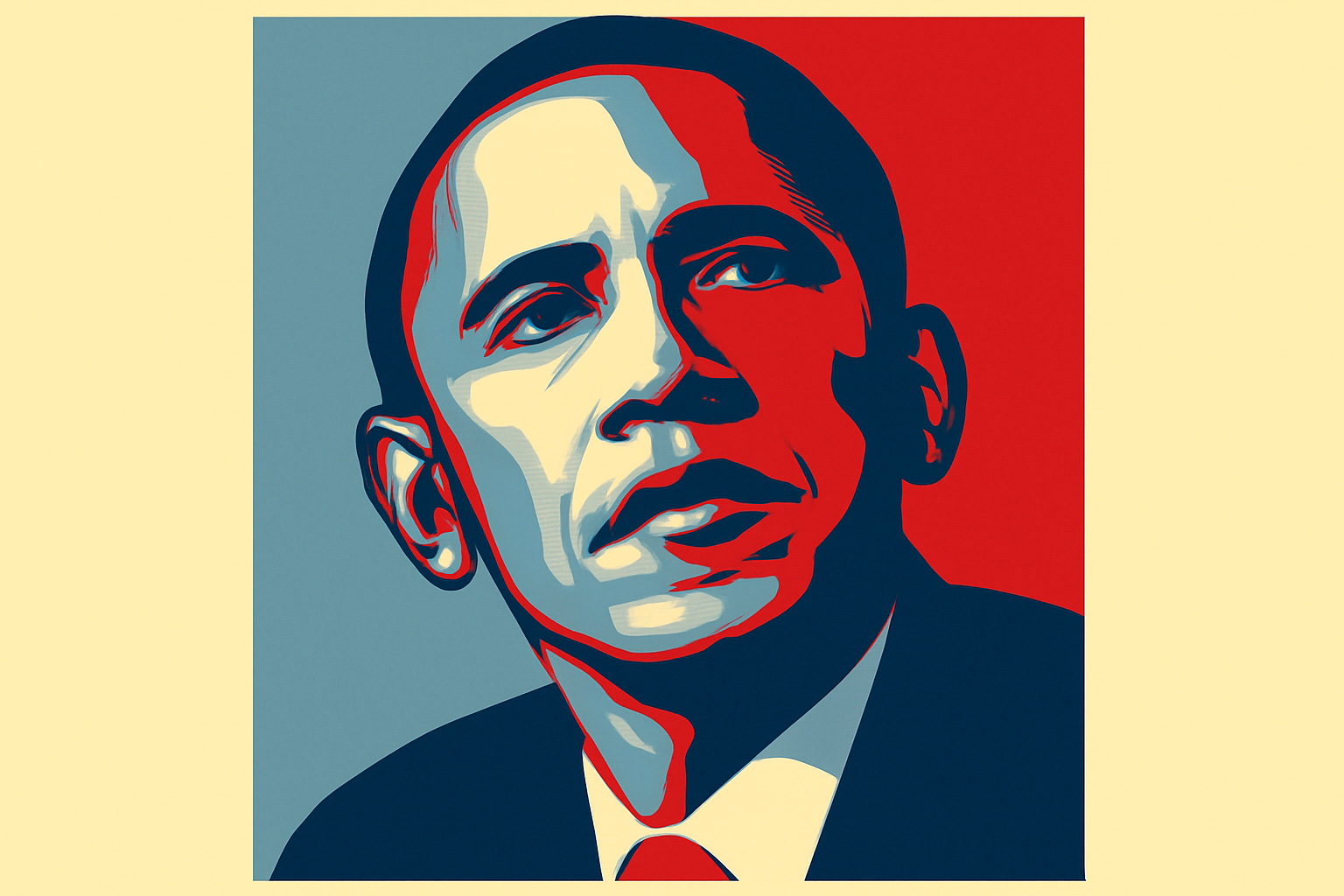
We’ve all seen the striking “Hope” poster created by Shepard Fairey during Barack Obama’s 2008 presidential campaign. This iconic image not only became a symbol of hope and change but also a staple of modern graphic design. Now, you might be thinking, “There’s no way I could recreate something like that,” but I beg to differ. Today, we’re diving into how you can recreate this legendary work using your favorite tool—Photoshop. So, grab your digital paintbrushes, and let’s get started!
Setting Up Your Digital Canvas
Your journey to creating a poster begins with setting up the canvas. A good starting point is a digital document that measures 1000 by 1515 pixels with a 72-pixel resolution. This ensures you have enough space to work your magic while keeping your file size manageable.
Mastering Selections and Layers
Next, bring in the headshot you’ll be immortalizing on your poster. It’s time to detach it from the background. For this, the Quick Selection Tool is your best friend with a 4-pixel radius. Click and drag to deftly outline the subject. To undo any overzealous selection, simply hold the alt or option key.
Once your star is isolated, invert the selection with CTRL+Shift+I (or Command+Shift+I for Mac lovers) and pop it onto its very own layer with CTRL or Command + J. Voilà, it’s free from its previous confines!
Artistry in Simplicity with Filters
Filters get a bad rap, but here they are the secret sauce. Go to Filter > Artistic > Cutout. Set levels to five, edge simplicity to five, and edge fidelity to one. This compresses the image into bold, flat color shapes that scream graphic sophistication.
Manipulating Tones with Adjustment Layers
Don’t stop there! Slap on a channel mixer adjustment layer and tick the monochrome box. This step may seem redundant if you’re already working with black and white, but believe me, it’s insurance against any lurking color casts. Add a posterize layer next, and revel in the stark tones by setting the levels to five.
Crafting the Iconic Gradient
The gradient is where the magic happens. Shepard Fairey’s “Hope” poster is renowned for its distinct, patriotic colors. To mimic this, you need a gradient map:
- The darkest color: #00324D
- Secondary color: #01825A, set at 25%
- Midpoint color: #7498A4
- Lighter tone: #FDE5A9
- Sync the last two color stops
Now all you need is a little patience as you fine-tune the stops on your gradient bar to align them with these hex codes. You’re practically painting with history!
Adding Artistic Patterns
To replicate the poster’s texture, use the Magic Wand Tool (with a 10-tolerance) on your grayscale image’s second lightest tone. Create a new layer, make a layer mask (a pro move), and introduce some line patterns. Navigate through Filter > Sketch > Halftone Pattern and tweak the controls to size 1, contrast 50, and type ‘line.’
Framing the Creation
A frame isn’t just a frame; it’s the finishing touch. Use the Rectangular Marquee Tool, create a quick mask with Q, define the border, and use the Eyedropper Tool to swatch the darkest tone from your photo to fill in that selection. It’s a meticulously crafted background that will hold your forward-thinking vision.
The Powerful Typography
No Obama poster is complete without bold typography. Though the original used Gotham, Nevis Bold from 10by20.com offers a free alternative that’s just as potent. Place your text layer above all—literally and figuratively—and size it according to your canvas.
Final Flourishes and Retouches
On the home stretch, tidy up any stray pixels with expert precision. Use your custom brushes or the Pencil Tool to neaten up those rogue edges. A composite snapshot (CTRL+Shift+Alt+E) gathers up all the elements, allowing you to destructively edit without wreaking havoc on your layers.
Voila! You now have a timeless piece of design that not only makes a bold statement but also empowers you to showcase your skills. So have fun as you channel your inner designer and create something that, who knows, might just become iconic in its own right. Cheers to creativity!





