
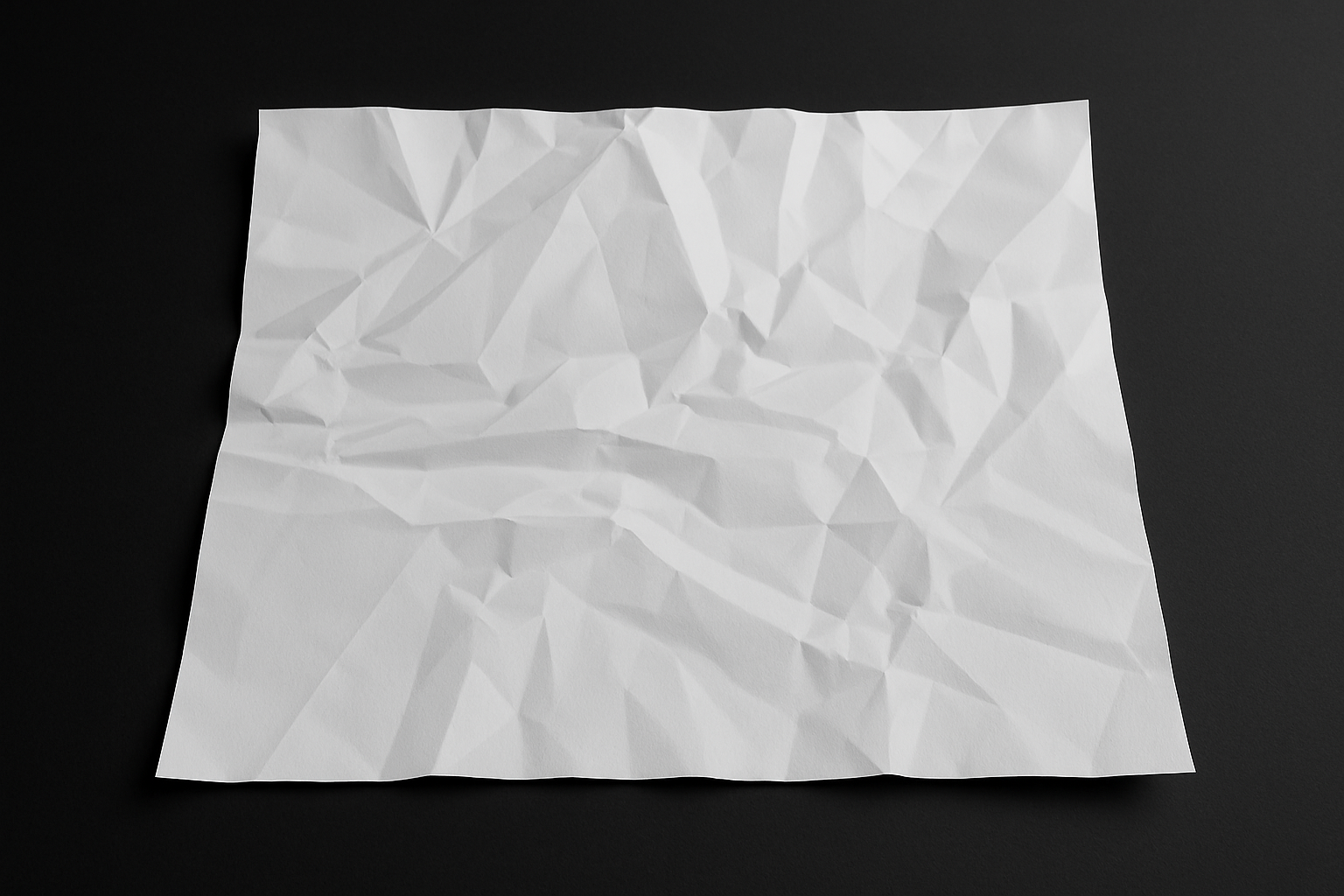
Adding That Authentic Touch to Your Designs with a Crumpled Paper Effect
If you’ve spent any significant time in the design world, particularly within the digital confines of Adobe Photoshop, you’ll understand just how nifty it can be to create tactile elements from scratch. There’s a certain charm and authenticity to hand-crafted textures and effects, and today, we’re delving into one such aesthetic adventure — crafting a crumpled paper texture that adds depth and intrigue to your digital designs.
Step 1: Documents and Gradients – Setting the Foundation
Start by creating a new document in Photoshop with dimensions set to 1280×720 pixels. This size is not just internet-friendly; it gives you ample space to work some creative magic. Set the resolution to 72 pixels per inch — just enough for screen viewing.
Now, gear up with your Gradient Tool, nestled comfortably in your toolbar, and choose either the Reflected Gradient or the Diamond Gradient. For those who like to gamble, the Diamond Gradient can serve you well with its ability to distribute color in intriguing ways. Apply the gradient using the “Difference” blend mode for a dynamic and truly random pattern emergence. Draw lines across the canvas and watch as it turns into a maze of enduring complexity.
Step 2: Embossing – Adding Depth
With your gradient masterpiece ready, navigate to Filter > Stylize > Emboss. Align your settings with angle at 135°, height at 3 pixels, and amount at a solid 200%. These settings ensure you end up with a texture that jumps out, whispering tales of storied usage and wear.
Follow it up with a dose of fine-tuning. Press “Ctrl + L” or “Cmd + L” to pop up the Levels window. Slide the input highlights to 152 and the midtones to a snug .91. This subtle shift in levels goes a long way in enhancing both shadows and highlights.
Step 3: Crafting the Crumple
Summon your Rectangular Marquee Tool to cut out a rectangular section from your document by pressing Ctrl + J (or Cmd + J for Mac enthusiasts). This slice of your canvas now exists independently, ready for individual manipulation.
Introduce a bottom layer by clicking the New Layer icon while holding down Ctrl or Cmd. This action slides it effortlessly below your active layer. Fill this layer with black using the Alt + Delete shortcut (Option + Delete on a Mac) to set a dramatic stage for your crumpled creation.
Step 4: The Final Touches
What’s a crumpled paper without its jagged, unpredictable contours? Enter the Polygonal Lasso Tool to carve out the random edges, following the shadows like a faithful observer of natural topographies. Complete your path, transform it into a selection, and settle it onto its exclusive layer.
For an impression of depth — transform the piece to offer perspective. This can be easily done by pressing Ctrl + T (Cmd + T on Mac) and tweaking the corners for your desired perspective effect.
To embellish the scene, swap the stark black for a gradient. Click on the linear gradient icon and let the blend mode wander back to normal, letting subtle colors breathe life into the vias and vertices.
Preserve and Adapt Your Creation
Wrap up by merging these layers or saving them for repeated use. This crumpled paper background can become your go-to for countless projects, utilizing its raw yet refined texture to evoke emotion and engage viewers.
Using the Techniques from this masterclass ensures your artistic toolkit stays rich and textured, much like the crumpled paper effect itself. By crafting such elements from scratch, you inject authenticity into your work — something the digital world could use a whole lot more of.
Embrace these skills, dear creatives, and let your crumpled paper act as a stylish, chaotic backdrop to endless design endeavors.





