
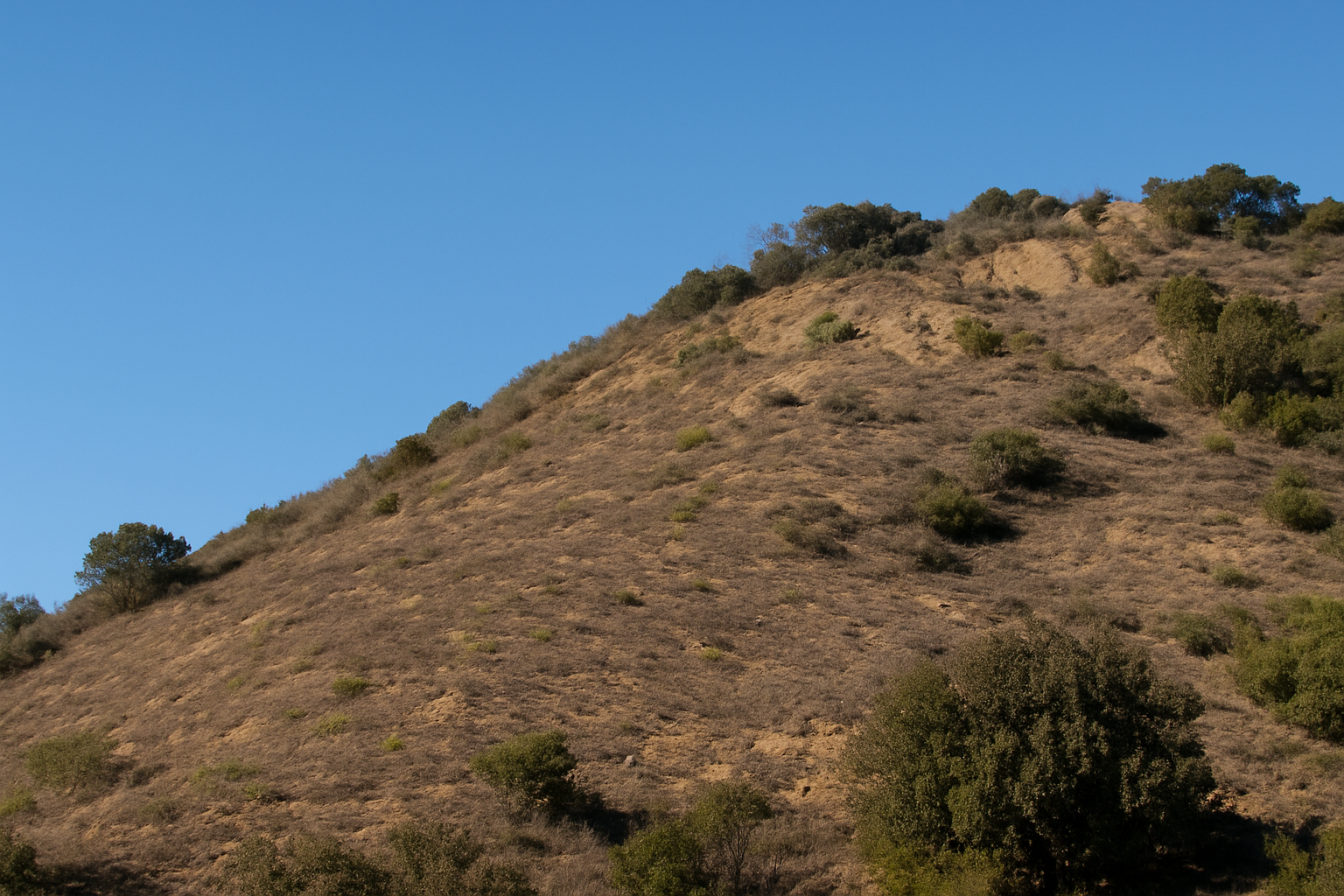
Bring a Personal Touch to the Iconic Hollywood Sign
The Hollywood sign, perched grandly above Los Angeles, is arguably the most iconic lettering in the world. Stretching across the hills since 1923, it’s become a symbol of glamour, ambition, and sometimes chaos, but what if you could take those famous letters and make them your own? Whether you’re aiming for a personalized digital postcard, a banner for your creative project, or simply a playful exercise in photo manipulation, jumping into the Photoshop pool to change the Hollywood sign to your personalized text is an exciting way to use your skills. Let’s dive in together and see how to transform this symbol of aspirations into your own unique statement.
Setting Up Your Digital Canvas
Before any transformation can occur, we need to set the stage. As always, it begins with the digital canvas. For this project, the image resolution is recommended to be 1280×720 pixels, with a resolution of 72 DPI (dots per inch). This size is manageable yet sufficiently detailed to allow creative flexibility.
Tools of the Trade
- Magnifier Tool (Z): Essential for zooming in on each letter and structure, helping your edits to be precise.
- Pencil Tool: Choose a 2-pixel size for reconstructing structural support beams.
- Clone Stamp Tool: Particularly useful to ensure the surrounding topography’s integrity, giving that authentic touch as it matches its environs.
Recreating Structural Support for Letters
This isn’t just about replacing some letters; ensuring the sign looks realistic involves recreating the framework supporting the letters. Use your pencil tool while holding Shift to meticulously draw those support beams dating back from the Jazz Age. Ensure the realism is there so even Photoshop connoisseurs will have a hard time spotting the difference.
Saving Your Selection
Save your hard work by going to Select > Save Selection and naming it frame. This ensures that your support structures remain intact despite what the digital world throws your way.
Crafting Your Custom Text
Fonts can make or break a design. To maintain that classic Hollywood allure, we have chosen “SF Hollywood Hills Bold.” Download this free font from dafont.com. Once your font is selected, it’s time to paint it in the authentic Hollywood hue. Use your eyedropper tool to snatch the original color of the Hollywood sign, lending authenticity.
The Art of the Clone
The magic wand within your photo-editing arsenal is the Clone Stamp Tool. This task is labor-intensive but ensures fidelity to the original topography. Why not leave the hill as accurately untouched as possible? By strategically cloning pieces of the terrain over the previous text, you create a convincing look of untouched natural beauty.
Fine-Tuning Text to Fit the Hill
Each letter of your custom text should curl against the hill’s contours. Use the Baseline feature to align each character, making it conform naturally to the hill. This subtle maneuver separates Photoshop novices from experts.
Summoning the Sign’s Shadow
A sign without shadows? Unthinkable! Capture the shadows’ subtleties by creating a composite snapshot of your sign. Alter its shape using the Skew function to match the angle of the sunlight, casting convincing shadows that adjust to the hill’s pretend surface perturbations.
Simulating Shadow Irregularities
Enhance realism using the Zigzag function under the distort menu. The shadows should not be perfect lines; they should ripple outwards, subtly following the uneven hilltop, just like in the real world.
Finalizing and Finessing the Sign
Before you dismiss your work, add depth with a smooth text finish. Adjust depth with layer masks and remove undesirable parts of letters sitting on the thrushes and bushes of the Hollywood hills. Your Photoshop project is now transformed into an art piece that not only mimics but enhances the classic Hollywood sign.
Wrap-Up Wisdom
This photograph manipulation certainly is not for the faint of galling interest; it required patience and precision—skills integral for any Photoshop enthusiast looking to progress. And remember, the beauty of the surrounding nature should always shine through, highlighting both your personalized text and the iconic scenery it decorates.
So go ahead, put your name in lights above tinseltown, and remember you learned it right here. Until next time, keep your creative sparks flying on Blue Lighting!





