
Bring the Rugged, Worn-away Charm of Urban Streets to Your Canvas
Ever wondered how to conjure the gritty allure of urban graffiti into your digital art? The worn, rugged aesthetics of graffiti haphazardly sprayed over textured walls have captivated the hearts of street art enthusiasts around the globe. The imperfect beauty lies in its rebellious scribble juxtaposed against urban textures, creating a layering effect that screams authenticity. But how can you create this vibe digitally? Let’s dive into the nitty-gritty of Photoshop magic to transform your pristine canvas into a street art masterpiece.
Setting the Stage: Your Canvas
The journey begins with setting up your digital canvas in Photoshop. Start by creating a new document, ideally with dimensions of 1280×720 pixels and a resolution of 72 pixels per inch. It’s essential to select a backdrop that exudes urban charm—concrete or brick walls with a touch of distressed texture work wonders. Websites like Textures.com can be a treasure trove for sourcing the perfect background.
The Right Message in the Right Font
Once your canvas is ready, it’s time to choose the perfect font to express your urban message. Opt for a bold, rough typeface like “Garage Shock Condensed Heavy,” which is available for free at DaFont. Select your desired color for the text’s interior and type out your graffiti. Ensure your words dominate the scene because, as we all know, street art is all about making a statement.
Stroking the Words in Style
Customization is key when it comes to street art. Access the FX options to begin embellishing your text. Adding strokes to your letters can lend an aesthetic reminiscent of impactful spray cans. As you adjust the stroke settings, finding the right pixel thickness will evoke that perfect grungy vibe—let’s say around 13 pixels, but adjust according to your style.
Tweak the Perspective for Authenticity
To realistically embed your graffiti into the distressed texture, utilize Photoshop’s perspective adjustment features. Convert your text layer into a smart object and manipulate it to blend seamlessly into the wall’s natural perspective. This clever trick will have onlookers questioning whether the graffiti is digitally crafted or an actual work of urban art.
Infuse Character with Drips and Splats
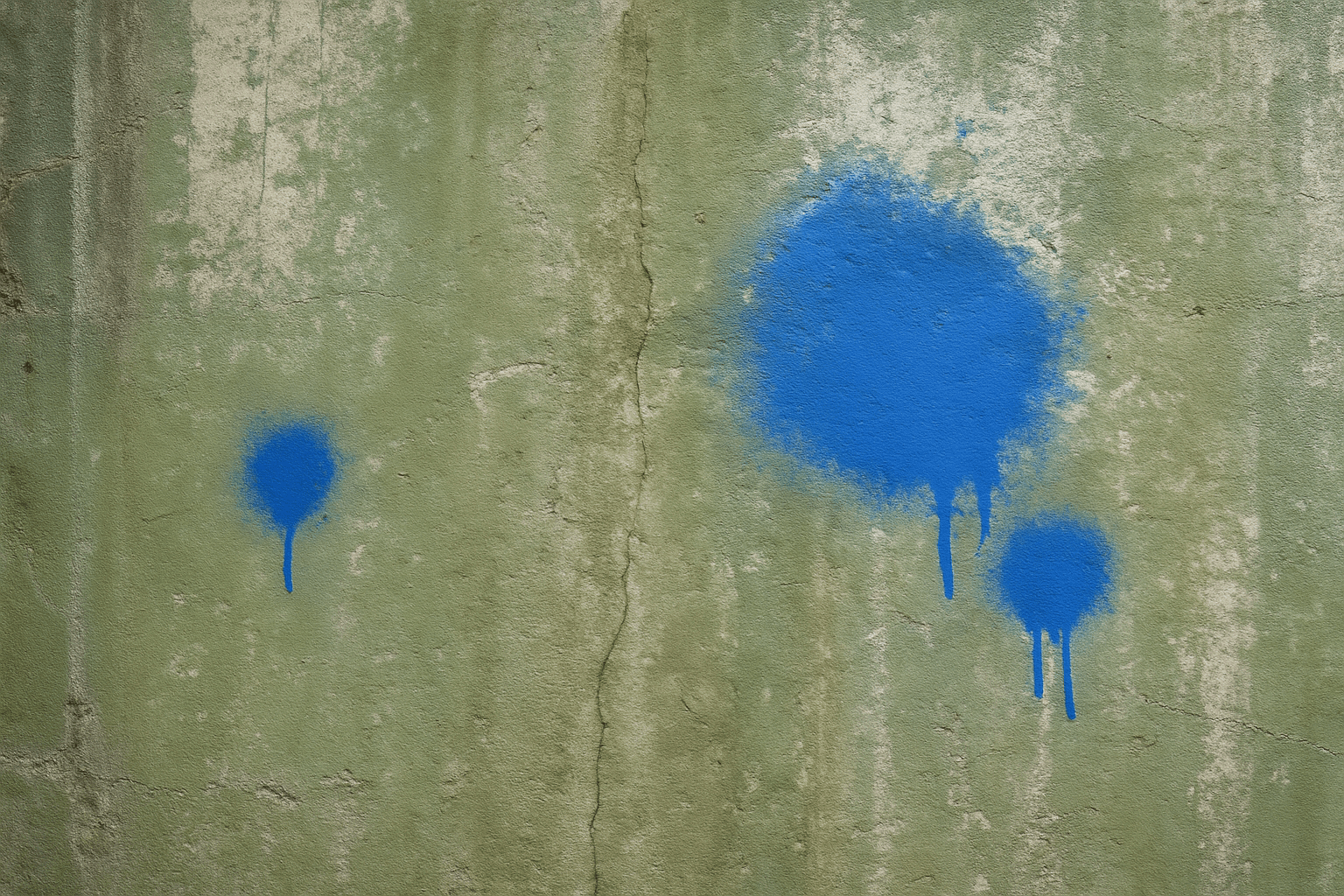
What’s graffiti without those characteristic paint drips and splatters? They’re the hallmark of authenticity. With the brush tool, try incorporating some free splatter brushes available on DeviantArt. Hammer in varied opacity to simulate an organic, hand-sprayed mishmash.
Weather the Vibe: Worn Away Graffiti
To mimic the time-worn feel of graffiti, use layer masks to strategically conceal parts of the text, revealing the raw wall beneath. This provides the cherished, eroded appeal as if years have tried, and failed, to wash away the art from the streets.
Achieving Depth with Gradients
A depth-rich wall deepens the spatial composition of your work. Layer on a gradient fill to darken one end of the wall. By doing this, you emulate a coveted three-dimensional look, enhancing your digital graffiti’s realism and visual intrigue.
The Finale: A Testimony to Time
With each layer adjustment, opacity tweak, and brushstroke, what you’re left with is more than just a digital piece; it’s a visual narrative that speaks the language of the streets. It’s a testimony to the ever-evolving culture of urban art, captured remarkably with the stroke of your digital brush.
Crafting compelling digital graffiti is not just about technical know-how; it’s an art form in itself. With these steps, your Photoshop skills can elevate your designs to capture that edgy, rebellious charm that comes from the heart of the city itself.
So, set your creativity loose and let your digital walls do the talking.




