
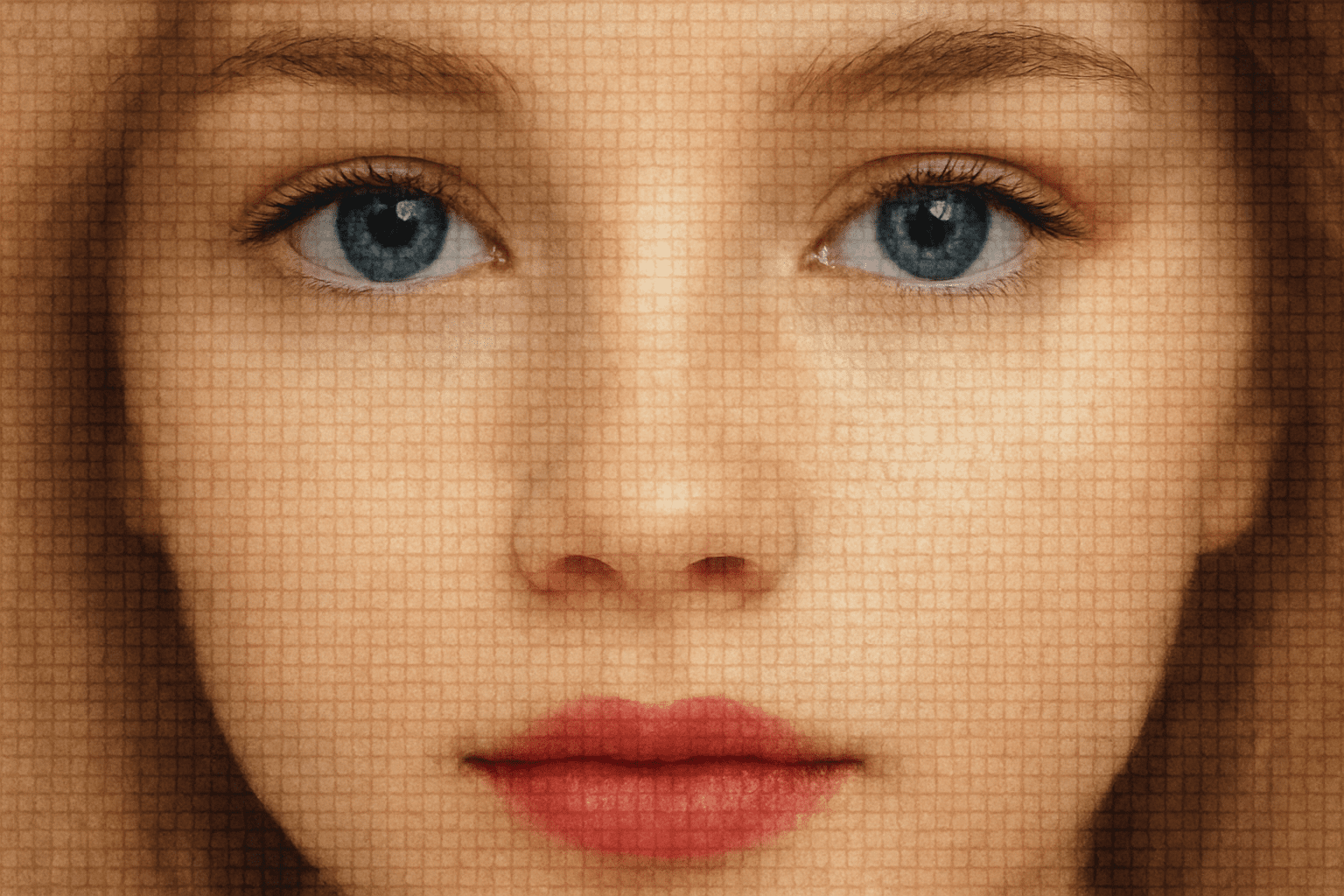
Turn Fan Love into Art: Portraits with a Twist
Who says you need layers of detailed brushwork to create a jaw-droppingly unique portrait? Today, we’re diving into the quirky world of transforming a simple sports team logo into a stunning digital portrait. With just a few Photoshop tricks and a little love for those team colors, you can make the ultimate fan gift or simply add a unique personal touch to your digital art portfolio.
Getting Started: Prep like a Pro
Cropping Your Photo
Begin by choosing the photo you want to transform. Open it in Photoshop and call up the Crop Tool. It’s time to focus on the essentials, with the image set at a neat square of 1000×1000 pixels, and a crisp resolution of 150 pixels per inch. Got a smaller photo? Feel free to tweak those numbers. The idea is to get the essentials front and center.
Once you’ve sized your image, it’s time to trim the fat, so to speak. Simply click on a corner of the crop grid and drag to the opposite corner until it hugs your subject nicely. Press Enter or Return to see your clean-cut masterpiece center-stage.
Desaturate and Resize the Logo
Now, let’s spice things up with the logo. Open your sports team logo image and go monochrome. Trust me, it’s classier this way. Desaturate using CTRL + Shift + U (or Command + Shift + U on a Mac), then even out the lighting with CTRL + Shift + L (or Command + Shift + L).
You’ll want to resize this to a petite 25×25 pixels. The logic is simple: small enough to become part of the portrait, but recognizable enough to shout “GO TEAM!” at the top of its tiny lungs.
The Creative Blend: Merging Logo and Photo
Converting Logo to a Pattern
Once your logo is lean and mean, go to “Image” -> “Canvas Size” and set both the width and height to 50 pixels. This gives you a bit more room to play with. As you alt-drag (or option-drag on a Mac) it around to the corners, you’ll see your pattern start to take shape. Do a little invert with CTRL + I (or Command + I), and press onward to flatten the image.
Next, you’ll want to officially make this a pattern by heading over to “Edit” -> “Define Pattern”. Give it a snappy name, perhaps something spirited, like Victory Pattern, and hit OK. Feel free to let out a small victorious whoop at this point.
Filling Your Portrait with Team Spirit
Time to layer up! Duplicate your photo layer and create a new one on top of it. Then head to “Edit” -> “Fill” to choose your custom pattern. Yup, it’s the last one on the list, tucked away like the best piece of fan memorabilia.
Once your pattern floods the layer, switch the blend mode to “Overlay.” Uh-oh, too intense? Dial down the opacity to around 50%. Now bask in the subtle radiance of your pattern-enhanced portrait, adding that extra touch with another blend mode if needed—our pick, “Soft Light,” keeps things mellow yet vibrant.
Apply the Final Touches: Own the Art
Composite Mastery
For the finishing flourish, take a composite snapshot of your work with CTRL + Shift + Alt + E (or Command + Shift + Option + E). This will neatly tuck everything into its own layer, allowing you to move, shift, or even add a sneaky bit of pixie dust (maybe favorite color-themed highlights) without disrupting the whole deal.
Drag the logo pattern on top, use a blend mode like “Soft Light,” and watch your artistic vision bloom. Feel the exhilaration of seeing an ordinary photo infused with the zeal of fan love. It’s not just art; it’s personal history painted in pixels.
Conclusion: Make It Memorable
With this delightful Photoshop hack, turning cherished logos into personal portraits will liven up anyone’s digital collection. It’s fun, nostalgic, and functionally creative—a unique way to channel both your artistic flair and your passion. Whether it’s a thoughtful gift or a bold statement on your wall, the possibilities are both expansive and exhilarating.
So, grab that team logo, get in digital formation, and let the picture pattern magic fly!





