
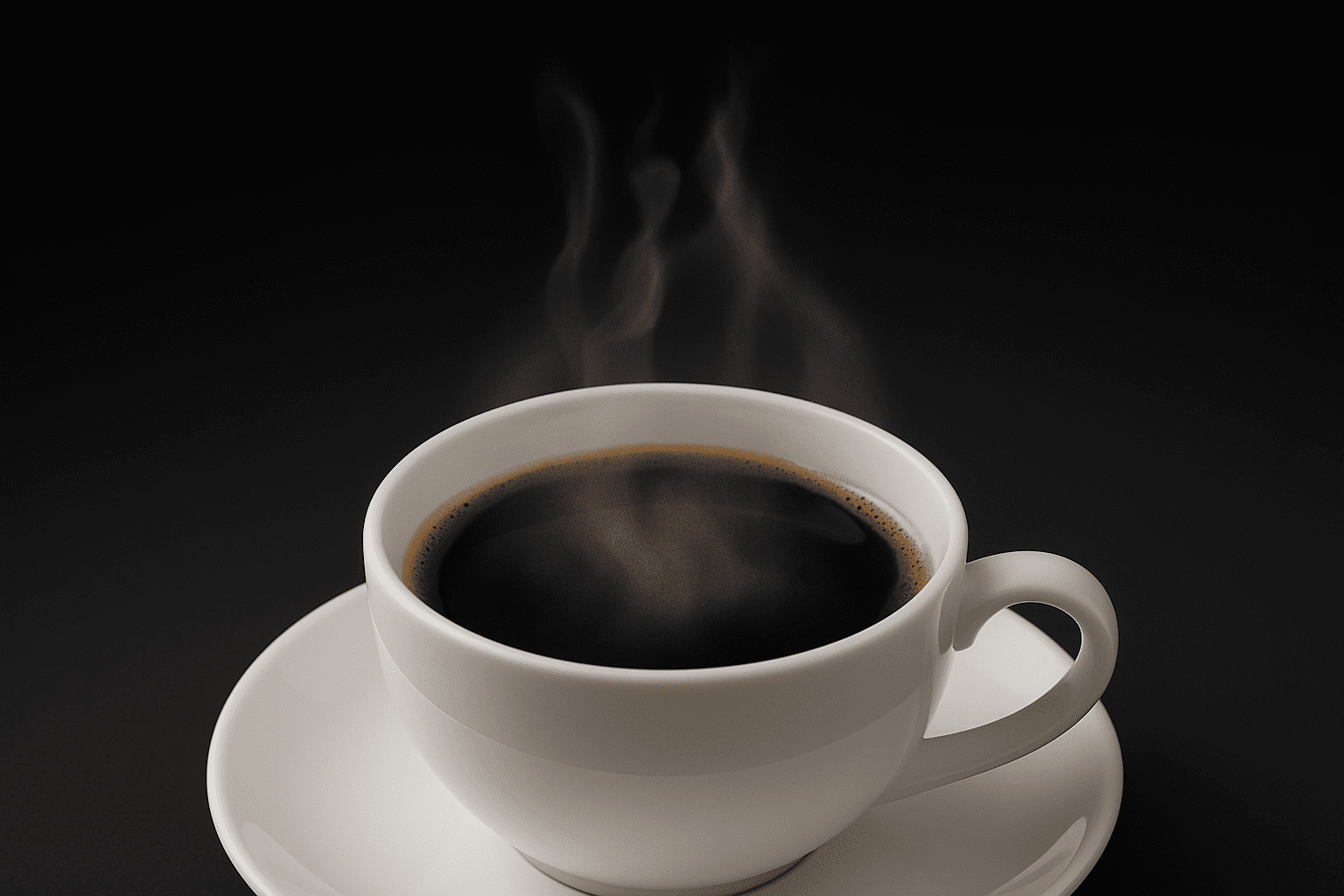
Transform Your Creations with Wisps of Smoky Realism
In the realm of digital artistry, crafting the perfect atmosphere for your designs is akin to magic. One of the most evocative elements you can incorporate is realistic smoke. But how do you create those ethereal wisps that curl and dance across your canvas? Fret not! We’ve got a Photoshop trick that’s as effective as it is snappy. With just a few filters and a flick of the wrist, you’ll be summoning smoke images that would make any seasoned pyromancer envious.
The Smoke Setup: Brush and Layer Essentials
First things first, you need to gather your tools. Launch Photoshop and select the Brush Tool, making sure your foreground color is set to a pure, ghostly white. Keep the opacity around 50% to permit a delicate layering effect. In your Brush Presets panel, ensure Shape Dynamics, Airbrush, and Smoothing are all activated. A good base is a 40-pixel brush, but as with many creative ventures, experimentation is king.
Create a new layer for your smoke. Name it, appropriately enough, “Smoke,” so you won’t be caught wondering what layer you’re working on when you reach peak creative flow. Now, start sketching wavy lines. Think of it as painting mini Picasso ribbons, letting the strokes overlap and intermingle like perfumed curls from a vintage cartoon cigarette.
The Warp Wave: Wrangling Your Smoke
Once you’ve doodled your way into a wavy jungle, it’s time to mold it into smoke. Start by bringing up the Transform tool (Ctrl T on Windows or Command T on a Mac) and select the Warp option. With the power of Warp, feel free to manipulate the swirls until they start to resemble the ghostly tendrils of smoke that take your breath away. Remember, your design might look chaotic at first, but keep pushing and pulling those points until harmony is achieved.
Filter Fiesta: Adjusting Your Smoky Atmosphere
So, you’ve warped, and it’s starting to look like something. But to elevate your work, add a bit of mystery with filters. The journey starts in the Filters menu. First, hit Filter>Other>Maximum to bulk those skinny trails into thicker, more robust bands. I recommend starting with 12 pixels, but play with this setting until it sings.
For the main event, convert your smoke layer to accept Smart Filters via Filter>Convert for Smart Filters. Smart Filters allow non-destructive edits — Photoshop’s gift to humanity. Now, hop into Filter>Blur>Surface Blur. This trick will soften and imbue your smoke with just the right amount of atmospheric flair. An initial radius of 85 and threshold of 81 is a fantastic starting point for most designs.
Overlay and Final Flourishes
With the basics in place, it’s time for some smoky polish. Add another layer and, whilst holding Control (or Command), click on your smoke layer to select it. Go to Filter>Render>Clouds to add texture. Set this layer’s mode to Overlay and see the magic unfold. Tweak the shape of your smoke again with warp transforms until the essence is just right.
It might still need adjustments. Don’t fret! As you make changes in your workflow, remember to revisit and modify filters, adding or removing them until your smoky effect feels complete.
Experimentation is Key
There you have it! A smoke-making toolkit that will elevate your digital illustrations to new ethereal heights. The best part? You can adapt these steps to create other atmospheric effects. So why not channel the inner storm-master in you, whip up some swirling fog, or even crackling magical energy next?
Now, go forth and imbue your designs with smoke that’ll set the digital world alight!





