
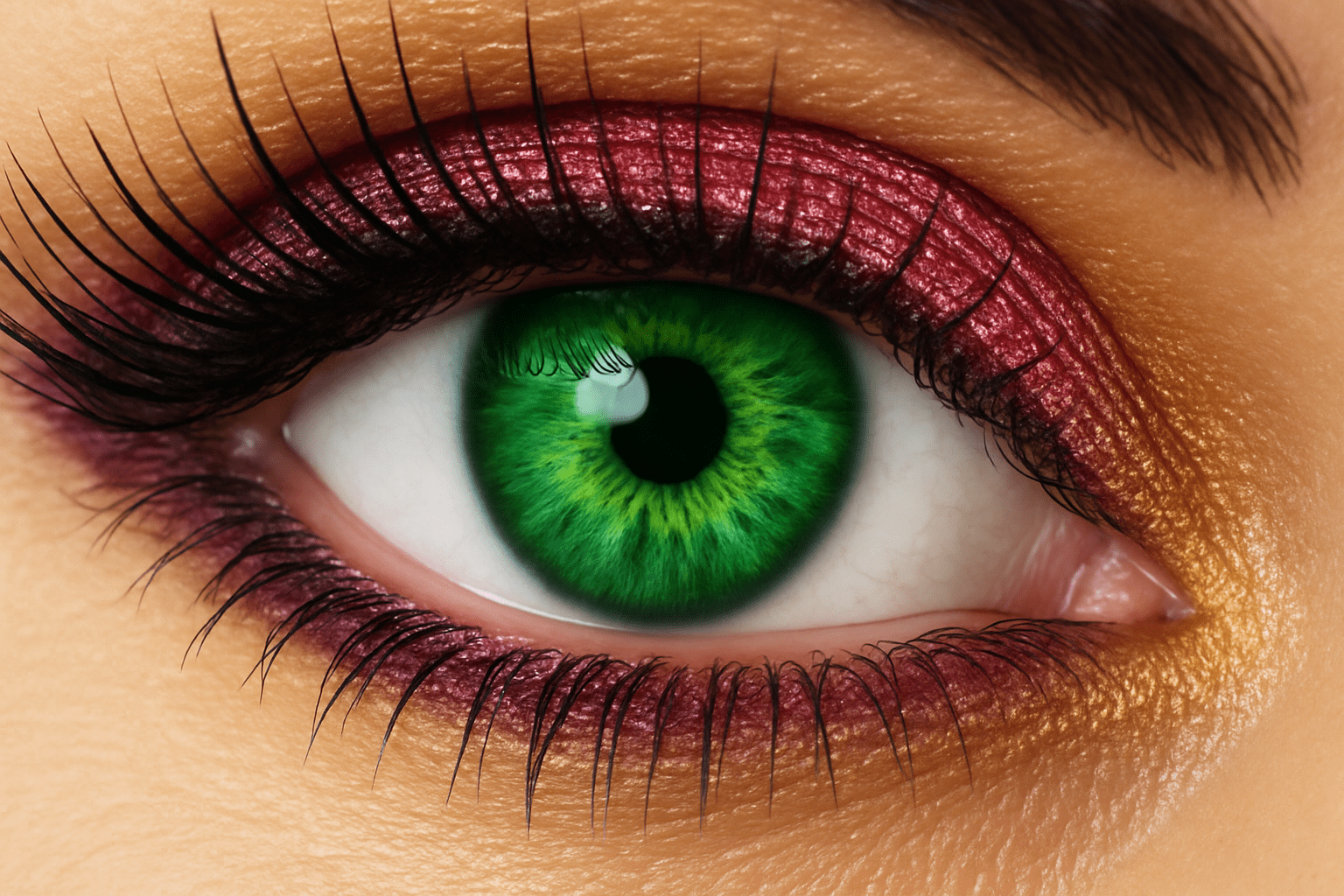
Expressive Eyes: A Gateway to Creative Image Editing
Ah, the eyes. Often dubbed the window to the soul, they’ve been writings’ muses, artists’ obsessions, and now, a playground for Photoshop enthusiasts. Today, we’re diving into a technique that’s as eye-catching as it is versatile: transforming the color and shape of an iris using Photoshop. Whether you’re aiming to make subtle enhancements or prepare for your next surrealist masterpiece, adjusting an eye’s appearance can become the difference between a standard image and something that stops scrollers in their tracks.
Preparing Your Canvas: Copy That Image
Before you even get your creative juices flowing, let’s make sure your original image stays intact. There are a couple of ways to create a copy of your image in Photoshop: either drag it to the new layer icon (standard procedure for Photoshop initiated) or, for those who love shortcuts, hit Ctrl + J or Command + J on Mac. Welcome to the future, where copy-pasting is a form of art.
Illuminating the Iris: The Elliptical Marquee Tool
Onto the specifics. First up: the Elliptical Marquee Tool. Wield your selection tool by heading to the center of your eye’s pupil—pun mildly intended—and as you press Ctrl + Alt or Command + Option, drag out a perfectly circular selection. Perfect circles can be elusive, but with this method, you’ll have no problem nailing it.
Feathering for Perfection: Soften Your Selection
Now, feather your selection by five pixels to ensure smooth transitions. Hard edges are so last season. Enter the refine edge window by going to “Select > Refine Edge.” This technique makes the color changes blend seamlessly into the eye—a subdued touch of magic, if you will.
Color My World: Changing the Iris Color
With our selection set, it’s time to bring forth the Hue/Saturation window through the power move of pressing Ctrl + U or Command + U on a Mac. Slide that Hue back and forth until you find your perfect match—it’s like online dating for colors. If you’re using the eyedropper tool to click a specific color in the iris, keep your brush set to an opacity of about 30%, and engage color mode. This lets you manually paint in sections where the default adjustments just don’t cut it.
From Basic to Bold: The Art of Layer Masks
Adding a layer mask to your selection is the secret sauce for seamless edits. Click on the layer mask button—where changes will magically appear on the white areas while black areas form protective shields, keeping parts unchanged.
The Filter Gallery: Warp, Ripple, and More
Missed the opportunity to craft an extraterrestrial or cyborg look for your eye? Enter the wonderful world of Photoshop’s Filter Gallery. With your iris neatly placed on its own layer, you can confer alienesque qualities by selecting filters like Ocean Ripple or Glass, adding layers of distortion just like some experimental avant-garde artist. Truly, the only limit is your imagination—and possibly, social acceptability.
Shape Shifting in Seconds: The Liquefy Tool
Complete your eye transformation odyssey with the Liquefy tool. Why stop at color when you can alter shape? The Pucker Tool within Liquefy lets you create smaller, more intense irises or completely reshape your eye contours. It’s like having a dial on nature itself. Complete the look by adjusting the inner glow for contrast, going so far as to add a gradient overlay if you’re vibing with a more kaleidoscopic experience.
Typography Effects with Gradients and Blends
Want to go further down the rabbit hole of creative exploration? Use the Gradient Tool, paired with fun rainbow colors, to scale your eye edits into psychedelic territories. Shift your layer blend modes to “Overlay” and adjust opacity to capture just the right amount of otherworldly flair—about 35% should do if you’re aiming for subtle dazzling.
Photoshop’s features are like an all-you-can-eat buffet for your digital canvases. With eyes, especially, we have limitless opportunities to draw in attention, evoke emotion, and tell stories. Embrace these techniques, incorporate them subtly or boldly into your work, and watch as they transform your visuals, one eye at a time.
Remember, the journey into Photoshop wizardry should always be fun, so explore these tools, filter your imagination, and blur the lines between dreams and reality!





