
Dive into the World of Pop Art with Lady Gaga as Your Muse
Feeling a tad uninspired with your recent photographic endeavors? Let’s jazz things up with a splash of pop art, à la Andy Warhol. Ever wondered how you’d look on a museum wall next to Marilyn Monroe or Campbell’s Soup cans? Today, we’re going to channel that Warhol spirit and transform your mundane photo into a vibrant, eye-popping masterpiece featuring none other than Lady Gaga. This isn’t just your average Photoshop gimmick—this is an art movement revival. Embrace the world of repetitive visuals, outrageous colors, and commercial culture.
The Method to the Madness – Step by Step
Turning an ordinary photo into pop art is both simple and exhilarating if you follow the right steps. Here’s the lowdown on how to make this creative transformation:
Step 1 – Isolate Your Subject
Choose your preferred method to isolate your subject. In Photoshop CS5, the Quick Selection Tool is your best friend. To kick things off, use the tool to select your subject—like Lady Gaga’s heavenly visage. Be meticulous, but remember that pop art isn’t about perfection; it’s about impact.
Step 2 – Refining the Edge
With your selection ready, navigate to Refine Edge. This tool is essential for enhancing the selection, particularly around tricky areas like hair. Just remember: every photo has its nuances, so feel free to adjust settings until the selection feels just right.
Step 3 – Clear the Canvas
Prepare a clean slate by changing your background color to white. You’ll want to duplicate the top layer so you have options later. Use the command Control + Alt + E on Windows or Command + Option + E on a Mac to merge and create a fresh layer.
Step 4 – Stripping Down the Colors
To embody the minimalistic allure of Warhol’s work, remove all colors by sliding the saturation to zero. Now, boost the contrast, targeting those black-and-white extremes. You’ll soon see your subject slowly morphing into that iconic style.
Step 5 – Get Dotty with Halftone Patterns
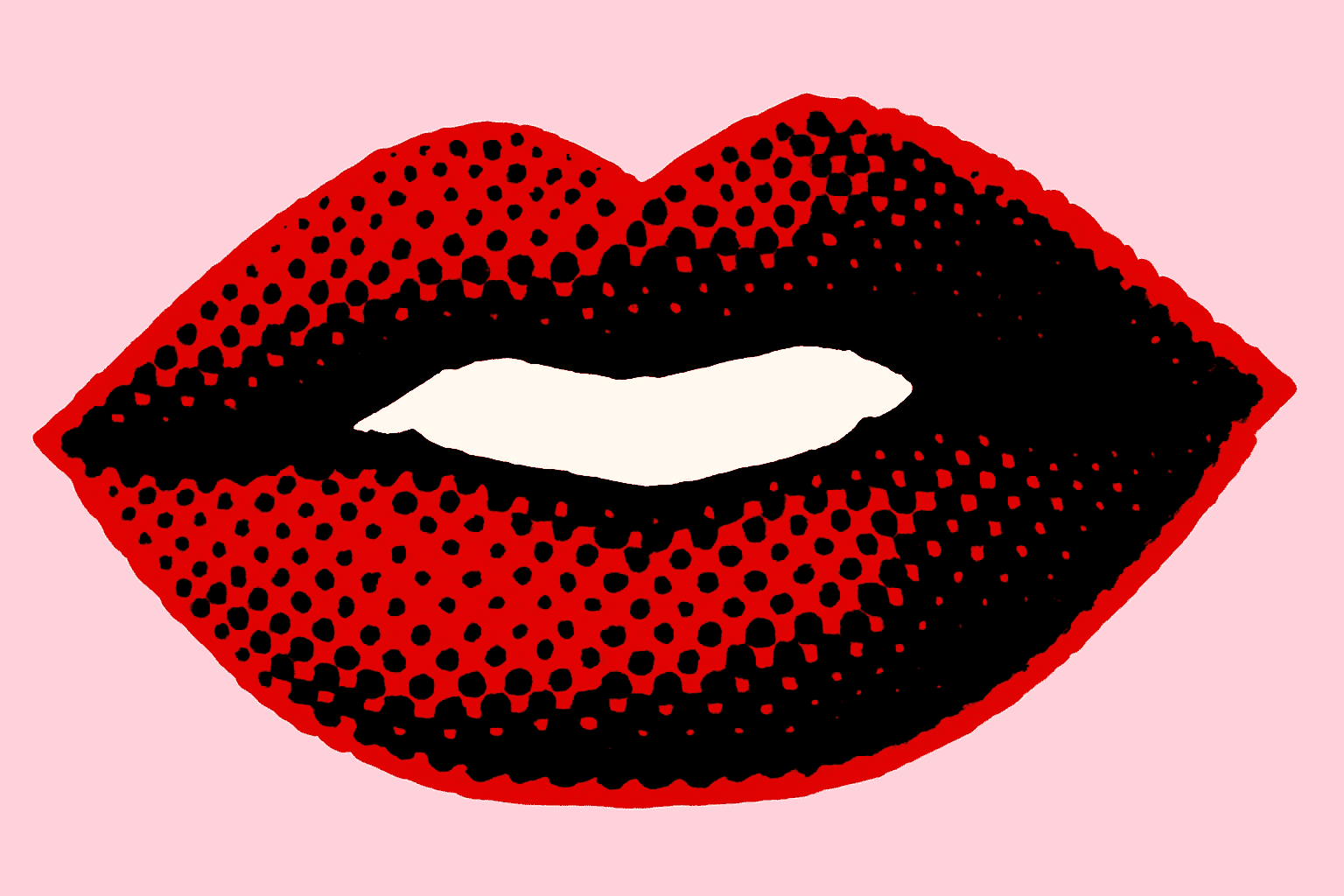
Navigate to the Photoshop Filter Gallery and delve into the Halftone Pattern option. This is where your photo begins its real transformation, with contrasts set to emphasize those characteristic pop art dots. Choose a dot pattern, and watch the magic unfold.
Step 6 – Sharpen Up
Feel free to tinker with Smart Sharpen, bringing those details into sharp focus. Again, this comes down to preference; Warhol was all about commanding presence even with simplified visuals.
Step 7 – Color Splash
This is the fun part! Layer by layer, reintroduce bold and striking colors to your photo. Think loudly and go for splashes of vibrant color that would make any Warhol canvas proud. Whether it’s Gaga’s lipstick or her extravagant hair, let your imagination go wild.
Step 8 – The Final Touches
Bring it all together with a bit of manual painting. A brush stroke here and there reinforces Warhol’s aesthetic—where going outside the lines isn’t just okay, it’s art. Adjust your colors matching your inspiration, whether it’s neon, pastel, or pure black light.
Make Your Mark
There you have it! Your personal testament to pop art culture, ready to be shared on Instagram (or framed and hung in your minimalistic apartment). Indeed, creating your own Warhol-esque art piece isn’t just about technique, it’s about embodying that rebellious spirit that Andy Warhol famously popularized.
Ready to become the next big thing in modern art? Pop art is famously hard to define, but it’s certainly not subtle. This is your chance to make a vibrant statement, or simply to indulge in a bit of technicolor madness. So go ahead—download the latest version of Photoshop and start experimenting with pop art today.
Have fun with your creative process and remember to share your work with us at Blue Lightning TV, where we’re all about empowering you to take your creative projects to the next level!
Dive Into More Tutorials
Keep exploring great tutorials, tips, and tricks on Photoshop and After Effects over at Blue Lightning TV. You never know what exciting new techniques you might discover!




