Say Goodbye to Radar Circles: A Hassle-Free Experience with Your Wacom Tablet
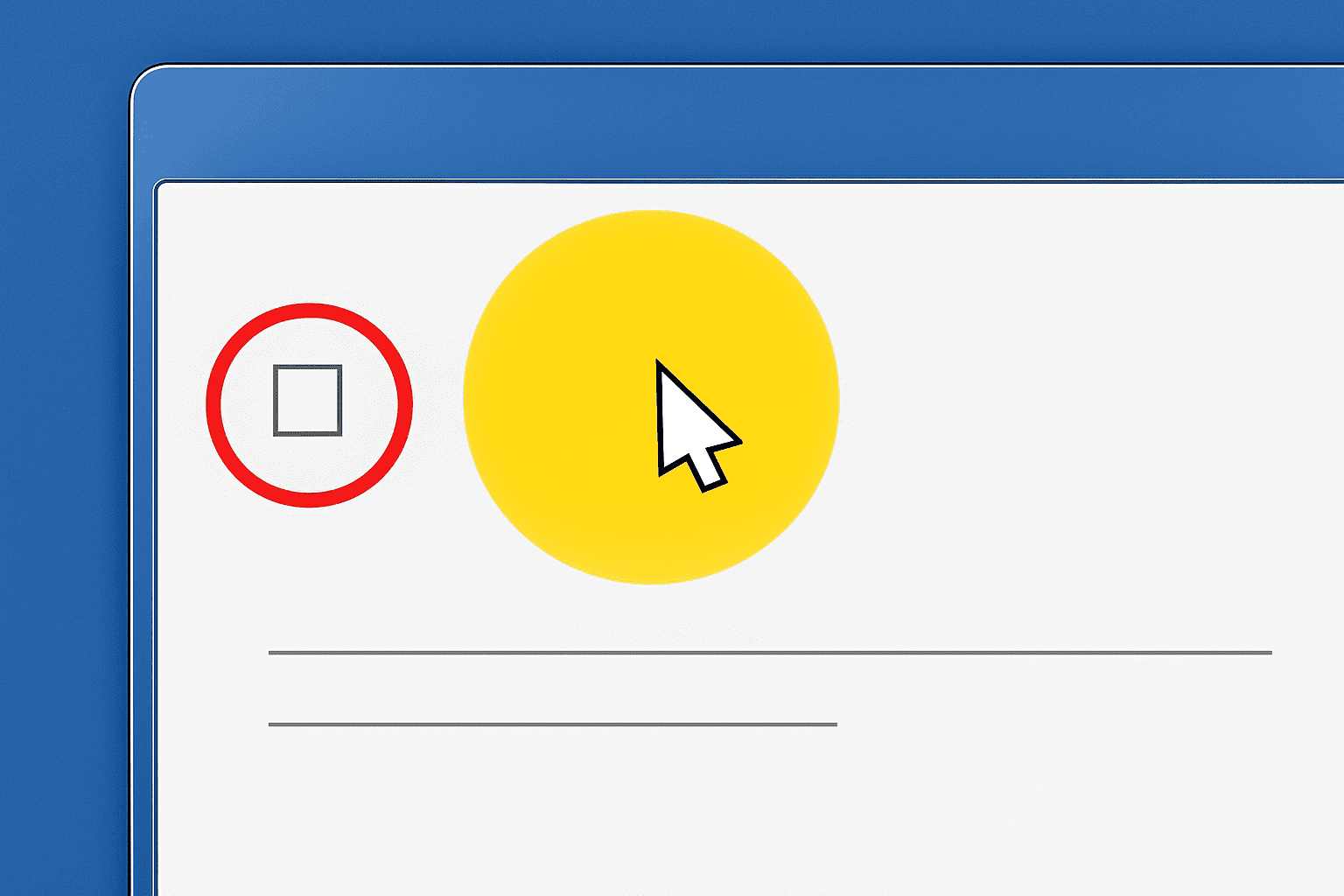
Navigating digital art with a Wacom tablet is like orchestrating your own creative symphony, but a persistent radar circle animation can throw a wrench in that harmony. For those using Windows 7 with a stylus on a Wacom tablet, this knuckle-bitingly frustrating animation appears every time you tap on the screen. If this rings a bell, you’re in the right place because we’ve got the ultimate hack to wipe that annoyance away—no more distractions from the art you’re trying to create.
Windows 7 and Wacom: The Odd Couple
Sure, Windows 7 might feel a little vintage in our breakneck-speed tech evolution, but it’s still a beloved OS for many precision artists who find comfort in its familiarity. Pair this with a Wacom tablet, and you’ve got a powerful drawing combination. However, just like Joey and Chandler from “Friends,” every great duo has its quirks. The radar circle is that quirk, appearing each time you click the pen on the tablet surface—a reminder that even tech needs a little tweaking sometimes.
Why the Radar Circle Exists
Before obliterating it into the digital void, it helps to understand why it exists. The radar circle was designed to aid users in locating cursor positions by simply tapping. It’s kind of like a sticky note for your desktop. But let’s face it, when you’re caught in the flow of creating digital masterpieces, interruptions—no matter how well-intended—are the last thing you need.
Disable the Circle of Disruption in Simple Steps
To silence the radar, Windows 7 allows you to disable this feature through a couple of straightforward clicks. Here’s how you can smoothly transition into a cleaner workspace:
1. Open the Start Menu: Relive that nostalgia of clicking the good ol’ Start button.
2. Type “Pen and Touch”: Use the search bar like the tech-savvy pro you are. When it appears in the results, give it a click.
3. Navigate to Pen Options: There lies the portal to unhindered creativity. Click on “Pen Options” and find yourself at the precipice of solving your problem.
4. Press and Hold Settings: Hunt it down and click on “Press and Hold” under Pen Options. Then, head to the settings.
5. Uncheck Press and Hold for Right-Clicking: In the settings dialog, you’ll spot the option to “Enable press and hold for right-clicking.” Uncheck this box like it’s a spam mail subscription.
6. Confirm with OK: Click “OK”, and then celebrate with another “OK.” Victory feels best when confirmed.
Enjoy Your Distraction-Free Sketching
With these simple steps, the radar circle will become a distant memory. No more unnecessary disruptions while you’re in the zone—it’s just you, your pen, and the limitless expanse of digital paper.
For more tips, secrets, and tools that help embrace the chaos or refine it, head over to the Blue Lightning TV YouTube channel. Whether you’re a Photoshop pro seeking new tricks or an After Effects aficionado hunting for fresh tests, the library of mastery we have can help you take your craft to new heights.
Now unleash your creativity without the pesky tech quirks interfering!