Transform Your Text and Graphics into Eye-Catching Neon Signs
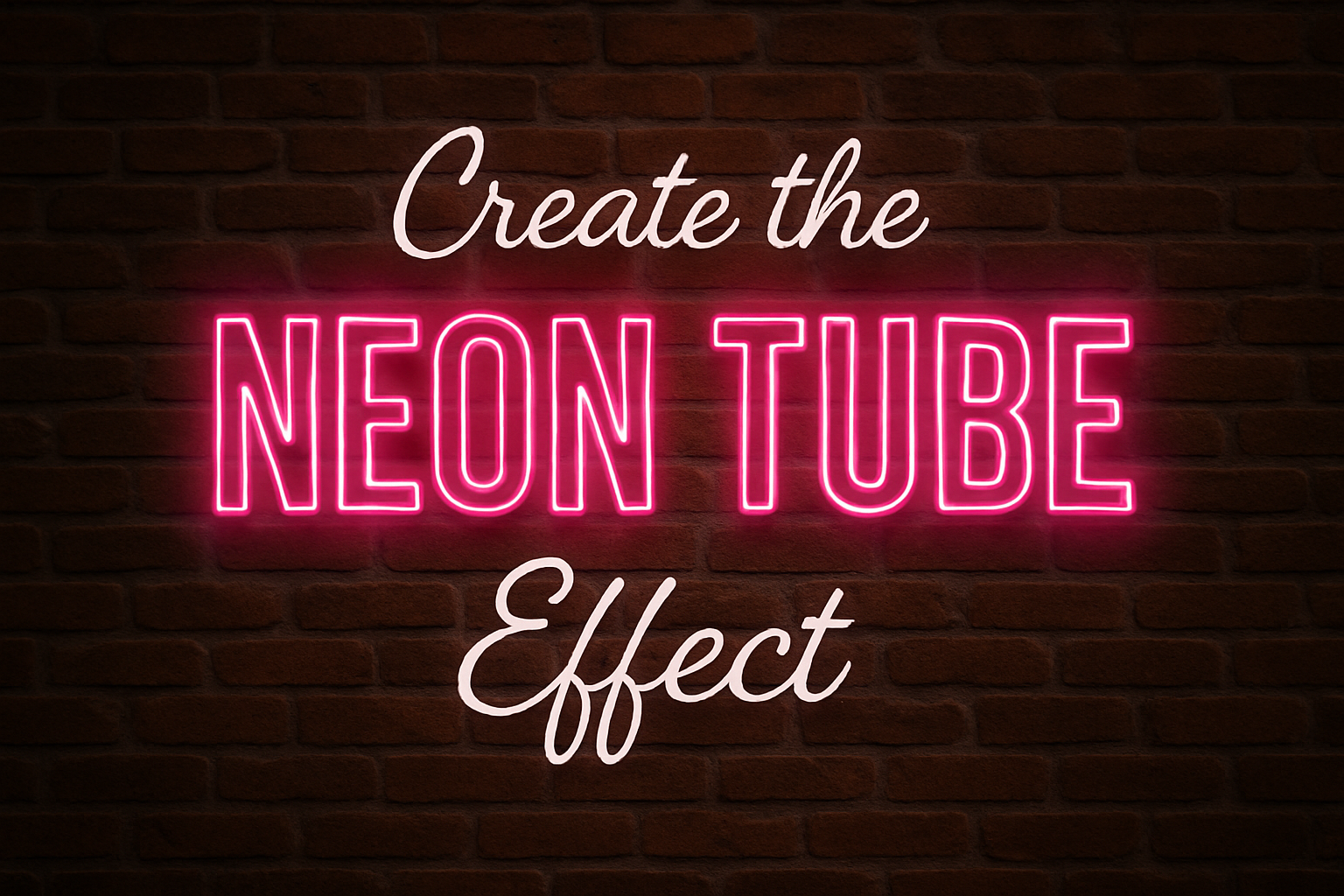
Ever look up at a neon sign and think, “I want to design something that electrifying”? You’re in the right place. Today, we dive into creating the unforgettable glow of neon tube signs using Photoshop. Whether you’re looking to spice up your text or bring graphics to life, this tutorial will illuminate your path to vibrant, glowing designs.
Step Into the Glow: Setup & Text Preparation
Let’s begin with the foundational work. We’ve provided a Photoshop PSD file with two layers: a classic brick wall and a darker version for that authentic, moody vibe. Grab these from the video’s description and prepare for some bright magic.
Fonts and Graphics: You can use the fonts provided in the intro or choose your tasteful favorite. Remember, your font shouldn’t be too thin. When working with graphics, ensure they’re high-contrast black and white images with consistent line thicknesses, mirroring the uniformity of real neon tubes.
Setting Up the Text
1. Select Your Colors: Verify your foreground and background colors. They should be white and black, respectively. Tap the ‘D’ key on your keyboard if they’re off, and ‘x’ to swap them.
2. Choose Your Font: Pop open the Type Tool and Type Picker. Play around until you find the perfect fit for your project.
3. Adjust Text: Click on your document to type it out. Resize easily by dragging the scrubby slider left or right. Use the Move Tool if you need to reposition it.
Rethink the Thickness: Crafting Smart Objects
Fonts that are prepped for neon glows often require a bit of modification:
- Duplicate your text layer (think Control/Command + J) and hide the original. Right-click on the new text layer to rasterize it.
- Convert both text layers into a Smart Object so you can make non-destructive edits and swap text without redoing the glowy magic.
Cutting Out Shapes for Neon
1. Add Backdrop Clarity: Put a black layer behind your text for better visibility.
2. Contract and Trim: Select the text layer shape, contract it by 7 pixels, and delete the interior to shape your text for neon dynamics. Deselect with Control/Command + D.
You’ve now set the stage for the dazzling glow of neon!
Bring on the Brilliance: Layer Styles & Effects
The crux of neon glow lies in mastering Photoshop’s layer styles.
- Outer Glow: Begin by setting the glow’s color using the hexadecimal: E402FF. Go for “Linear Dodge” and set the opacity to 50%. Play with technique and size to perfect the glow.
- Contour Effects: Choose “Half Round” for that realistic glow gradient.
Layer Multiplication for Depth
1. Duplicate Layers: Another layer copy will evolve the glow from mere spark to spectacle. Adjust the blend mode to “Soft Light”, and enhance opacities and spreads.
2. Shadows for Depth: Add a “Drop Shadow” to seek realistic alignment with a shadow blend mode like “Linear Burn”.
3. Color Variety: Use “Color Overlay” and tweak “Inner Glow” settings to add nuanced spectral layers and brightness transitions.
Enhance the Background: Let the Wall Shine
Glowing neon signs cast halo effects, lighting their backgrounds spectacularly:
- Convert your layered glow into a singular Smart Object and use layer masks to create an illuminated effect. This process includes making inversions and ensuring only the desired sections of your neon sign light up the background.
Dynamic Color Transformation: Easy Adjustments
Background summersaults or thematic shifts? No problem!
- Hue/Saturation Adjustments: By grouping your neon elements and applying a “Hue/Saturation” adjustment layer, you gain effortless control over your neon’s color without altering the underlying brick ambiance. Use a Clipping Mask so adjustments only affect the neon group. Swiftly glide the hue slider left or right to tune your neon sign to perfection.
With these steps, you’re empowered to craft visually entrancing neon signs, evoking warmth and nostalgia while spotlighting your flair for design. Embark on this Photoshop journey and transform any environment with the unmistakable glow of neon. Now go ahead, dazzle the virtual world!
Happy lighting!